The Complete Platform Guide
All In One Nonprofit is a complete platform of practical tools, courses, and free resources built specifically for 501(c)(3) nonprofits, the founders, executive directors, and volunteer boards who wear every hat and can't afford a different piece of software for every job.
Instead of one giant, complicated system, All In One Nonprofit is organized as focused apps grouped into areas that follow the real lifecycle of a nonprofit, from forming the organization, to governing it well, to running operations and staying compliant, to raising money and telling your story. Each tool does one job thoroughly and produces documents you can actually use: editable Word files, printable PDFs, checklists, and reports.
How it works
- Start with the assessment. Answer a few questions at allinonenonprofit.com/assessment and we will show you exactly which tools fit your organization right now, before you subscribe.
- Then set up with the setup assessment. When you are ready to open your organization, the longer setup assessment at https://www.allinoneforprofit.com/assessment/setup/ asks about your organization step by step (your board, your money, your programs, your filings, the tools you use today), recommends AIONP Essentials or AIONP Complete with the reasons shown, and saves as you go so you can come back to it from the link we email you. Your answers carry into your organization when it is created: the profile, the kind of organization and the tax classification are filled in for you.
- One sign-in for everything. Signing in is passwordless: enter your email and we send a one-click sign-in link (signing in with Google also works). One sign-in recognizes you across every app and the main site.
- Built for organizations. Everyone who signs in with an email on your organization's domain joins your organization automatically; teammates on a personal email join through an invitation, so your board and staff share one profile.
- Two plans, nothing sold separately. AIONP Essentials covers the everyday work; AIONP Complete adds grants, casework, HR and the deeper compliance tools. See https://www.allinoneforprofit.com/pricing/ for what is in each. An organization in its first year can start on the Launch Plan: everything in AIONP Essentials for six months for a one-time $199, credited toward the first subscription, the price stated on day one. On an AIONP Essentials organization the My Apps page still shows every app: the ones that belong to AIONP Complete are faded with a Complete badge, and opening one shows a page saying what it does and how upgrading works, never an error.
- Your branding, automatically. Set up your letterhead, footer, and signature once and they flow onto the documents your tools generate.
- A signature library, not one signature. My Organization holds a list of signatures (for example the executive director and the board chair), each with a label, image, signer name, and title, and one marked as the Default. Every document window across the apps offers a Signature pull-down listing them, with the Default preselected, plus No signature. The chosen signer's name and title print under the image, so a letter the board chair signs reads as the chair's letter.
Getting Started
You can be up and running in a few minutes. Here's the recommended order.
Want to look around first? Every app has an interactive demo mode, just add ?demo=1 to any app's web address (for example donors.allinonenonprofit.com/?demo=1), or browse them all from the demo page, to explore the full app loaded with sample data, no sign-in or purchase required. In demo mode the AI automations show a realistic sample of what they produce (instead of an error), so you can see each tool's output before you subscribe, and to keep the preview a preview, all exports (download, copy, and print) are turned off and replaced with a friendly Subscribe prompt.
Brand new and not signed in yet? Start with the from-scratch checklist at https://www.allinoneforprofit.com/get-started/checklist/: what to have in hand, which email addresses to create, how to choose a plan and sign in, then every setup step with a tick box.
- Sign in. Go to the member portal at app.allinonenonprofit.com (or click Sign in on any app), enter your email, and we send you a one-click sign-in link (you can also use Google). The portal lists all your apps in one place, the app launch grid sits right at the top with clear, readable text, and cards below it cover the Workflow Assessment, notifications, onboarding, and support, and you'll be recognized everywhere, open another app and it just knows you.
- Follow the setup path. allinonenonprofit.com/setup is the one ordered route through setup. Every step names Where (the app, then the card or screen), Done when (the platform reads the signal from your own records and ticks the step off itself), and Why now. The same path is the first item under Everywhere in every app's sidebar, with a green done-of-total badge; it is the Finish setting up card on My Organization; and while setup is unfinished the next three steps sit at the top of your apps page. Inside an app whose step is not done, a green one-line banner under the breadcrumb names the step and where to do it. A brand-new owner's first sign-in lands on the path once. When setup is complete the same entry reads Setup and rhythm: the recurring items, each with its cadence and its door.
- Set up your organization & document branding. On My Organization (the Profile & branding card), add your organization name, address, and EIN, upload your letterhead, fill in your footer details, and add your signature. These appear automatically on the documents you generate. (See Site-Wide Features.)
- Invite your team. Use the "My Organization" page to create your organization so your board and staff share one profile. Anyone who signs in with an email on your organization's domain joins automatically; people using a personal address join through the email invitation you send.
- Pick your starting point. Choose the apps that match where your organization is right now, just forming, tightening governance, running operations, or fundraising. The five lifecycle areas below follow that order, and AIONP Complete includes all of them, and AIONP Essentials covers the first of them.
- Generate, customize, export. Most tools follow the same rhythm: answer a few questions, generate a draft, tweak it, and export to Word or PDF, already on your letterhead.
Start with your role
The apps do the work; each role has a short first-week track that tells you what to open and in what order. Pick your seat, each link opens the matching track in the Platform Workflows.
The Hub
The Hub is the one page that answers "what needs doing?" across every organization your sign-in can reach. Open it from the Hub link in the header of My apps, or directly at app.allinonenonprofit.com/hub.
If you belong to a single organization, the Hub shows that organization's position directly. If you belong to more than one, whether you own several or consult for clients, it shows a picker listing every one with its overdue count and its due-soon count, and Open switches you into whichever you choose, without a second account and without signing out. Above the list it states plainly how many things are overdue and across how many organizations, how many fall due inside the next two weeks, and, for a consultant, any client not opened in the last month.
Needs you now is a single worklist sorted by what will hurt first rather than by which organization it belongs to. It covers compliance filings, grant reports and proposal deadlines, expired volunteer screenings, and restricted spending with no documentation attached. The next thirty days follow below it.
The weekly summary email. Every Monday morning the platform emails the same picture to whoever holds Executive Director on My Organization (then the President, then the owner; the owner is always copied): compliance filings overdue or due within 30 days, volunteer and staff screenings expired or expiring within 60 days, staff reviews past due or due within 30 days, gifts not thanked in the last 90 days, and open cases with no note in 30 days, grouped by app. It is on by default. Nothing is sent when there is nothing to report, and the link at the foot of each email stops it for that person. An owner or admin can turn it off for the whole organization on My Organization, under What happens when, in the flow Every Monday morning; the same card draws A background screening is about to expire, so you can see and change who is told.
Live organizations and demonstrations (added October 14, 2026). When your sign-in belongs to real organizations and demonstration ones, such as a consultant's practice organization, the Hub opens on the real ones, and three buttons under the heading switch between Live organizations, Demonstrations and All, each with its count. The counts and Needs you now follow your choice.
For consultants: your engagement work and what your clients have been doing (added October 14, 2026). Your engagement work lists, per client, the deliverables you owe and the recommendations you have made, each with an owner (you or the client), a due date, a status and an Implemented tick for recommendations; a dated open task joins Needs you now. What your clients have been doing is a read-only view per client of which apps saved records lately, what they completed, and their latest activity. And the organization name at the top of every app is now a menu for switching organizations, so you no longer return to the Dashboard to change client.
Waiting for you
Waiting for you (https://app.allinoneforprofit.com/waiting) is one list of everything in your organization that needs a person, worst first: what is late, what only you can decide, what is coming due, and what is open. It brings together Needs you now, your notifications and the weekly summary. The organization's list is for the owner and Admins, the people who can act on it: for them the banner on your apps page, the Hub and the notifications page lead to it. Since October 24, 2026 every member can open the page for its Today section and their own to-do list (below); anyone who is not the owner or an Admin sees those and is told the organization's list is for the owner and Admins. In a demonstration organization every member can read the whole page.
Below the list, Ready for your review holds drafts made from your own records: a thank-you letter for each gift of the last 90 days that nobody has thanked, a notice for a board term ending within 60 days, a grant report draft from your service log for a report due within 45 days, and the figures for a 990-series return due within 60 days. When an organization is built from its setup assessment, its first thank-you letters can be written by AI to read more personally; the AI version is kept only when every amount, every date, the tax statement, the greeting and the signature come through word for word, and otherwise the plain letter stays. Read every letter before you send it.
Nothing is sent and nothing changes until someone presses a button, and each draft says what its button does. A thank-you letter or a board term notice for someone with an email address on file can be edited in its box and sent with Send: it goes from your organization's name, replies come to you, you get a copy, and a thank-you also marks the gift thanked in Donor Management. Mark thanked without sending or Mark reviewed only records it, and Dismiss sets the draft aside for good. In a demonstration organization, Send emails the letter to you instead of the donor. Only the owner or an Admin can read the list and its drafts, and send, approve or dismiss them. On the For Profit line the list leaves out the nonprofit health checks and drafts, and prepares business ones instead (added October 24, 2026): a payment reminder for each sent invoice whose due date has passed, a renewal notice for a subscription renewing inside thirty days, a follow-up for a customer whose proposal has been out for a week with no change, and a thank-you for each payment received in the last fourteen days. Each is written to the customer on the record and can be sent from the page the same way.
Today and your own to-do list (added October 24, 2026)
The page opens with Today, and it is open to every member of the organization, not only the owner and Admins. It shows your Next meeting (the next event or board meeting on the organization calendar, with Join when it has a video link), your Three next steps (the worst items from the organization's list and your own list together), and Done today (what you ticked off or approved since midnight). Below it, My list is a to-do list of your own: a title, a due date, a priority, a note, and a link back to the record it came from. Done ticks an item off, Tomorrow pushes it a day, and the done items stay in a 90-day history you can reopen. A weekly routine ("Every Friday: Send invoices") is created once from the Repeats box and appears each week; this week's copy shows as late when the day has passed. Every row on the organization's list and every prepared draft has Add to my list, which copies it onto your list with its date and a link.
Your list is yours: each member sees only their own, and nobody else can read it. The owner and Admins can choose a person in the Assign to box when adding an item; it then appears on that person's own Today with "Assigned by" and the owner's address, and under Assigned to others on the owner's page. A view-only session can read but not change the list.
Write an email, on a contact in Contact Manager, a donor or customer in Donor Management, a member in Membership, and on every prepared draft that has an address on file, opens a new message in your own email with the address and the text filled in, so replies stay in your mailbox. Choose whether it opens Gmail in the browser or your computer's email program on https://www.allinoneforprofit.com/account/ under Your email.
Your week and your own calendar (added October 24, 2026). The Calendar page at https://www.allinoneforprofit.com/calendar/ opens with This week, the organization's events in one lane, filing deadlines in a second lane for the owner, Admins, the Treasurer and the Finance Chair, and, if you connect it, Your calendar in a third. Connect your own Google, Outlook or Apple calendar by pasting its private address (the page shows where to find it in each); it is read only, stored sealed, and only you see what it returns. Your own appointments then count for Next meeting on Today. Meetings this week lists each meeting with a brief of who is in it, from what the organization already keeps: the Contact Manager record, giving, open invoices, the last few notes and any of your to-do items that name them. The page also gives step-by-step instructions for subscribing to the organization calendar in Google Calendar, Apple Calendar, an iPhone or iPad, Outlook on the web and classic Outlook. A group session, such as a mastermind, appears once.
Your AI Assistant (added October 29, 2026)
Ask a question, assign a task, make a difference. At the top of Today, every nonprofit organization has an AI Assistant: a box where you say what you need in plain words and press Send. A walkthrough with pictures of every step is at https://www.allinoneforprofit.com/ai-assistant/. The same box sits on My Apps, https://app.allinoneforprofit.com/, and inside every app a Your AI Assistant button at the lower right opens it in a side panel (added November 1, 2026). It does two kinds of work. Assign a task: "Find grants for our after-school program" searches foundations from their IRS Form 990-PF filings and federal opportunities on Grants.gov, explains the fit of each result, and offers Add it, which puts the funder or opportunity into Grant Management with its deadline; "What is due?" lists your filings, renewals, grant reports and thank-yous owed, each with Start it, which creates the to-do. Ask a question: "How do I add a board member?" is answered from the platform guides, the same answers the Ask Box on the public site gives, so there is one source of platform knowledge.
It shows the plan before it changes anything and waits for Confirm. Everything it does is listed under Done by your AI Assistant with who asked and Undo, which works as long as nobody has edited the record since. Some things always stay with a person: sending email or letters, submitting filings or applications, payments and bank connections, deleting records, and changing who has access. Your seat decides how far it goes: the owner and Admins act after confirming; members act inside the apps their seat opens; interns and volunteers get drafts that wait in the approval queue; viewers and read-only consultants get answers only. Each organization has 300 requests a month. The first time you see the box, What your AI Assistant can do is open; afterwards it folds away and is one click to reopen.
Set up with it (added October 29, 2026). Say "help me set up our organization" and your Setup Guide reads the setup checklist, says what is done and what is left, and fills in My Organization one question at a time: the everyday name, the legal name ("same" copies the everyday name), the EIN, the address, the phone, the website and the mission, each with one line on why it matters. Every answer becomes a plan card you Confirm; the save goes through the same route as the My Organization page, so only the owner or an Admin can change the profile, and Undo restores the earlier value. Say "skip" to leave a question for later and "stop" to pause; it picks up where you left off. "Invite [email protected] as treasurer" sends the invitation (Undo withdraws it while it is open). A group that is not incorporated yet is pointed to the Nonprofit Formation Assistant and the Launch Plan. When the profile is complete it offers Start it on the checklist steps a person does in the apps.
Have it create things for you (added November 1, 2026). Say what you want made the way you would say it to a colleague, and the AI Assistant fills in the record in the right app. Each kind of record is a helper:
- An event: "Create a skating fundraiser on February 13 at 6 PM at the rink, adult tickets $20" makes a draft event with its ticket types in Fundraising & Development. Nothing is public until you publish the registration page.
- A board or committee meeting with an agenda: "Schedule a board meeting on December 14 at 7 PM to approve the budget" adds the meeting to Board Management with an agenda in the usual order of business (call to order, the last minutes, the treasurer report, committee reports, then the topics you named). With no place given, it uses where the last meeting was held. You send the notice yourself.
- A volunteer shift: "Add a shift for the ice show box office on December 12 from 5 to 8 PM, 4 volunteers" adds the shift in Volunteer Management, under the matching volunteer opportunity.
- Volunteers to ask: "Find volunteers for the ice show" picks the shift, lists the active volunteers who are not on it yet, best match first by their interests, skills and availability, and writes a message for you to send. It changes nothing.
- A gift received: "Record a $500 check from Maria Lopez for the Skater Development Fund" adds the donor if needed and records the gift in Donor Management, which books it in Financial Management.
- Thank-you letters: "Write thank-you letters" lists the gifts not yet thanked, writes each letter from the gift record (with the receipt line at $250 or more), and on Confirm marks the gift thanked and keeps the letter in its notes. You send it.
- A compliance deadline: "Add our county grant report due March 1" adds it to the Compliance Tracker. Filings the tracker already carries, such as the Form 990, are not added twice.
- A task for someone: "Remind Monica to book the ice by Friday" puts it on Monica's list on Today. The owner or an Admin can assign to others; anyone can say "remind me to ...".
Every helper shows the plan first, changes nothing until you press Confirm, and has Undo until someone works in the record (a meeting with minutes, a shift with volunteers signed up). Need it to create something else? Helpers are built by us, once, for every organization; nobody has to build their own. Ask for one at https://www.allinoneforprofit.com/form/?t=ai-helper-request with one sentence you would type to the AI Assistant and what the record should carry, and we email you when it is ready.
The difference from the Ask Box: the Ask Box, on the public site and in every app's Help, explains the platform and never touches your records. The AI Assistant, inside your signed-in organization, does the work, and carries the Ask Box's knowledge with it. More specialists are planned, such as a Treasurer's Helper, each adding things it does rather than explains.
The Workspace
The Workspace shows every organization your account can operate as its own block, with that organization's figures side by side. Open it from the Workspace link in the header of My apps, or directly at app.allinonenonprofit.com/workspace.
Each block carries the next filing and how many are overdue, revenue and expenses for the month and the fiscal year to date, net and restricted money, giving, the organization health score with its top issue, which key records are on file and which are missing, open staff items, and volunteers whose screening has expired. Create report builds a monthly, quarterly, or annual report on any organization from that page without changing the organization you are working in.
The Workspace is built for somebody operating several organizations at once. If you belong to only one, the Hub is the more useful page.
The Credibility Checklist
Whether somebody gives, volunteers, joins your board, or lends a company's name often turns on one quiet question: does this organization look responsible, organized, and safe to associate with? Nobody will ever tell you that was the reason. The Credibility Checklist at app.allinonenonprofit.com/credibility is the mirror.
Part of the list confirms itself from what the platform already knows: whether your EIN resolves to a recognized tax-exempt organization whose IRS-listed name matches your settings, whether your organization settings are complete, whether your email is on your own domain, and whether your 990-family filing is on time in the Compliance Tracker. The rest are honest checkboxes with a link to where each fix happens, from a consistent street address (a registered agent or other discreet business address, never a home address) to a working donation page, a board-approved budget, professional presentation materials, and thank-yous that go out within days.
It is a working list, not a grade: progress reads as a count, nothing produces a score, and nobody outside your organization sees it. It is reached from a card on the Hub and is visible to the owner and admins only, because it shows gaps and they are the people who fix gaps. The rule the whole list serves: credibility is created through congruency, every public touchpoint telling the same story.
There is also a printable version you can put on a clipboard or hand to your board: press Print or save as PDF at the top of the checklist.
The Board Self-Assessment
Strong boards ask "how are we doing?" because they want to get better. The Board Self-Assessment lets a board answer that question honestly: the owner or an admin opens a round from the Board Self-Assessment link in Board Management (or directly at app.allinonenonprofit.com/board-assessment), and every board member gets a personal link by email. No account and no password: the link is the whole sign-in, because most board members will never have one and should not need one to be heard.
Each person answers the same eight areas with a rating and a sentence: governance versus management, mission and strategy, preparation and follow-through, composition, oversight, the executive director relationship, fundraising and relationships, and meetings. Answers save as they type. Ratings combine anonymously, written comments appear without names, and results show only once at least three people have submitted, because on a small board an average of one is not anonymous.
The combined picture puts facts beside perceptions where the platform has them: recorded attendance from Board Management appears next to how prepared the board believes it is, meeting counts next to how it rates its meetings, and the roster's terms next to how it rates its composition. Each weak area comes with one suggested next step, because the assessment is not the goal; what the board does afterward is. Nothing here produces a score anyone outside the organization can see or demand.
There is also a printable version for a board that wants to start the conversation on paper: press Print or save as PDF at the top of the assessment page.
Automate Your Workflow!
Over 200 AI automations across the platform draft your letters, plans, minutes, and reports from the information you already entered. You review and edit everything before it is used.
Tools with AI automations
- AI Workflow Automation, 75 ready-to-run templates drafted by AI from your answers, plus your own uploaded custom templates, a plain-language "What do you need?" search, and freeform AI drafting when no template fits, with an approval outbox, follow-up reminders, and email built in. Open the app →
- Donor Management (21): thank-you letters, year-end giving statements, lapsed-donor win-backs, cultivation briefs, and a weekly who-to-call digest. AI guide →
- Technology & Digital Services (17): a full annual technology plan, website audit action plans, tech budgets, policy packs, website copy, and quick wins for your stage. AI guide →
- Board Management (19): meeting minutes and agendas, the board packet and annual budget compilers, a spending policy drafter with invoice approval log, succession plans, and a governance calendar. AI guide →
- Committees (22): charters and gap reviews, financial oversight reports, budget requests, editor publication reports, the internal financial review, subcommittee charters, agendas, minutes, and annual work plans. AI guide →
- Membership (12): renewal reminders and bulk renewal sends, new-member welcomes, dues receipts, lapsed-member win-backs and campaign plans, a directory compiler, and an annual membership report. AI guide →
- Volunteer Management (9): a full volunteer handbook, recruitment and onboarding plans, recognition notes from real logged hours, and shift appeals. AI guide →
- Fundraising & Development (9): annual development plans, campaign plans, gift range charts, readiness assessments, and fundraising calendars. AI guide →
- Marketing (8): campaign kits, press releases, newsletters, email sequences, and social post packs. AI guide →
- Risk Management & Insurance Audit (9): a full risk management plan compiler, a risk register, coverage gap analysis, crisis plans, broker briefs, and event and vendor reviews. AI guide →
- Grant Management (7): a full proposal compiler, letters of inquiry, funder-fit briefs, logic models, budget narratives, and grant reports. AI guide →
- Compliance Tracker (7): an annual compliance plan from your live filing data, board reports, gap assessments, and resolutions. AI guide →
- Impact & Outcomes (7): impact narratives, funder reports, theory-of-change builders, indicator recommendations, and surveys. AI guide →
- Operations Audit (7): improvement plans from your audit scores, board summaries, internal-controls checkups, and SOPs. AI guide →
- HR Management (7): offer letters, job descriptions, interview kits, performance improvement plans, and conversation prep. AI guide →
- Board Handbook (7): handbook gap reviews, plain-English bylaws summaries, chair welcome letters, and orientation plans. AI guide →
- Executive Director (7): board reports, annual goals from your strategy, a self-evaluation narrative, conversation talking points, a 90-day plan, an ED job description, and a new-ED welcome. AI guide →
- Board Officers (7): officer welcome letters, tailored role descriptions, onboarding plans, succession briefs, transition memos, outgoing-officer thank-yous, and new-officers announcements. AI guide →
- Annual Report (6): your ED letter, program narratives, at-a-glance highlights, and a full report compiler. AI guide →
- Scholarship Management (6): a full program plan, eligibility and criteria builder, donor updates, and award, decline, and announcement drafts. AI guide →
- Document Retention & Security (5): an AI Acceptable Use Policy, a Third-Party & AI Vendor Vetting Policy, a Social Media Policy, a BYOD & Remote-Work Device Policy, and a Policy Binder Compiler. AI guide →
Every automation lets you copy, download as Word or text, print, email, or queue the result for approval. See pricing for which plan each belongs to.
Predictions
Several apps now include a Predictions page that reads the data already in your app and flags what is likely to need attention next, so you can act before a problem lands instead of after.
Every prediction is transparent and built from your own data. There is no black-box machine learning: each score shows the factors behind it (for example, time since last gift, missed deadlines, or declining scores), so you can see exactly why something was flagged and decide what to do. Predictions are guidance, not guarantees, and they are free for everyone. Each Predictions page also offers one AI brief button that writes a short plain-language summary of what the numbers mean and where to focus; that brief is one of the AI automations included in your subscription.
Apps with Predictions, and what each one predicts
- Donor Management: donor lapse-risk plus giving-capacity and who is ready to be asked to upgrade. Open the app →
- Membership: member renewal-risk plus a dues forecast. Open the app →
- Grant Management: a grants pipeline forecast, a funder-fit indicator, and deadline risk. Open the app →
- Fundraising & Development: a grants pipeline forecast and deadline risk. Open the app →
- Compliance Tracker: deadline-miss risk for your filings. Open the app →
- Volunteer Management: volunteer attrition and disengagement risk. Open the app →
- Impact & Outcomes: outcome trajectory, whether you are on pace or behind a target. Open the app →
- Board Management: attendance risk plus a term-cliff view of which seats are coming up for renewal. Open the app →
- Operations Audit: capacity risk by audit area, surfacing low or declining scores. Open the app →
- Scholarship Management: rubric-based applicant ranking and a shortlist. This is a decision aid for a human committee, objective and nondiscriminatory; it never makes an automated award. Open the app →
Workflow Assessment
A guided review of how your organization actually operates: 123 questions across 15 operational areas that turn your answers into a prioritized action checklist, with a deep link into the exact screen that fixes each gap.
How it works
- 123 questions across 15 operational areas: board governance, fundraising, grants, volunteers, membership, financial management, compliance, HR, programs, marketing, events, records, risk, technology, and leadership.
- Scoped to your stage: you pick your organization's life-cycle stage (Just starting, Newly formed, or Established) and the question set fits it; earlier stages get shorter sets. Your organization name and EIN pre-fill from your Organization Profile.
- One shared living document: any signed-in team member can contribute, everyone works on the same assessment, and every answer saves automatically. For each question you record your current practice (three levels, or Not applicable), rate its impact from 1 to 5, and add an optional note.
- Scoring that prioritizes: the gap between your current practice and the goal is multiplied by the impact you assigned, so the significant gaps rise to the top.
The action checklist
- Significant gaps become a prioritized action checklist grouped by domain. Every item shows your current state, the goal, and step-by-step how-to-fix guidance, and every one of the 123 questions carries a deep link into the exact screen of the right app, so fixing a gap starts one click away.
- Checking an item off is task tracking only. A hint under a checked item invites you to update the underlying answer; updating the answer is what actually removes the gap and recomputes the checklist instantly. A Review or edit your answers button reopens the question flow at any time.
- Re-assess archives your current pass as a snapshot (so you can see progress over time) and starts a fresh pass, keeping your stage.
The portal card keeps you oriented: before you start, it explains that the assessment will analyze your workflows and show how to improve them with AI automations across the platform; in progress, it shows how many of the questions you have answered; and once complete, it shows how many priority gaps the assessment identified from your answers, then how many of those gaps you have addressed.
⛪ Using the Platform as a Church or Faith-Based Organization
The platform understands that a church is not a standard nonprofit: it files no annual return, its minister is paid under different tax rules than any other employee, and its giving arrives in numbered envelopes on Sunday morning. Set your organization type once and every app adjusts. Here is the whole journey, from "are we a church?" through weekly operations.
Step 1: Confirm you are a church in the IRS sense
This answer changes everything downstream, so settle it first. A church is automatically tax-exempt, files no Form 990, and cannot use Form 1023-EZ. A religious organization that is not a church must apply for recognition and file the 990 series every year. The IRS weighs fourteen characteristics and no single factor decides it, so use the guided 14-factor church check: it walks each characteristic, records your answers, and produces a written rationale your board can keep. It is linked from the Formation Assistant, the Form 1023 tool, and the Compliance Tracker, and takes about ten minutes.
Step 2: Formation and the 1023 decision
Form the corporation like any nonprofit with the Nonprofit Formation Assistant; it routes churches to 509(a)(1) public-charity status by activity, with no public support test, and to Schedule A. The Form 1023 tool knows churches cannot file the streamlined 1023-EZ and says plainly that a church is automatically exempt and may choose not to apply at all; many still file the full 1023 voluntarily so donors and grantmakers can see a determination letter.
Step 3: Compliance without the 990
Tell the Compliance Tracker you are a church and it removes the entire 990 series, with a notice explaining the exemption (IRC 6033(a)(3)(A)(i)) and why the three-year auto-revocation rule does not reach you. It keeps in front of you what a church still owes: payroll filings if you have employees, Form 990-T if unrelated business income reaches $1,000, state corporate and charitable registrations, and one deadline unique to churches, the annual housing allowance designation, described next. Its setup wizard gives a church the true reason it asks for revenue (state audit thresholds and registration tiers, not a Form 990 version), and its Course Modules carry a church notice naming which lessons do not apply. Tell it you are a 501(c)(3) private foundation and it swaps the 990 series for the foundation's own filings: Form 990-PF, the section 4942 minimum distribution (about 5% of investment assets, paid out by the end of the following tax year), Form 4720 in any year a self-dealing or other Chapter 42 excise tax is owed, and the quarterly estimated payments of the 1.39% tax on net investment income once the year's tax will reach . A foundation is set up exactly like a public charity; the one classification on My Organization is what changes the filings, and the home state's charitable registration item stays, because some states register every charity holding assets there whether or not it solicits.
Step 4: Pay your minister correctly
The HR Management app gains a Clergy Compensation section for churches. Ministers are dual-status: no FICA on ministerial wages (the minister pays SECA instead unless a timely Form 4361 exemption applies), income tax withholding only if elected, and a housing allowance that is excluded for income tax but stays in the SECA base. The section runs the least-of-three housing worksheet (designated amount, actual costs, fair rental value), stores the designation record with a hard block on retroactive dates, tracks the minister flags and the unforgiving Form 4361 deadline, and walks the W-2 boxes that differ for a minister. Churches also owe no FUTA on any employee, and the payroll checklist and compensation calculator both say so. Every clergy screen carries the same line: this tool structures, calculates, and documents; your CPA or tax counsel confirms the numbers.
Step 5: The annual housing allowance resolution, the loop no church software runs
The housing allowance must be designated in advance, by official board action, before the payments it covers (Treasury Regulation 1.107-1(b)), and it cannot be backdated. Churches miss this constantly, and every missed month costs the pastor the exclusion. Here the three apps close the loop: the Compliance Tracker fires the annual deadline before January 1, the HR worksheet produces the figure, and the Board Management Resolutions page shows churches a band that prefills the formal designation resolution and routes it to the board for e-signature, with the adopted, signed copy auto-filed in your Document Library. Put it on the November agenda every year.
Step 6: Sunday giving, envelopes, and the counting team
Donor Management handles congregational giving the way your counting team actually works. Assign each giving household an offering envelope number on its record (with a duplicate check so two households never share a number), then on Monday open Gifts → Offering count and batch-enter the plate: envelope number and amount per row, a check number if it was a check, the giver’s name resolving beside each row as you type, and blank-envelope rows recorded as loose offerings. Every line becomes a normal gift, so year-end giving statements (with the quid pro quo wording the IRS expects), thank-yous, funds, and the accounting export with restriction classes all work unchanged. Restricted funds like a building or missions fund are just designations on the gift. Recurring commitments display as tithes, and online giving through your own Stripe account feeds the same records automatically. One safeguard runs at the point of entry: a gift whose designation points at a person rather than the ministry (a love offering, a wedding or funeral fee) triggers a caution that it is taxable compensation to that person and belongs in payroll, not on a giving statement.
Step 7: Your own words, everywhere
With the church organization type set, the platform speaks your language across every app: donation becomes offering, donor becomes giver, board becomes council, program becomes ministry, a recurring gift becomes a tithe. Because traditions differ, governance titles are yours to set: use the per-term overrides on My Organization to display elder, deacon, vestry, session, or trustee wherever the platform says council. Only the words on screen change; your stored records, exports, and formal documents keep standard names, so a resolution still says what your bylaws say.
What this platform deliberately is not
This is your church’s back office: governance, compliance, people, money, and communication. It is not worship software, so service planning, attendance and child check-in, and scheduling volunteers by service remain the territory of dedicated church management tools, and it does not prepare denominational reports. Everything tax-related here is educational: structure, calculate, document, then have your CPA or tax counsel confirm.
Formation & Governance Apps
Form the organization and make the board work: incorporating with your state, the IRS filings, the board handbook, board management, committees, and each officer's playbook.
Nonprofit Formation
End-to-end help to legally form a 501(c)(3) in any of the 50 states, from incorporating with the state to drafting the documents the IRS expects.
Key features
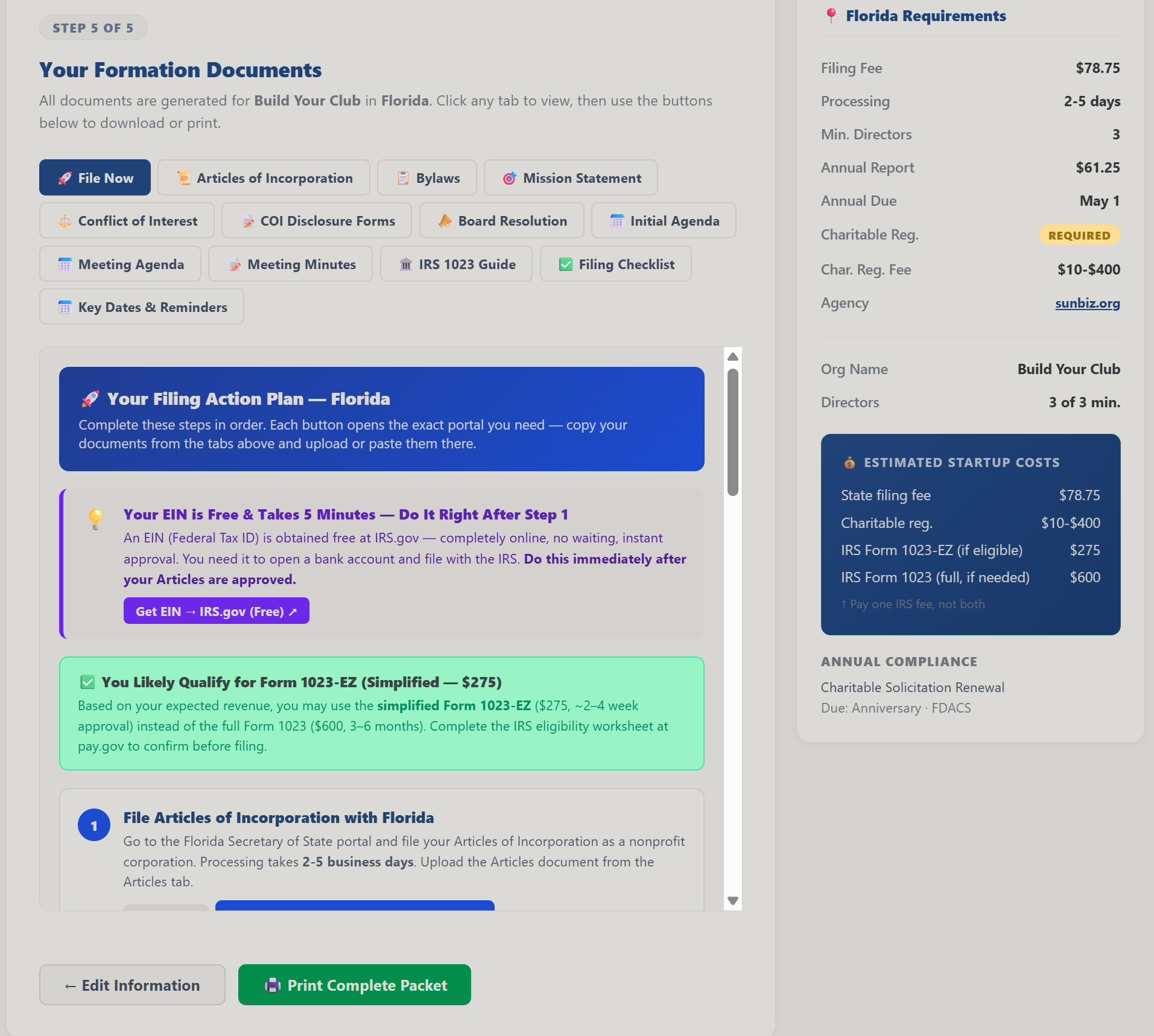
- State-specific guidance for all 50 states, the steps, agencies, and requirements that actually apply to you.
- Articles of Incorporation generator that includes the IRS-required purpose and dissolution language.
- Bylaws generator reflecting your state's nonprofit act.
- Form 1023 preparation: narratives, schedules, and attachment guidance (continue in the IRS Forms Assistant).
- First board meeting kit: agenda, minutes template, and founding resolutions.
- Choose the right 501(c)(3) status: guidance on public charity vs. private foundation and the 509(a)(1), 509(a)(2), and 509(a)(3) classifications, including operating vs. non-operating private foundations.
- Be your own registered agent, or use a service: a plain-language comparison that leads with the privacy of keeping your home address off the public record.
- Do these first, and file last (October 2026): the welcome screen card Before You File: The Order That Works and the guide section of the same advice: learn from founders who have done it, write a short plan, recruit a board for what it brings, line up your first funders, then incorporate and file. Adapted from Joan Garry's How to Start a Nonprofit, with credit.
- Built-in glossary of formation terms (501(c)(3), registered agent, dissolution clause, and more) in plain language.
- Your progress is saved automatically, and documents export to editable Word.
- A better purpose clause (added October 14, 2026): the purpose screen says that the IRS-required purpose and dissolution language is added automatically, gives a short checklist for a good clause, and offers Review my purpose with AI, which flags private benefit, vague or non-charitable wording and suggests a cleaner sentence (not legal advice). The board step warns once when a named director has no address, and the checklist has a step for county and city business tax receipts and licenses.
How to use it
- Select your state and answer a short set of questions about your organization.
- Work through the roadmap, running each generator (Articles, Bylaws, first-meeting kit) as you reach it.
- Review and edit the generated text, then export to Word to finalize and file.
For a step-by-step first session, see the Nonprofit Formation guide.
Open the Nonprofit Formation →IRS Forms Assistant
One tool for the three IRS filings a nonprofit runs into most: the Form 1023 application for 501(c)(3) tax-exempt status, the Form 1024 application for other exempt organization types, and the annual Form 990 return once you're up and running. It replaces what used to be three separate apps.
Key features
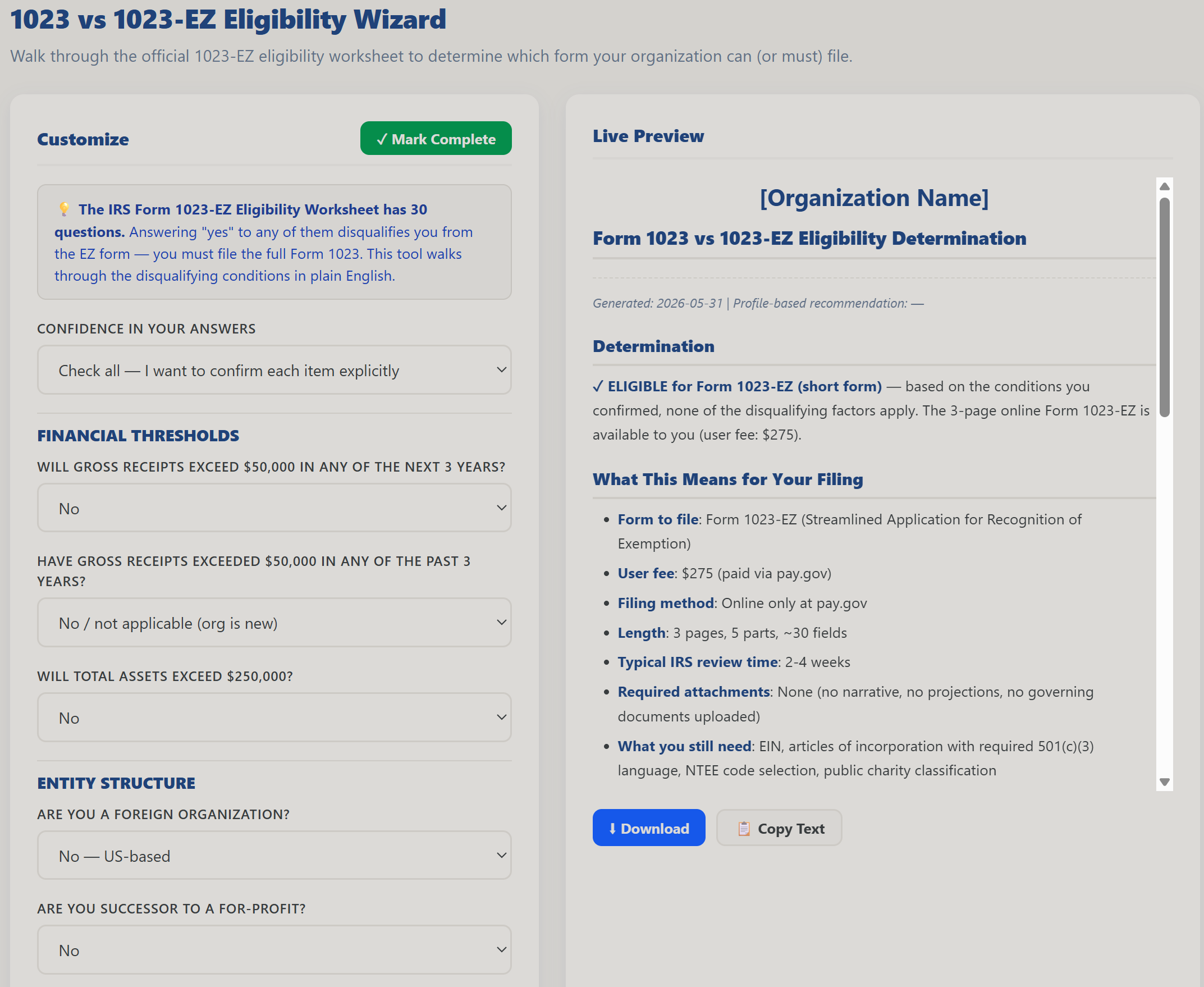
- Form 1023 application: a 1023-EZ eligibility wizard, seven guided generators, a narrative builder with an AI drafter for the Part IV Narrative Description of Activities, and a public support test calculator.
- Form 1024 application for organizations that are not 501(c)(3) charities: type-aware guided parts for 501(c)(4), (5), (6), and (7) organizations, Form 1024-A and Form 8976 awareness for social welfare groups, and an activities narrative drafter.
- Form 990 annual return: a version selector (990-N, 990-EZ, or the full 990), a document checklist, a Program Service Accomplishments tool for Part III with an AI drafter, and a Public Support Test calculator covering both the one-third test (Schedule A Part II) and the 509(a)(2) test (Part III).
- Glossary of IRS terms across all three filings (public charity vs. private foundation, 509(a)(1)/(a)(2), public support test, UBIT, and more).
- Cross-links to the Nonprofit Formation app, document branding, and Word export of everything.
How to use it
- Pick the filing you need: Form 1023, Form 1024, or Form 990.
- Work through that filing's guided parts, using the narrative or program-accomplishments drafter for the written sections.
- Export to Word, review against the live IRS form, and file (or hand a clean package to your filer).
Keeping your public charity status
Most 501(c)(3) organizations are public charities, and that status is worth protecting. Public charities offer donors higher deduction limits, pay no tax on investment income, and face no mandatory annual distribution. Private foundations get none of that and carry stricter self-dealing rules on top.
The status is not permanent. The IRS measures it with a public support test over a rolling five year window, and an organization that falls below the line long enough is reclassified as a private foundation. The sector calls this "tipping," and the usual cause is not misconduct. It is one unusually large gift that quietly changes the math, because any single donor only counts toward public support up to 2 percent of total support. The rest of that gift still helps the organization; it just does not help this ratio.
Two details that keep people calm when they first meet this:
- Falling below the line for a single year is a warning, not a reclassification. Status is lost after failing two consecutive years.
- An organization in its first five tax years is treated as publicly supported without the computation at all.
Where to work it out: the Form 990 tool includes a Public Support Test calculator covering both Schedule A Part II and Part III. Board Management has a full lesson on the arithmetic and the warning signs.
A note on advice: public support calculations carry exceptions that depend on your facts, including unusual grants and which of your funders are governmental units or other public charities. Use the calculator to understand your position, and work with a nonprofit CPA or tax attorney on your filing.
For a step-by-step first session, see the IRS Forms Assistant guide.
Open the IRS Forms Assistant →Board Handbook
Generates a complete, professional board handbook across the eight essential sections every board should have, the document you hand every new director on day one.
Key features
- Eight complete sections: organization overview, roles & responsibilities, policies, meeting practices, and more.
- Fill in your org name, mission, and board details once and they flow throughout.
- Customize any section; your edits persist between visits.
- Word export of the full handbook, on your letterhead if you've set up document branding.
- Send for signature: send the handbook acknowledgment (or any generated document) to your directors for electronic signature, prefilled from your board roster, using the platform's e-signature system; signed copies file automatically into your Document Library.
- Board Responsibilities (October 2026): the generated handbook gains a section on the three fiduciary duties, with stewardship of the organization's money, space, equipment, people and reputation inside the duty of care, and what strong boards do beyond the legal minimum (culture, strategic focus, checking that the work is working, sustainability, ambassadors, skills and connections). The same points are in section 9 of the Board Handbook guide.
- Model policies and review dates (added October 18, 2026): a second group on the Policies step holds ten model policies (strategic partnerships, a code of ethics with a grievance procedure, public disclosure, investments, procurement, technology and communications, an emergency plan, donor privacy, advocacy and lobbying, fundraiser compensation) as starting text for your board and attorney; each joins the exported handbook once it has an adoption date. Every policy, and your mission, vision and values, has a Last reviewed by the board date, and the next review, three years out, appears in the Compliance Tracker. A Meeting Recording and AI Use Policy was added on October 20, 2026.
How to use it
- Enter your organization basics.
- Generate all eight sections, then customize the language to fit your board.
- Export to Word and distribute to your directors.
For a step-by-step first session, see the Board Handbook guide.
Open the Board Handbook →Board Management
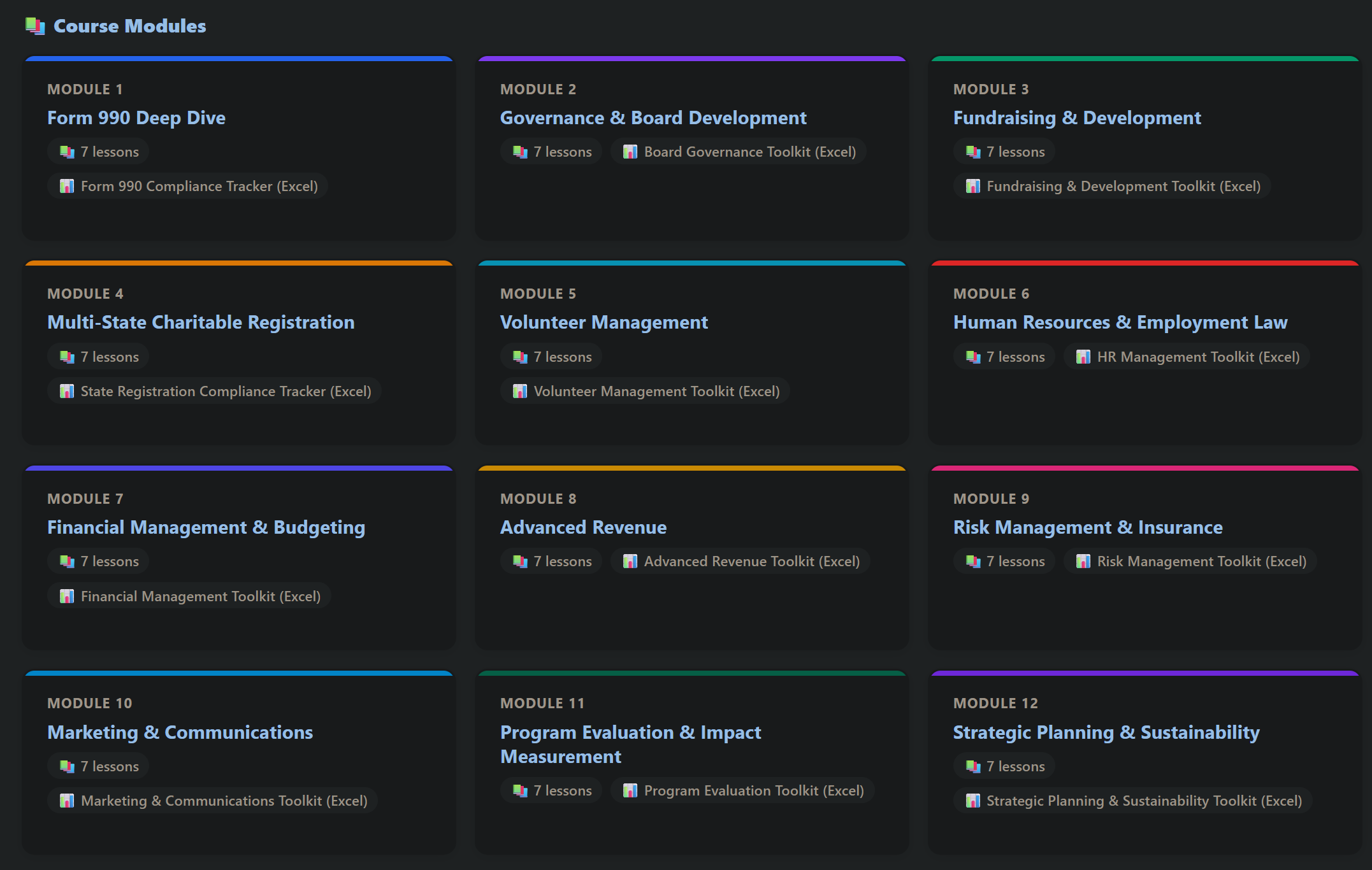
A complete board operations app: a structured course on how a nonprofit board actually works, plus the living tools to run one, a board of directors roster, an officers directory, a succession page, and AI automations that draft your minutes, agendas, and board packets.
Key features
- Board Management course: self-paced lessons on the board's legal duties (care, loyalty, obedience), recruiting and onboarding directors, and running effective meetings, agendas, quorum, voting, and minutes, with notes, a resource library, and progress you can mark complete.
- Board of Directors roster: track every director's role, term, and contact details in one place.
- Officers directory and a succession page to record your leadership slate and plan transitions.
- Live in-meeting Motion Tracker: on a meeting record, open a motion (with who made and seconded it and the pass threshold), then capture each member's vote (For, Against, Abstain, or Recuse). A live tally, a quorum check, and a pass or fail result update as you record votes, and the full motion record is written into that meeting's minutes (and carried into the AI-drafted minutes).
- Board Resolution sign-off workflow: compose a resolution (number, date, title, and text) and route it to each director for electronic sign-off. Each signer gets a private link, and you see per-signer status (signed or pending) with the signed name, date and time, IP address, and signature type. A completion report gives you the full audit trail, and the adopted resolution files itself into your Document Library.
- Bylaws Provisions: the Article IV sections your bylaws set for the board (Number, Qualifications, Term, Election, Vacancies, Removal and Resignation), each an editable text box prefilled with the formation template wording, with Put it on the next meeting's agenda (a [Decision] line and a two-thirds motion on the next meeting, ready for the Live Motion Tracker) and Draft the resolution (Board Resolutions prefilled with the text). The page sits in the Board group of the sidebar, under Board Resolutions.
- ⛪ Churches, the annual housing allowance resolution: when your organization type is Church or faith based, the Resolutions page adds a band that prefills the minister’s Section 107 housing allowance designation resolution with the proper advance-designation language (it must be adopted before the payments it covers and can never be backdated, per Treasury Regulation 1.107-1(b)). Confirm the figure in the HR app’s Clergy Compensation worksheet, replace the brackets, and send it for sign-off; the Compliance Tracker carries the annual before-January-1 deadline. See Using the Platform as a Church.
- ED Evaluation (the board's annual review of the executive director): a chair-led, 7-step process (governance calendar, goals, board input, the ED's self-evaluation, an executive session, compensation with comparability data, and minutes) with an autosaving worksheet, a Build evaluation record document, and an AI-drafted evaluation summary. A "Board input and year-round notes" card lets the chair gather notes from any board member all year, by paste or by uploading a Word, PDF, or text file; then Compile notes into the worksheet (AI) synthesizes the themes without naming who said what and drops them into the worksheet for you to review before anything is saved. It links both ways with the Executive Director app's self-evaluation.
- Continuity Plan (key-person loss): the board records, ahead of time, who holds every account and login, key and vehicle, one-person relationship, and recurring duty, with a backup for each and where the credential lives (never the password itself). People come from the board roster, officers, HR directory, and My Organization positions. A first-30-days worksheet plus a Draft the 30-day plan (AI) button turns it into a day-one, first-week, first-month plan; build the whole plan as a Word document on letterhead or save it to the Document Library; the next review date lands on the Organization Calendar and the Dashboard shows the plan's status.
- Founding Board: First 90 Days checklist: a saved, interactive start-here guide for a brand-new board standing up governance from zero (seat your directors, elect officers, adopt bylaws and policies, collect conflict-of-interest disclosures, hold the first meeting, form committees, and set the governance calendar), with each step linking to the tool that does it.
- 19 AI automations: meeting minutes and agendas, board-packet and annual-budget compilers, a spending-policy drafter with an invoice approval log, succession plans, and a governance calendar.
- Board reports cite your real impact: the board-packet and board-report compilers now weave in your real measured program impact (cost per outcome and results) from the Impact & Outcomes app when you have captured it, so board reports cite real numbers instead of placeholders.
- Settings and document branding so everything you export carries your letterhead and footer.
- Predictions (free): attendance risk plus a term-cliff view of which seats are coming up for renewal. See Predictions.
- Minutes from a recording or a transcript (added October 20, 2026): the Meeting Minutes Drafter takes the transcript file from Zoom or Google Meet, or the recording itself (turned into text on your computer and never stored), and drafts action, summary or detailed minutes. Minutes stay a draft until the board approves them; then they are locked, sent to the secretary to sign and filed in the Document Library. Executive session minutes are filed separately. The Meetings page searches agendas, minutes and action items, the agenda builder handles a consent agenda with a clock time for each item, and directors see upcoming agendas and approved minutes on a Board meetings card in the member portal.
- Board giving on the roster (October 18, 2026): the Board of Directors roster shows each director's gifts this year from Donor Management, with board giving participation.
How to use it
- Work through the course lessons, or jump to the topic you need.
- Build your board of directors roster and officers directory, and plan ahead on the succession page.
- Open AI Automations to draft minutes, an agenda, or a board packet, then export them on your letterhead.
For a step-by-step first session, see the Board Management guide.
Open Board Management →Committees
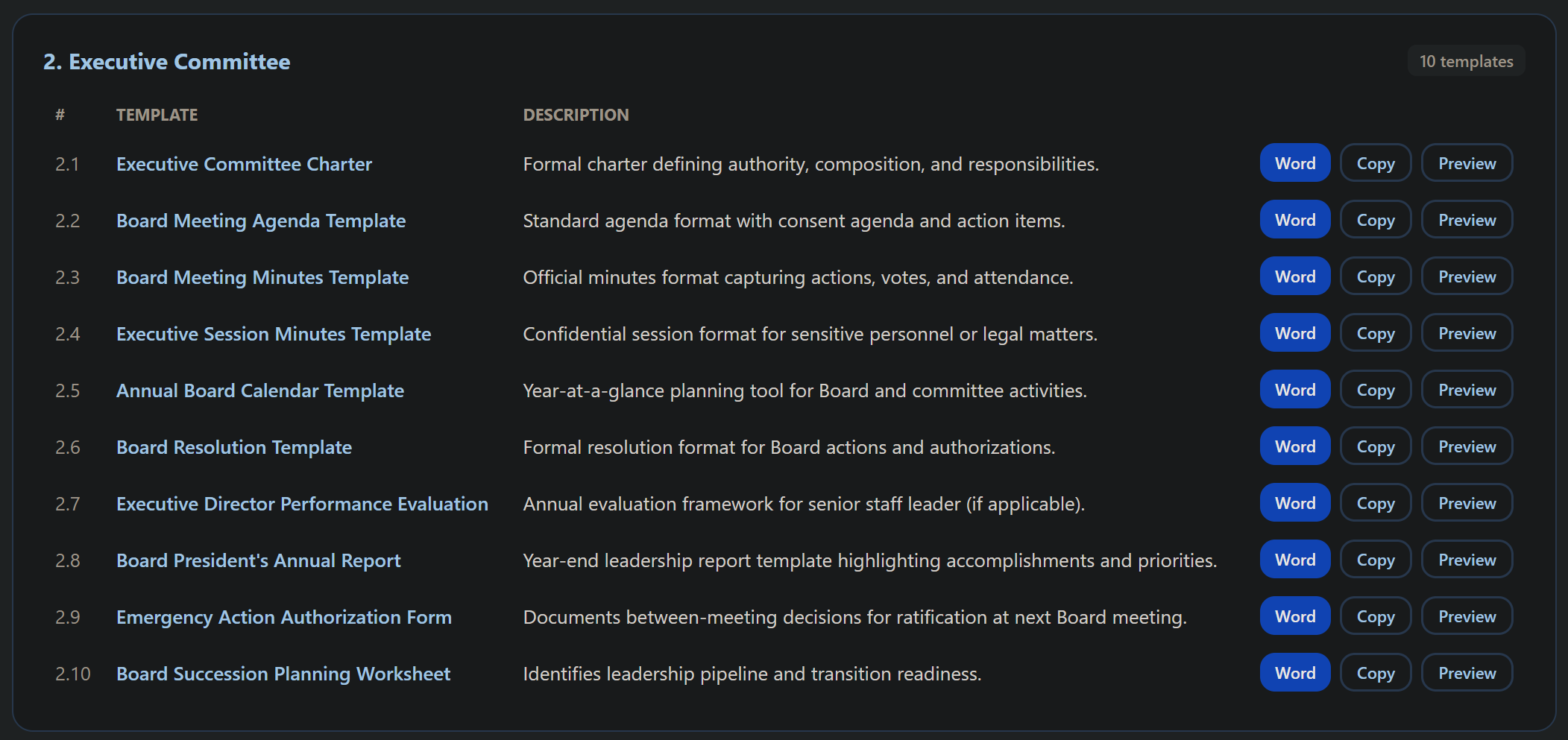
Set up and run board committees the right way, with charters, rosters, and a searchable library of 126 ready-to-use templates that you can customize and export to Word.
Key features
- 126 templates across every common committee: charters, agendas, work plans, and reports.
- Smart search: the Templates Directory understands plain-language requests (synonyms and related words) and shows a ranked Top Matches panel, so you find the right template fast.
- Build Handbook: pick exactly which standing and ad hoc committees to include, then Preview the assembled committee handbook in a new tab before exporting to Word, Print/PDF, Copy, HTML, or Text.
- Generate, preview, copy, or export to Word, on your letterhead if you've set up document branding.
- Committee setup and rosters tied to your team's organization profile.
- Audit committee charters: an enriched Finance & Audit charter and a separate standalone Audit Committee charter (auditor RFP and rotation, independence, executive sessions, management-letter follow-up, and the federal Single Audit) for orgs that keep audit independent of finance.
- Send a charter for board adoption: any committee not yet marked adopted has a Send for board adoption button that wraps its charter in formal resolution language and routes it to the board members you pick for e-signature. A status line tracks signatures ("Adoption pending: X of Y board signatures in"), and when the last director signs, the committee's Adopted flag and date flip automatically and the signed resolution PDF files itself into your Document Library; a manual Adopted checkbox remains for boards that vote in meetings.
- Committee chair Getting Started checklist: an interactive 12-step checklist at the top of the sidebar walks a new committee chair from board adoption to a reporting rhythm, with progress saved as you go.
- Committee Reports (member input to board report): the chair opens an input request with a prompt and due date, every committee member is emailed and notified in their member portal, and members submit updates from the portal. One click on Compile report (AI) synthesizes all the input into a single board-ready report (Purpose, Highlights, Work completed, In progress, Issues, Decisions requested, Next period) that you can email and save to the Document Library from the draft window.
- Members & Recruitment: a recruitment pipeline (stages Identified, Invited, Joined, Renewed, Rotated off, and Declined) with skills and term-end dates, a 90-day term-renewal banner, and per-person AI letters (invite, welcome, and thank-you).
- Exceptional-service nominations with a recognition log: AI drafts a formal nomination letter to the board chair grounded only in the reasons you give, and every nomination lands in a recognition log where each entry carries a resolution status (Pending, Awarded, Denied, or Withdrawn) with the decision date.
- Committee minutes (October 20, 2026): a committee meeting in Board Management is named for its committee and appears in the Committees minutes drafter, which also takes a transcript.
How to use it
- Choose a committee and the template you need.
- Generate it, customize the language, and preview.
- Export to Word or copy it into your minutes or packet.
For a step-by-step first session, see the Committees guide.
Open Committees →Board Officers
One interactive app for all four officer roles. Pick a role, President or Chair, Vice President, Secretary, or Treasurer, and get worksheets, AI drafting, and a course tailored to that seat.

Key features
- Role selector drives everything: choose President/Chair, Vice President, Secretary, or Treasurer and the whole app tailors to that role.
- Getting Started checklist per role: a "Getting Started" item at the top of the sidebar opens an interactive, role-specific start-here checklist, from joining the team and signing your role agreement to the course module and the tools that seat actually uses (for a treasurer, the Budget Builder, Budget vs Actual, Board Report, Compliance Tracker, and IRS Forms 990), each step deep-linking to the right place, with progress saved as you go.
- Saved worksheets: Officer Onboarding Kit, Role Agreement (signable), Role Duties & Focus, and a Succession Plan, each with a notes box and saved to your organization's account.
- AI Automations for any role: a welcome letter, a tailored role description, an onboarding plan, a succession brief, a transition memo, an outgoing-officer thank-you, and a new-officers announcement. Edit and export to Word, text, print, or email.
- Course Modules: an officer-focused course with quizzes.
- My Organization: save your organization and current officers once; pick a role in any tool and it fills in that officer's name.
How to use it
- Open My Organization, enter your organization and your current officers by role.
- Pick a role in any tool to auto-fill the officer's name, fill in the worksheet, and save.
- Use AI Automations to draft the documents that role needs, then export or email them.
For a step-by-step first session, see the Board Officers guide.
Open the Board Officers app →Leadership & Operations Apps
Run the organization day to day: the Executive Director's playbook, the books, risk and insurance, a name change, impact measurement, members, and volunteers.
Executive Director
An interactive app for running the executive director role: guided worksheets you fill in and save, AI drafting for your most time-consuming documents, a built-in course, and a month-by-month operating cadence calendar, all in one place.

Key features
- Saved worksheets for the work that matters: First 90 Days, Annual Work Plan & Goals, Strategic Plan Builder, Annual Operating Plan, Continuity & Succession, Operating Rhythm Planner, Board Chair 1:1 Agenda, Key Conversations, and an ED Self-Evaluation. Each has a notes box after every question and saves to your organization's account so you can come back and update it from any device.
- Strategic Plan Builder that compiles a board-ready plan: enter your mission, vision, and three to five priorities, and it assembles one plan with your annual goals (drafted by AI from the priorities), how progress will be measured (your Impact and Outcomes indicators), budget alignment (pulled automatically from your Finances app), strategic risks (pulled automatically from your Risk Management app), and a governance and adoption section. Leave the budget and risk fields blank to auto-pull, or type your own to override. From the plan window you can polish the whole thing with Improve with AI or send it to the board for e-signature adoption with Send for board adoption.
- Getting Started checklist: a "Getting Started" item at the top of the sidebar opens an interactive 10-step start-here list (join your team, take the tour, First 90 Days, a board chair 1:1, the course, your work plan and cadence calendar, branding, evaluation timing, and continuity) with your progress saved as you go, so a new executive director knows exactly what to do first.
- Cadence Calendar built in: a month-by-month operating rhythm you can export to your own calendar.
- AI Automations: draft a board report, annual goals from your strategy, a self-evaluation narrative, talking points for a hard conversation, a 90-day plan, an ED job description, or a new-ED welcome. Each opens as a document you edit and export to Word, text, print, or email. The board report drafter now weaves in your real measured program impact (cost per outcome and results) from the Impact & Outcomes app when you have captured it, so it cites real numbers instead of placeholders.
- Employee Reviews: run annual employee reviews and contractor evaluations (the owner, or an Admin the owner has allowed to see employee records). Employees complete a five-question self-review from the member portal, you compile it into your manager worksheet with AI (approving each field before anything is written), draft the formal summary with AI, and export it to Word on your letterhead; contractors get a manager-only evaluation scored against the contract's requirements. The same review records are shared with the HR Management app.
- Course Modules: a short executive-director leadership course with quizzes.
- My Organization: save your name, organization, letterhead, footer, and signature once and they apply to every document you export.
- A First 90 Days Plan from your own records (October 18, 2026): the Executive Director's First 90 Days Plan starts from what is actually late and coming due in your organization.
How to use it
- Open My Organization and enter your name, organization, and letterhead.
- Start with the First 90 Days or Annual Work Plan worksheet, fill it in, add your notes, and save.
- Use the Operating Rhythm Planner and Cadence Calendar to build your year, then open AI Automations to draft a board report or other document and export or email it.
For a step-by-step first session, see the Executive Director guide.
Open the Executive Director app →Project Management
Keep every job that has several steps in one place, so your team and your board can see what is left to do, who is doing it, and whether it is on time: setting up the platform, a reunion or gala, the yearly Form 990, a grant, or finding new board members.
Key features
- Getting Started is already there. Your setup checklist arrives as your first project, and the steps the platform can see you have done are ticked for you, each with the reason.
- Every task gets a person and a date. Assign anyone with a seat, any board or committee member, or someone else by name, such as a volunteer. Set a priority and a status (to do, in progress, blocked, done), and keep comments and a full history on each task.
- Ready-made lists: Event planning, Annual financial review and Form 990, Grant application, Board recruitment and Website launch. Enter the key date and every step gets its own due date counted from it.
- My tasks shows each person everything assigned to them across every project, soonest first.
- A progress report for the board: how much is done overall and by section, who has what, what is overdue or blocked, and what is next. Print it on your letterhead, file it in the Document Library for the board packet, or send the board a read-only link they can open without signing in (names only, never email addresses, and you can turn it off at any time).
- No email noise. Project Management does not send notifications; people check My tasks.
How to use it
- Open Project Management and open the Getting Started project.
- Click a task's name, choose who will do it and when it is due, and press Save. Tick the box when it is done.
- Before your next board meeting, open the Progress report tab and print it, file it for the board packet, or send the board link.
Plans: every plan, including the Launch Plan, includes the Getting Started project. Any number of other projects comes with AIONP Essentials and AIONP Complete.
For a step-by-step first session, and why each step matters, see the Project Management guide.
Open Project Management →Business Plan
Write the strategic and business plan a funder, your board or a lender asks for, starting from what your account already holds instead of a blank page. Your profile, donors or the people you serve, programs and prices, team, marketing, risks and books are filled in and marked From your records, and the plan stays current as they change. On All In One For Profit the same app writes the business plan a bank, SBA lender, investor or landlord expects. Added October 23, 2026.
Key features
- Who it is for decides the sections. Choose a funder or grant, your board, a loan, investors or your own use, and a full plan or a one-page plan; a loan plan asks about collateral, a grant plan asks how the work continues after the grant.
- Fill from your records. Every answer your account can give is filled in at once and marked From your records; change the record and the plan follows.
- Draft with AI writes each section only from your own answers and figures, never from an invented one, and you edit before anything is kept.
- Financial projections: three or five years of income and expenses (profit and loss for a business), cash flow, a simple balance sheet, break-even, debt service coverage for a loan, and three scenarios.
- Plan against actual: once the plan is saved, each month shows beside your real books from Financial Management.
- Export and versions: a Word file on your letterhead with the projection tables, a one-page plan made from the full one, a spreadsheet of the figures for a lender who wants to check the math, and a saved version named for each reader that never changes.
- Who can do what: the owner and admins create, edit, export and delete; a consultant reads, and edits when granted the app; a Viewer reads and downloads the Word file. Writing the plan is a service a Consultant Partner can offer.
How to use it
- Open Business Plan, press + New plan, name it, choose who it is for and press Create the plan.
- Work down the sections on the left; answer what is not filled in, press Draft with AI on a section when you want a first draft, and edit it.
- Open Financial projections, check the figures against your books, then Download the plan (Word) and Save this version named for the reader.
Plans: AIONP Essentials and AIONP Complete, and both For Profit plans. The projections are your own estimates; have your accountant or lender review them before you rely on them.
For a step-by-step first session, see the Business Plan guide, or try it with sample figures at https://www.allinoneforprofit.com/business-plan/?demo=1.
Open Business Plan →Financial Management
A treasurer's tool for the money side of governance: build an annual budget, keep a transaction ledger that fills itself as money arrives, see how actuals compare to your plan, and produce a board-ready financial report, so your board has clear financial oversight without a full accounting package.
Key features
- Annual budget by category: enter income and expense lines, each tagged unrestricted or restricted, and a restricted line can name which fund it belongs to, chosen from your own list rather than typed.
- Money records itself: online donations, recurring gifts, event tickets, sponsorship and auction payments, form payments, membership dues, store orders and in-person sales (with sales tax kept apart as Held for others), raffle ticket sales, and gifts collected on a connected Givebutter or Zeffy account all write their own ledger entry the moment the payment is taken, and cash and checks recorded in Donor Management book too. A payment to a provider recorded on a funded-services case in Case Management is written once as an expense. Each entry records the gross income and the real processing fee as a separate expense, read back from Stripe rather than estimated, so the books match the bank. Refunds add a reversing entry instead of deleting anything.
- Restricted funds tracked on both sides, fund by fund: the Funds card shows income, spend and what remains for each named fund, not just for restricted money in aggregate, and warns when a fund has been spent beyond what came into it. That warning is per fund on purpose, because a surplus in one fund hides a deficit in another and the total keeps looking healthy while it happens. The board report and the AI treasurer's narrative carry the same figures.
- Automatic entries are marked as such: an Automatic badge in the ledger, a filter for All, Automatic only, or Entered by hand, and a Recorded By column in the CSV export so the distinction survives outside the app.
- Transaction ledger with CSV import: record your other income and expenses as you go, or paste or upload a CSV (it needs a Date and an Amount column) to bring in actuals in bulk.
- Budget-versus-actuals dashboard and a simple income statement: see income, expenses, and net at a glance, with each budget line matched to its actuals and any unbudgeted activity surfaced.
- Fiscal-year settings: set your fiscal-year start month and current year so everything rolls up to the right period.
- Board financial report: generate a report you can download as PDF or Word, print, or save to your Document Library, on your letterhead if you have set up document branding.
- Form 1099 payees (added October 3, 2026): each expense line records who was Paid to, and the card at the bottom of the Board Report page totals the calendar year by payee, shows which are marked for a Form 1099 in HR Management (contractors) or the Contact Manager (vendors) and whether a W-9 is on file, and flags anyone at or over the reporting threshold ($600 through 2025, $2,000 for payments made after December 31, 2025). Export CSV hands the list to your accountant. On All In One For Profit the page is called Leadership Report.
- Three AI automations: a Treasurer's Board Narrative, a Budget Drafter, and a Financial Health and Variance Review.
- Course Modules: a short nonprofit-finances course with quizzes, plus the standard My Organization and document branding.
- From the budget to the transactions behind it (added October 14, 2026): every category in Budget vs actuals is a link that opens Transactions filtered to that line; once a prior year has activity the table shows last year's actual beside each line with the change in dollars and percent; and the comparison column is named Favorable (unfavorable), where a positive figure is good news for income and expenses alike.
- A draft budget beside the adopted one (added October 14, 2026): Start a draft from this budget, edit and Save draft, Compare the two line by line, then Adopt the draft or Discard it, while the adopted budget keeps feeding every comparison.
- Reconcile against the bank statement (added October 14, 2026): the Reconcile page matches the books to the bank one month at a time: opening balance, statement ending balance, a tick per entry that appears on the statement, a live Difference that reads $0.00 when the month is reconciled, Save progress, Close the month, and a list of entries from earlier months never ticked (outstanding checks).
- Import from your bank (added October 14, 2026): choose the Quicken (QFX), QuickBooks (QBO) or OFX download every bank offers; lines already in the books are skipped, an entry you typed is matched rather than duplicated, and new lines take the category and payee you last used for that bank name. The Ledger also has Export for QuickBooks, the Date, Description, Credit, Debit layout QuickBooks Online imports as bank transactions.
- Connect QuickBooks (added October 15, 2026): the QuickBooks card on Transactions connects your QuickBooks Online company (owner or admin), with Check connection and Disconnect. It runs one direction, into QuickBooks. Send transactions to QuickBooks (added October 15, 2026): Set up the send reads your chart of accounts and suggests the account each category goes to; Send now, or the nightly run, puts each income entry in as a deposit and each expense as a purchase, once each, with a QB mark on the ledger row; Export for QuickBooks stays for organizations that prefer a file.
- Payroll (added October 15, 2026): after each payroll, choose the payroll register or journal CSV from your provider (ADP, Paychex, Gusto, QuickBooks Payroll, Paylocity, OnPay or any other) in the Payroll card; it recognizes the columns, shows each pay date with gross wages, employer taxes and employer benefits, and Record writes them as expenses marked Payroll. Only the totals reach the books, the same file twice adds nothing twice, a payroll undoes in one click, and a later bank file matches the provider's withdrawals to the payroll instead of adding them again.
- Connect your bank (built October 15, 2026): an owner or admin enters the code we email them, signs in at the bank on Plaid's screen (we never see the banking password), picks the accounts, and transactions arrive on their own from then on, matched and categorized the way a bank file is; three connected accounts are included in every plan, and each additional one is $5 a month ($50 a year on an annual plan), added by support (October 16, 2026); if a bank later asks for a new sign-in, the treasurer gets one email about it; and Disconnect revokes the connection and deletes the stored credential at once. It appears on the Transactions page as soon as Plaid finishes its production review of All In One Nonprofit; until then the bank file import covers it.
- A Report period on the Board Report (October 18, 2026): the whole fiscal year, any month, the year to date or custom dates, with the annual budget, the period and the year to date side by side, and a card for the fundraising return, your largest income sources and the year's lobbying against the 501(h) limit (read from any expense in a "Lobbying" category). They go into the PDF, Word and emailed report too.
- Financial statements (added October 29, 2026): the Statements page draws, from the ledger you already keep, the three cash-basis statements funders, auditors and Form 990 ask for: the Statement of Functional Expenses (every expense across Program services, Management and general, and Fundraising, by the split on the transaction or the split you set once per category under Settings), the Statement of Activities in two columns, without and with donor restrictions, with the line Net assets released from restriction, and the Statement of Assets, Liabilities and Net Assets (cash basis), which starts from opening balances you enter once and ties to your reconciled bank balance. In the IRS Forms Assistant, Fill from Financial Management puts the year's expenses on Form 990 Part IX with their percentages. Included in every plan; nonprofit organizations only. Guide: https://www.allinoneforprofit.com/finances/guide.html#statements
How to use it
- Set your fiscal-year start and year, then build your budget under Budget (income and expense lines, with the fund tag).
- Connect Stripe on My Organization and the money you collect starts booking itself. Add your other transactions, or import a CSV of actuals, and watch the dashboard fill in budget versus actuals. Export the ledger back to CSV anytime from the Ledger card.
- When the board meets, open Board Report, draft the narrative with AI if you like, then download, print, email it straight to the board, or save it to your Document Library. The report opens with a cover page, the PDF carries your letterhead and signature, and the Word and PDF versions match each other.
For a step-by-step first session, see the Financial Management guide.
Open Financial Management →Invoicing
Bill for a service you sell, a room you rent, or a program fee. Write the invoice, send it, and the customer gets an email with a hosted page they can print, save as a PDF and, once your Stripe account is connected, pay by card. Every payment, card or check, books itself into Financial Management as income on the day the money arrives.
Key features
- Line items, discounts and tax: each line has a description, a quantity (fractions such as 1.5 hours are fine), a rate and a Taxable checkbox. A dollar discount comes off the subtotal, and tax is figured on the taxable lines at the rate on the invoice. The default rate and its label live in Settings and can be changed on any single invoice. The app calculates; whether something is taxable is a question for your accountant. With Stripe Tax set up in your own Stripe account, turn it on in Invoicing Settings and each invoice works out its sales tax from the customer’s address instead, shows the state and rate, and books the tax to Sales Tax Payable rather than income (added October 25, 2026; guide https://www.allinoneforprofit.com/invoicing/guide.html#stripe-tax).
- Customers from the records you already keep: start typing a name and pick it from Contact Manager or Donor Management, or type a name that is not on file yet.
- A hosted page for every invoice: Save and send emails the customer a link to a page that shows the invoice in full, offers a Pay button when card payment is available, and updates itself as payments arrive. Partial payments are fine; the balance follows.
- Card payments through your own Stripe account: connect Stripe once on My Organization and every sent invoice with a balance shows a Pay button. The money goes to your Stripe account, the customer gets a receipt, you get an email, and the payment is recorded on the invoice and booked in Financial Management without anyone typing anything. The platform takes no cut; Stripe's own card fee is booked as an expense.
- Checks, cash and transfers: Record a payment takes the amount, date and method, plus a check number or memo. When the invoice has the customer's email address, Email a receipt to that address is ticked for you, and the customer gets a short receipt with the balance that remains (added October 25, 2026); untick it to record the payment quietly. A hand-recorded payment can be removed if it was a mistake, and its income row goes with it.
- Recurring invoices: a retainer, a monthly service fee or a quarterly maintenance charge is a schedule under Recurring (weekly, monthly, quarterly or yearly, with an optional end date). Each morning the app creates that day's invoices and, with auto-send on, emails them the same morning.
- Reminders: with the switch on in Settings, a sent or partly paid invoice gets a reminder three days before it is due and a past-due notice one, seven and thirty days after, each sent once. Each time one goes out, the owner (or the reply-to address in Settings) gets an email naming the invoice, the reminder and the balance (added October 25, 2026).
- Books on the cash basis: income is recorded when money arrives, never when the invoice is issued, as one income row under the invoice's income category (Service Revenue unless you change it). Nothing from the line items is copied into the books.
- Settings: number prefix and next number, default terms, tax rate and label, a default note and footer, the reply-to address, the income category and the reminders switch.
How to use it
- Open Settings, put your organization's name, full address and phone in the footer, and set your tax rate if you charge one. Connect Stripe on My Organization if you want card payments; you can add it later.
- Choose New invoice, pick a customer, add one line, and save. Send it to yourself first and open the hosted page from the email on your phone.
- When it reads right, change the email to the customer's and send again. Once an invoice has a payment on it, its lines are locked: to change it, void it and issue a new one.
For a step-by-step first session, see the Invoicing guide.
Open Invoicing →Spaces & Rentals
Rent out the rooms you have (added October 10, 2026). Meeting rooms, an event space, a photo studio or a podcast room go by the hour; private offices, dedicated desks and virtual offices go by the month. One schedule refuses double bookings, a public booking page takes requests, the front desk logs mail and packages, and every booking and every month's rent is billed through Invoicing, so the money reaches Financial Management under Rental Income on the day it arrives.
Key features
- Spaces by kind: a meeting room, event space, photo studio, podcast room or other space carries hourly, half-day and full-day rates; a private office, dedicated desk or virtual office carries a monthly rate and how many identical units you have. Each space has a capacity, a description and its amenities, and a Bookable online switch.
- The schedule: the app will not let two bookings overlap in the same room, and a cleanup buffer and a shortest-booking rule apply to every room. The price panel works out the price as you fill in the form, showing member hours used, the member discount and the total.
- The online booking page: turn it on in Settings and you get a public link for your website, your email signature or a sign by the door. Visitors pick a room and an open time and send a request; by default your team confirms each one from "Requests waiting for a yes" on the dashboard, and the customer gets an email either way.
- Billed through Invoicing: on any booking, Write the invoice or Write and send the invoice; or turn on Invoice a booking when it is confirmed in Settings. With your Stripe account connected on My Organization, every invoice has a Pay button.
- Memberships and leases: a private office, dedicated desk or virtual office rented by the month, with a start and end date, a deposit, included conference-room hours, a member discount on room bookings, mail handling, and Bill monthly through Invoicing, which sets up a recurring invoice.
- Mail and packages for virtual office members, logged at the desk and marked picked up.
- A private calendar feed under "Put your bookings on your calendar" in Settings, for Google Calendar, Outlook or Apple Calendar.
- Nothing reaches your books by itself: a booking that is never invoiced, or an invoice that is never paid, adds nothing to Financial Management.
How to use it
- Open Spaces, click Add a space, and add each room with its kind, rates, capacity and amenities. Tick Bookable online on the rooms outsiders may request.
- In Settings, set your open days and hours, the cleanup buffer and the shortest booking, then turn on the booking page and put the link on your website.
- Enter the bookings you already have, invoice them, and add any monthly tenants under Memberships & Leases with Bill monthly through Invoicing ticked.
For a step-by-step first week, see the Spaces & Rentals guide.
Open Spaces & Rentals →Risk Management & Insurance Audit
Identify the risks a nonprofit faces, document how you'll mitigate them, and figure out the insurance coverage you actually need, in plain language.
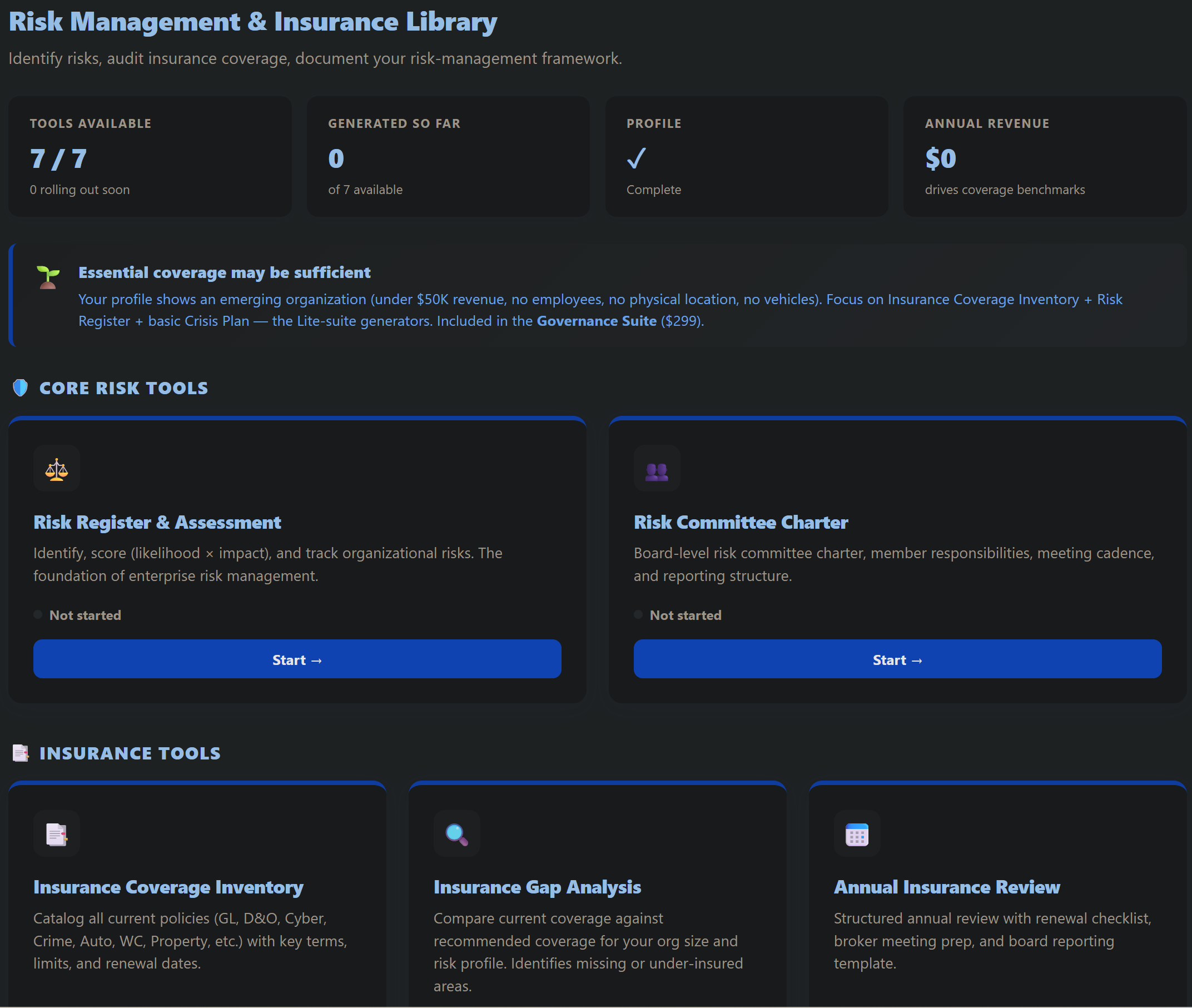
Key features
- Risk assessment across operations, finances, people, and events.
- Insurance guidance: what general liability, directors & officers (D&O), and other coverage do and whether you need them.
- Mitigation tracking so each risk has an owner and a plan.
- Single Organization Risk Score: a Risk Score page rolls your risks into one 0 to 100 index with a plain-language band (Low, Moderate, High, or Severe) and names the top drivers. You rate each risk by likelihood and impact (1 to 5) and check the ones you have mitigated; it comes seeded with seven standard categories (Financial, Operational, Governance and compliance, Reputational, Cybersecurity and data, People and HR, and Strategic). It is a self-assessed management index, not an actuarial or insurance-adequacy score. The score feeds the Organization Health Copilot as a Risk signal and flows into the organization-data AI assistant. See Site-Wide Features.
- Insurance Coverage Inventory: the coverage preview now collapses by header (General Liability, Directors and Officers, and so on), with Expand all and Collapse all so a long list stays scannable.
- Find Insurance (added September 22, 2026): a searchable directory of insurers, programs and brokers that work with nonprofits, by state and by the kind of cover you need. Every entry comes from the provider's own page and carries the date it was checked. Results are grouped by whether the provider publishes the states it writes in, so one that says nationwide without listing them is shown as exactly that rather than as a match. Where a state nonprofit association runs or endorses an insurance program it is named, and where one does not the directory says so. It is a directory, not a quote, and nothing in it is a recommendation or a price.
- Disaster Readiness and Continuity Plan (added October 17, 2026): a fill-in plan for hurricanes, fires, floods and long outages, covering who leads, essential tasks and their backups, the contact tree, the go kit of documents, warning-time checklists and recovery. The free guide behind it is Disaster readiness for nonprofits.
- Glossary of insurance and risk terms in plain language.
How to use it
- Work through the assessment to surface your key risks.
- Review the recommended coverage and note what you carry.
- Record your mitigation steps and revisit them annually.
For a step-by-step first session, see the Risk Management & Insurance Audit guide.
Open Risk Management & Insurance Audit →Name Change
A step-by-step path for legally changing your organization's name everywhere it appears: the state, the IRS, your bank, your registrations, and your donors.
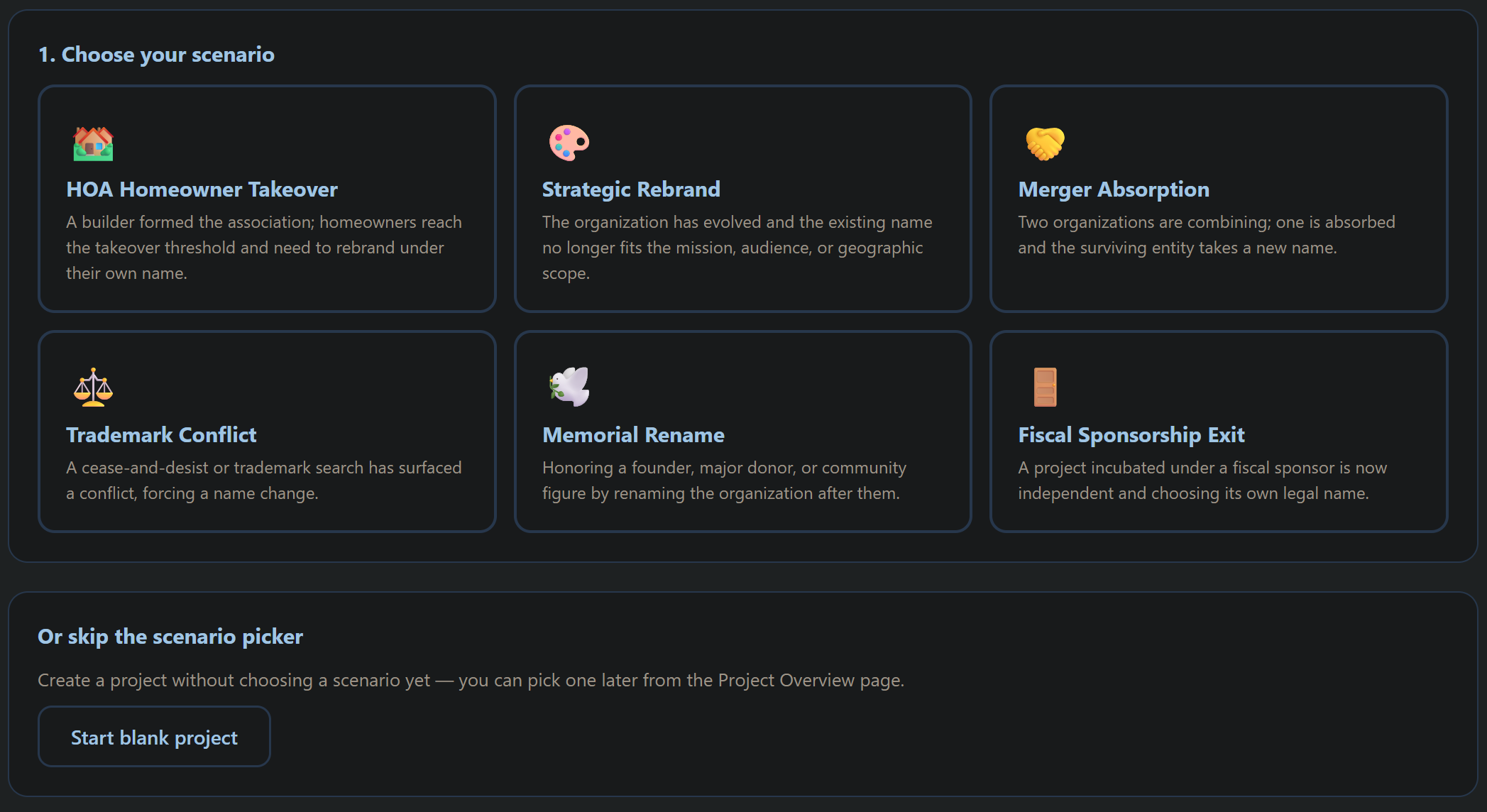
Key features
- State amendment guidance for filing your articles change.
- IRS notification steps so your exemption stays intact.
- Master checklist: bank, registrations, licenses, donors, web, and branding.
- Notification letter generators you can export and send.
How to use it
- Follow the checklist in order, starting with the state filing.
- Generate the amendment and notification letters.
- Check off each party as you notify them.
For a step-by-step first session, see the Name Change guide.
Open Name Change →Impact & Outcomes
Why it raises money: each program captures cost-per-outcome and the full picture of impact (including the dimensions organizations usually overlook), and that flows straight into your thank-yous, appeals, and grant reports in Donor Management and Fundraising and Development. Proven impact you can communicate is what earns the next gift and a renewed grant.
Each program captures cost-per-outcome (enter cost and reach, see cost per person and per outcome) and the full picture of impact through a completeness meter plus eight commonly-overlooked dimensions, with an AI gap-finder that suggests impact you have not recorded yet. Reports adapt to their audience and pair every number with a story. In Donor Management, a Stewardship plan lays out a year-round cadence for restricted-gift donors, the digest reminds you when a touch is due, and an opt-in setting (off by default) can auto-send those updates. Restricted-gift thank-yous, appeals, year-end statements, and the Fundraising and Development asks all pull the funded program's real results.
Define the outcomes your mission is meant to produce, build a logic model, and track the metrics that prove your impact to funders and your board.
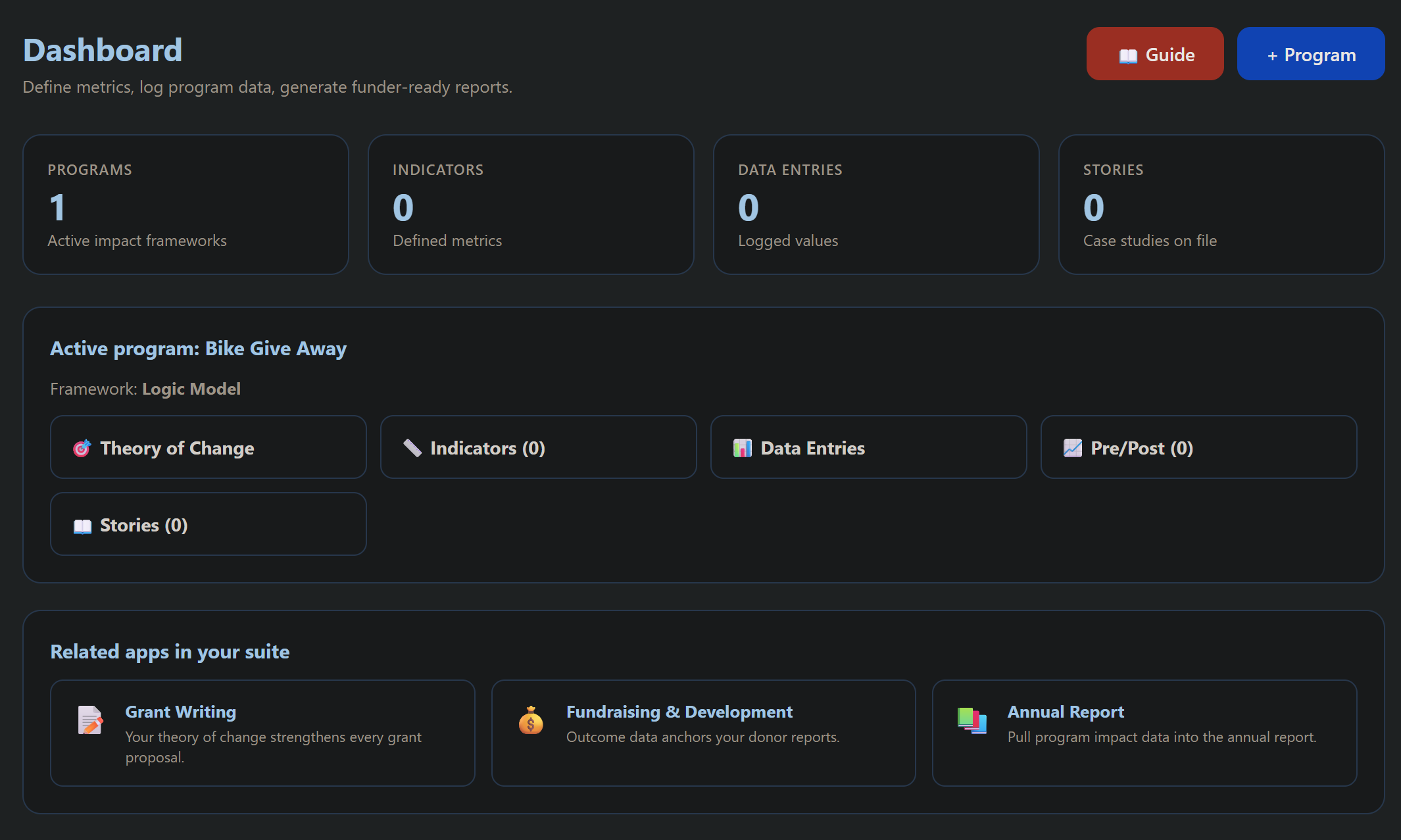
Key features
- Logic model builder: inputs, activities, outputs, outcomes, and impact.
- Outcome and metric definitions tied to your programs.
- Data tracking so you can show change over time.
- Impact reporting you can export for funders and your annual report.
- Predictions (free): outcome trajectory, whether you are on pace or behind a target. See Predictions.
- Attendance (automatic) as a KPI’s data source (added October 26, 2026): if your organization takes attendance in Case Management, open the KPI and set Data source to Attendance (automatic, from Case Management), then choose the measure: hours in program, people who attended, average daily attendance, or people who reached a number of days. Each month’s value appears in Data Entries marked automatic, and Funder Reports, the dashboard and the Annual Impact Narrative use it like any other entry; change the attendance marks in Case Management and the numbers follow.
How to use it
- Define your intended outcomes and the metrics for each.
- Build your logic model to connect activities to impact.
- Track your data and export an impact summary when you need it.
For a step-by-step first session, see the Impact & Outcomes guide.
Open Impact & Outcomes →Membership
Run your whole membership program from one place: a member roster with an automatic six-stage lifecycle, levels and dues, renewal reminders that use your own payment link, and win-back campaigns for lapsed members.
Key features
- Member roster with a six-stage lifecycle: prospective → new → active → renewing → lapsed, plus life members, derived automatically from join and renewal dates, never set by hand. Each member can also carry a membership number (shown on the roster and in the CSV export). Life members stand outside the cycle entirely: they carry no renewal date and never receive a dues bill or a renewal reminder.
- Levels & dues: define your tiers with annual dues and expected-revenue math built in. A "Use typical levels" starter set gives you Individual, Family, Couple, Student, Senior, Associate, and Life. Each level can carry its own renewal term (anniversary, calendar year, or calendar year with an editable fall cutoff), one or more one-time fees charged at join (initiation, application), and age-banded pricing (especially for Life membership) where the joining member picks an age band that sets their price.
- Renewals with your own payment link: the app never touches your money, reminders point members to the payment link you already use, with one-click "Mark renewed" and bulk reminder sends.
- Win-back campaigns for lapsed members, plus directory and annual membership report compilers.
- Newsletter: compose and send a real email newsletter to your members through your connected email tool (MailerLite, Mailchimp, or Brevo) (see the write-up below).
- 12 AI automations: welcomes, dues receipts, renewal reminders, bulk renewal sends, win-back letters and campaign plans, event invitations, a directory compiler, and an annual membership report.
- Predictions (free): member renewal-risk plus a dues forecast. See Predictions.
- Everything about this person (added October 14, 2026): a member's record links to the same person's contact, donor and volunteer records in Contact Manager.
How to use it
- Set up your membership levels and dues under Levels & Dues.
- Add your members to the roster, join and renewal dates drive the lifecycle automatically.
- Paste your payment link under Renewals, then let reminders, receipts, and win-backs draft themselves.
Renewal terms, fees, and pricing
Membership programs do not all renew on the same clock or charge the same way, so Levels & Dues gives you per-level control:
- Renewal term per level (and an organization-wide default): Anniversary (one year from the join date), Calendar year (through December 31), or Calendar year with a fall cutoff. The cutoff date is editable and defaults to October 1: someone who joins on or after it is covered through the end of the following year, so a late-fall join is not asked to renew six weeks later.
- One-time fees per level, charged once at join (initiation, application, badge), on top of annual dues. The Add or Edit member form also has an editable one-time fee field.
- Age-banded pricing per level, especially for Life membership: define a price for each age band (for example Under 40, 40–64, 65+) and the joining member picks their band, which sets their price.
- Membership numbers on each member, and life members who never carry a renewal date and never receive a dues or renewal reminder.
Dues Dashboard, automated reminders, and claims
The dues and renewals workflow has been upgraded so a treasurer can see who owes what at a glance and let the platform run the reminder schedule. The app never touches your money: everything here still works through your own payment link.
- Renewal cycles per level: each level sets a cycle of Anniversary (one year from each member's join date), Fixed date each year (pick a due month and day, for example December 31 for a calendar year), or Lifetime, plus multi-year terms (1, 2, 3, or 5 years) and a configurable grace period (60 days by default). A plain-language preview shows exactly when members are due and when they lapse.
- Dues Dashboard: a treasurer view listing every member sorted by next due date, each with a status color (active, due soon, overdue, paid ahead, lapsed, or lifetime), the due date and the lapse date, the last payment, and the next scheduled reminder. Filter chips with counts, header totals (expected dues, collected this year, outstanding, and collection rate), and a per-row Mark paid that records a payment and advances the renewal.
- Automated renewal reminders: the platform emails members their reminders on a fixed schedule (30, 7, and 1 day before the due date, an overdue nudge about 2 days after and then weekly, and a single lapse notice), sent from your club's name with your club's payment link. The schedule is deduplicated, so it is impossible to double-send, and a weekly treasurer digest summarizes due-soon, overdue, lapsed, and recent payments.
- Claim and confirm: every reminder includes an "Already paid another way?" link. A member who paid by check, cash, or PayPal reports it there, which pauses their reminders for 7 days and files a claim; the treasurer sees it in a new Claims queue and clicks Confirm to record the payment and advance the renewal.
- Renewal setup and migration: a one-time dry run on the Renewals page previews how every member's renewal date lines up with the level cycles and applies corrected dates only when you click Apply, so nothing changes until then.
- My memberships in the member portal: a member who belongs to more than one organization sees a "My memberships" card listing every one of them, each with its own Renew button.
Public signup and committee approval
The app can publish a public join page at allinonenonprofit.com/join. On the new Applications page you choose whether people Join immediately or Require committee approval first, then click Save & publish my levels to get a shareable join link. In approval mode, applications land on a Pending applications page: your membership committee votes (majority), the committee chair finalizes, and on approval the applicant is emailed a private link to finish joining and pay any dues and one-time fees through your organization's own connected Stripe account (a polite automatic email goes out on a decline). Free levels join instantly; paid joins need a charge-ready connected Stripe, the same as online giving. Your membership committee and its chair are managed on the My Organization page (name a committee containing "Membership" and set the chair's role to Chair). Anyone on the Membership committee, the officer slate, or the board can open the Membership app regardless of their assigned access role.
Newsletter
The Newsletter page lets you compose and send a real email newsletter to your members, using your connected email tool (MailerLite, Mailchimp, or Brevo). All In One Nonprofit never owns the sending, the list, unsubscribe handling, deliverability, or CAN-SPAM compliance: your email tool does, on your account, so your newsletter follows the same rules and reputation as the rest of your email. You connect your email tool once on the My Organization page, then it is ready everywhere.
- Compose multi-section emails: a subject line, preview text, an optional header banner image (uploaded and auto-shrunk to about 1200px wide), and repeatable content sections, each with a heading, body, and an optional image you can upload per section and remove. A live Preview shows the result as you go.
- Bring your own HTML: if you would rather start from a design you already have, paste your HTML or upload an .html file and send it as is.
- Draft with AI (included): give it a few topics and it drafts the subject line and sections for you to edit.
- Saved templates, Clear and start over, and Download or Copy HTML so you can reuse a layout or paste it into your email tool by hand.
- Pick who receives it: pick a list under "Send to," or use "Build a group from your records" to one-click sync your Members, Donors, or Contacts into a list in your email tool.
- Create a draft, Send now, or Schedule through your connected email tool (drafts and scheduling are available with MailerLite; Mailchimp and Brevo support instant send). Drafts and sent newsletters live in your email tool's campaigns area.
A note on MailerLite plans: With MailerLite, sending content that All In One Nonprofit built for you through the MailerLite API requires the MailerLite Advanced plan. On the Free or Growing Business plans you can still build everything here, then use Download HTML or Copy HTML and paste it into MailerLite to send. Verified 501(c)(3) organizations get 30% off MailerLite paid plans. Mailchimp and Brevo each have their own API key settings and plan requirements.
For a step-by-step first session, see the Membership guide.
Open Membership →Volunteer Management
Track your volunteers, shifts, and hours, plus background checks, risk indicators, and recognition, in one lightweight place built for organizations that run on volunteer power.
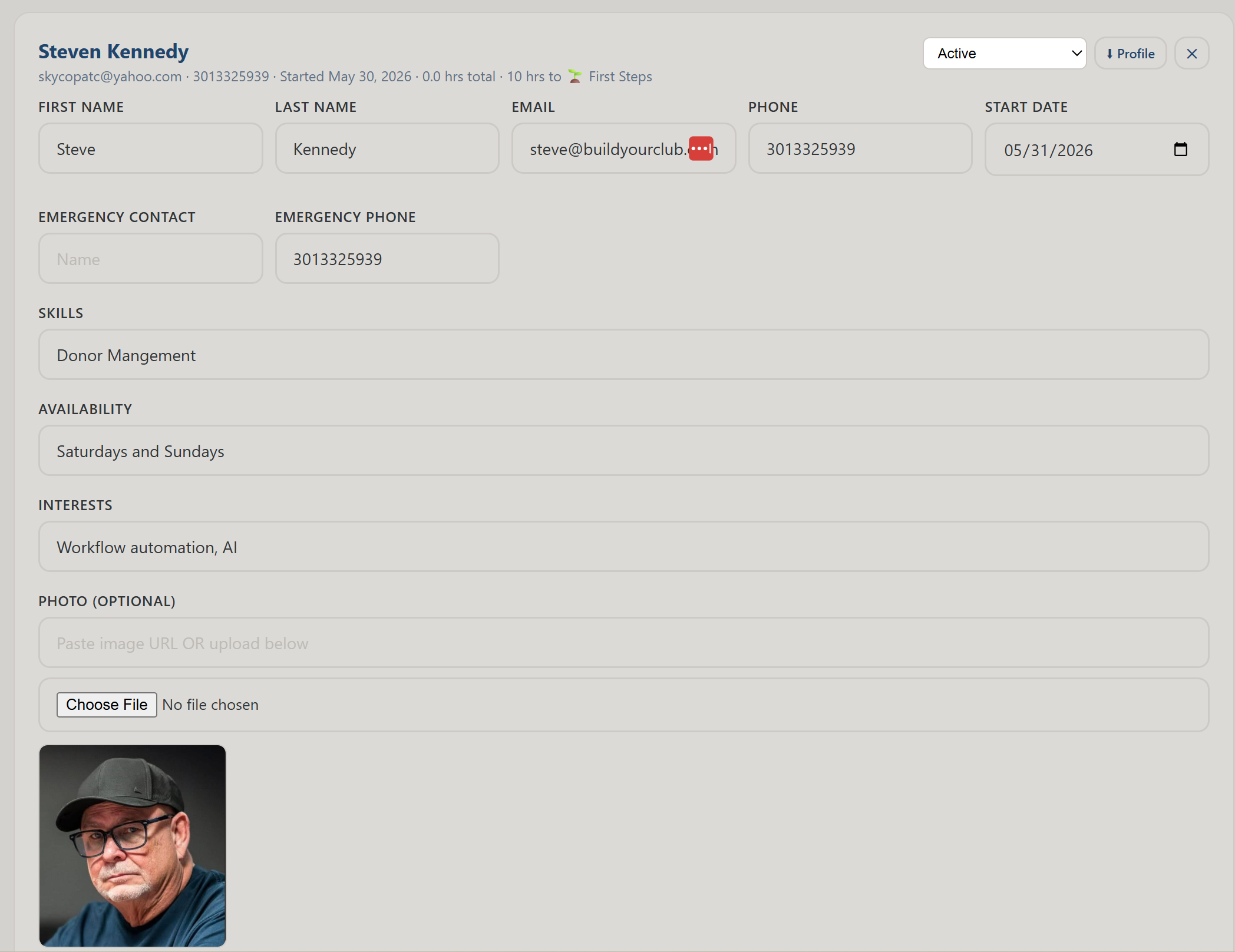
Key features
- Volunteer records: name, contact, role, and status in one list.
- Shift scheduling and hour logging, with running totals.
- Check-in by QR code (added November 1, 2026): press Check-in QR code on a shift and print the code. Volunteers scan it, press Check in and Check out in the member portal, and the time becomes pending hours you approve with Approve all checked-out hours. Walk-ins already on your list can check in; a forgotten check-out closes itself two hours after the shift ends. Guide: https://www.allinoneforprofit.com/volunteer-management/guide#checkin
- Positions, and requirements that follow the position: a volunteer holds one or more positions, and what a volunteer has to complete before they start can differ by position. The readiness checklist reads the real records rather than being ticked by hand, so an expired screening or an unfinished training shows as outstanding whether or not anyone remembered. Training a volunteer took on their own arrives on it without re-entry, and every training record says how it was delivered and who signed it off.
- Mark active: onboarding finishes somewhere. When the checklist is satisfied, Mark active completes it, and the number of volunteers still waiting for you shows on the dashboard.
- Approved hours only: recording attendance on a shift is what creates hours, and those are approved because your staff recorded them. An entry can be rejected with a reason the volunteer actually sees. Every total, every report and every export counts approved hours.
- Background-check workflow to track each volunteer's status. A screening whose expiration date has passed reads as Expired, and the Overview keeps warning until a renewal is recorded or the volunteer is made inactive. The Screening & Background Checks page has a search box. The platform also emails whoever holds Executive Director on My Organization (then the President, then the owner) 60 days before a cleared screening expires, again at 30 days, and on the day it lapses, naming the volunteer only; each notice sends once per screening.
- Risk indicators surfaced on a dashboard.
- Recognition tools (spotlights, milestones) and roster export.
- Predictions (free): volunteer attrition and disengagement risk. See Predictions.
- Install it on your phone: works offline once installed, with optional push notifications for open shifts and volunteers due for recognition.
- Everything about this person (added October 14, 2026): a volunteer's record links to the same person's contact, donor and member records in Contact Manager.
How to use it
- Add your volunteers and their roles.
- Schedule shifts, then mark who attended and who was a no-show and turn that straight into approved hours at the shift's own length.
- Track background checks and use the dashboard to spot gaps; export your roster when you need it.
For a step-by-step first session, see the Volunteer Management guide.
Open Volunteer Management →Compliance, HR & Technology Apps
Stay in good standing and keep the machinery tidy: operations audits, filing calendars, document retention, forms, HR, training, your technology setup, and AI-drafted documents. (Your annual Form 990 return is prepared in the IRS Forms Assistant.)
Operations Audit
A guided self-audit of your nonprofit's operations that scores your health across the areas that matter and hands you a prioritized action plan.
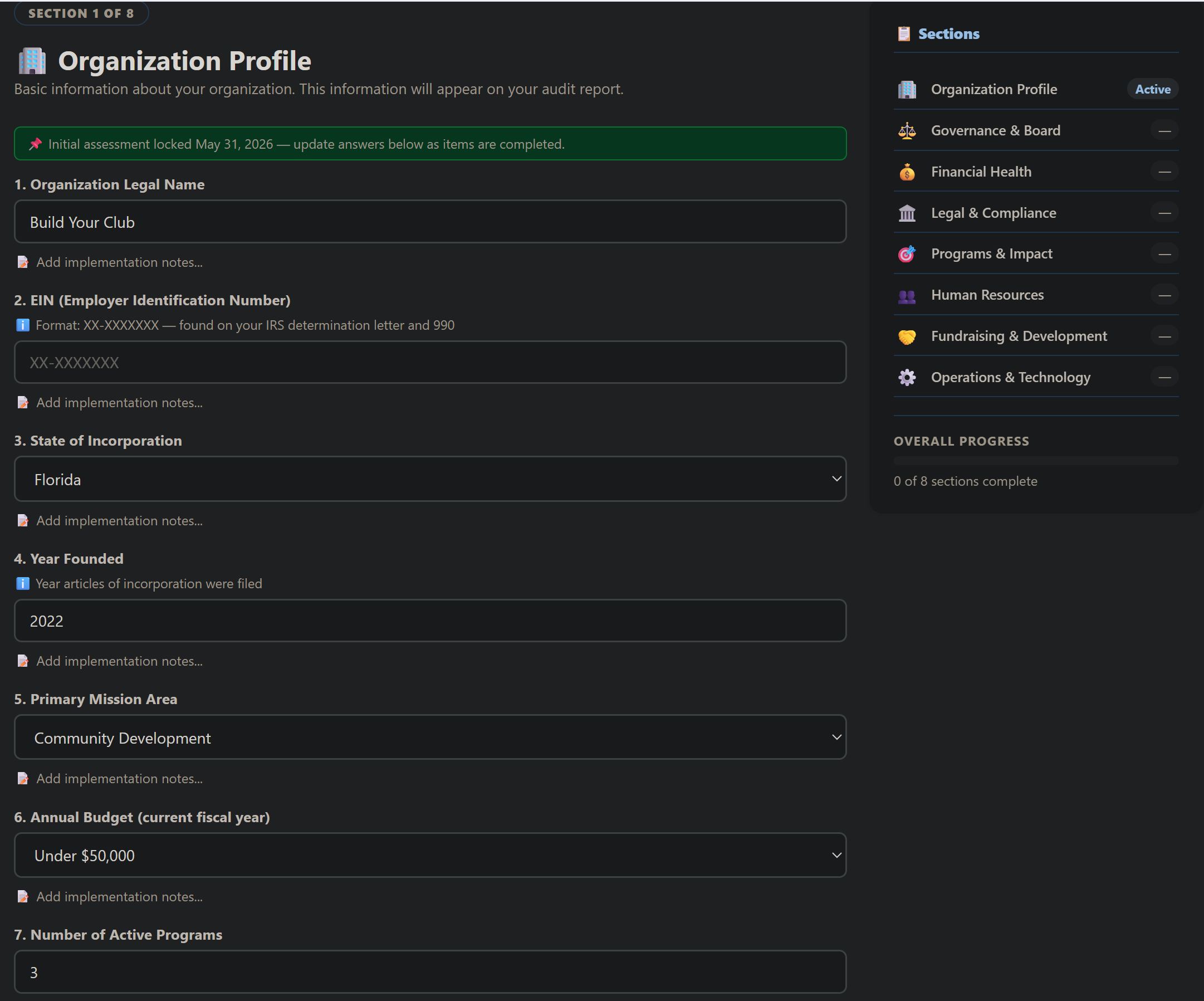
Key features
- Multi-section assessment across governance, finance, operations, HR, and compliance.
- Scoring that shows where you're strong and where you're exposed.
- Prioritized recommendations tied to the tools that fix each gap.
- Exportable report to share with your board.
- Predictions (free): capacity risk by audit area, surfacing low or declining scores. See Predictions.
How to use it
- Answer the assessment honestly, section by section.
- Review your scores and the prioritized recommendations.
- Export the report and work the list with the linked tools.
For a step-by-step first session, see the Operations Audit guide.
Open the Operations Audit →Compliance Tracker
A federal and multi-state compliance calendar that tracks the deadlines that keep you in good standing: the 990, state registrations, and charitable solicitation renewals.
The tracker shows only the filings you actually owe, based on the two questions you answer once on the My Organization page: what kind of organization you are, and how the IRS classifies you. A church, integrated auxiliary, or convention or association of churches is exempt from the annual return under IRC 6033(a)(3)(A)(i), so the whole 990 series is removed and a notice explains why (the three-year automatic revocation rule does not reach them either); churches are often called 508(c)(1)(A) organizations, after the Code section that says they need not apply for recognition, while a 508(c)(1)(B) organization (not a private foundation, gross receipts normally $5,000 or less) also need not apply but still files the 990-N every year, so the tracker keeps it on the calendar (October 27, 2026); churches also get a tracked annual deadline for the minister’s housing allowance designation, which must be adopted by the board before January 1 and can never be backdated, and anyone unsure whether they count as a church can take the guided 14-factor church check first. A homeowners association electing section 528 is pointed to Form 1120-H instead of a 990, and an organization that is not yet exempt is not shown the 990 series at all. Booster clubs, PTAs and PTOs, and sports leagues that are 501(c)(3) also get a caution, and an annual Fundraising Allocation Review item, about crediting fundraising to individual families, which is the most common way those groups lose their exemption.
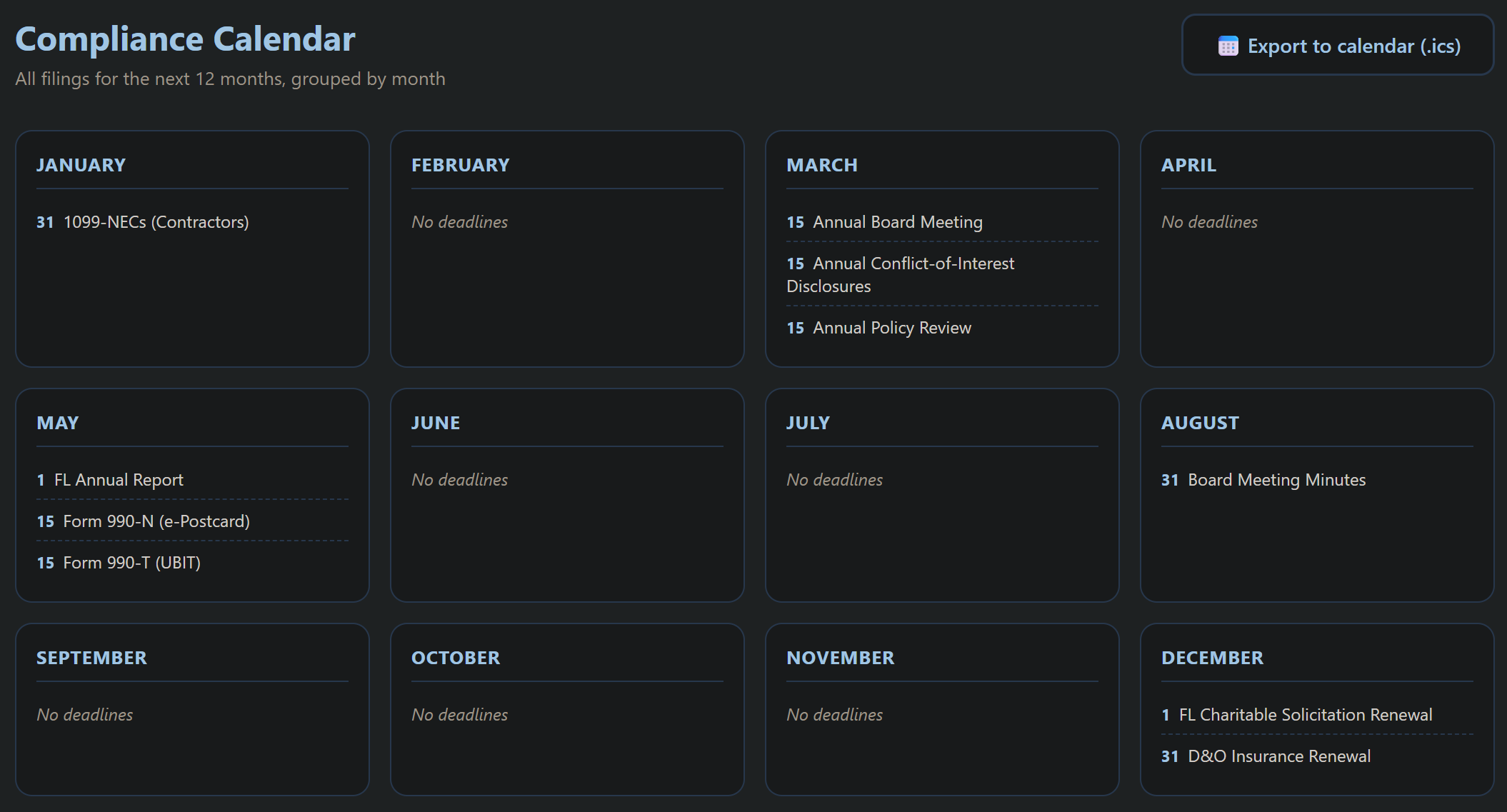
Key features
- Deadline calendar for federal and state requirements. The 990 version follows your gross receipts: Form 990-N up to $50,000, Form 990-EZ under $200,000 with total assets under $500,000, and the full Form 990 from $200,000 up.
- State-by-state registration and solicitation tracking.
- Fundraising states, the URS, and who answers for your filings (October 9, 2026): a state listed under States where you actively fundraise adds only its charitable registration, not its corporate annual report or tax filings, and anything already being tracked stays. Every registration item says whether the state accepts the Unified Registration Statement (seven do, according to the Multi-State Filer Project: Arkansas, Georgia, Illinois, Kansas, Minnesota, Oregon and Virginia; Florida and several others do not; the rest say Check with the state), the largest states cite their statute, and the twelve states that do not register charities are named with the reason. A Compliance owner card on Settings sets the default Responsible person and can be applied to every filing without one; Suggest states from my donors reads how many Donor Management donors live in each state, counts only. Guidance, not legal advice: https://www.allinoneforprofit.com/compliance-tracker/guide.html#coverage.
- Deadlines computed from each state’s own statute: every state’s charitable solicitation date comes from that state’s law rather than one generic rule, and each entry cites the statute behind it and carries the date the research was verified. The shapes differ, and the entry tells you which one you have: a fixed period after your fiscal year end (Alabama 90 days, Arkansas 180 days, Colorado 8 months), a fixed calendar date (Alaska and North Dakota September 1, Maine November 30, Wisconsin July 31), a date tied to when you actually file your Form 990 (Kentucky, Oklahoma, and Hawaii), or your own registration anniversary (Georgia, Nevada, Rhode Island, West Virginia), which no tracker can know, so it shows an estimate and asks you to enter the real date once. Delaware and Utah show no registration item at all, because Delaware has no charitable solicitation statute and Utah abolished registration effective May 1, 2024.
- Status and reminders so you know what's done and what's due.
- Per-filing tracking: expand any filing to set a custom due date (honored by the calendar and score), name a responsible person, and keep notes, with plain-English explanations under jargon terms like the URS and audit thresholds.
- A record of every filing: expand a filing and record the date it was filed, who filed it, the agency’s confirmation number, and the proof itself, which uploads straight into your Document Library and is tagged so you can pull up every year at once. The record is kept on your organization’s account, so it survives a new laptop and a change of treasurer.
- Last year is never overwritten: each record is filed against the year it covers, so when a deadline rolls forward the previous year moves into Earlier filings kept on record, with its date, its filer, its confirmation number and its evidence intact. That is what lets you show a board or an auditor not just what is due, but what was actually done.
- Your own deadlines: add anything the built-in rules cannot know about, a grant report, a lease renewal, an insurance certificate, a local permit. It joins your filing list and your calendar feed and gets the same record panel, so your own deadlines build the same history as the required ones.
- Your consulting practice, kept separate: a consultant can track their own state registrations here too, from a Consulting practice card in Settings that is off until you switch it on. That default is deliberate: a client organization's calendar must never fill up with its consultant's filings. Switched on, you pick the states where your clients solicit, and those renewals sit under their own category.
- Independent audit check that reads your state's audit threshold against your revenue to flag whether an audit, review, or compilation is likely required (plus the federal Single Audit and funder triggers), with an audit-readiness checklist and an Audit Readiness Plan automation.
- Predictions (free): deadline-miss risk for your filings. See Predictions.
- Policy reviews, public disclosure and lobbying (October 18, 2026): each adopted Board Handbook policy shows its next board review under Governance; a Public Disclosure page records who answers requests for your Form 990 and exemption application, where the documents are posted, and logs each request, flagging a late answer; and a public charity that lobbies gets a Form 990 Schedule C item. The Florida charitable solicitation filing (October 19, 2026) explains registering with the Florida Department of Agriculture and Consumer Services before you first ask the public for money, not only renewing.
How to use it
- Set your state(s) and confirm which requirements apply.
- Review upcoming deadlines and mark filings as complete.
- When you file something, record it: the date, who filed it, the confirmation number, and the proof.
- Check it on a regular cadence so nothing lapses.
For a step-by-step first session, see the Compliance Tracker guide.
Open the Compliance Tracker →Document Retention & Security
Generate the document-retention and data-security policies a nonprofit should have, plus a clear schedule for what to keep and for how long.
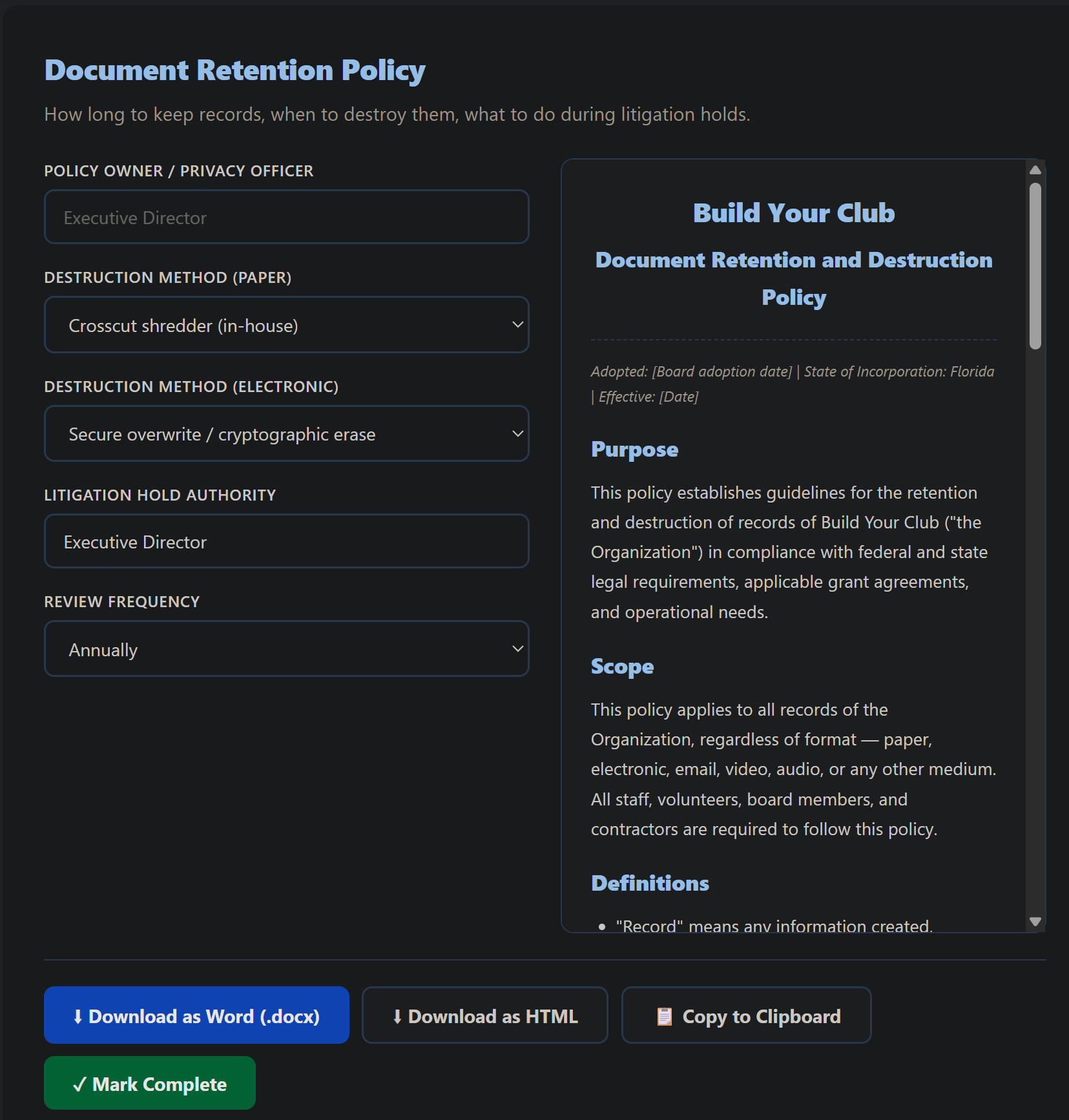
Key features
- Retention schedule: what to keep, and for how long.
- Policy generators: document retention, privacy, and data security.
- 5 AI automations: an AI Acceptable Use Policy, a Third-Party & AI Vendor Vetting Policy, a Social Media Policy, a BYOD & Remote-Work Device Policy, and a Policy Binder Compiler.
- Developing Your AI Policy (October 2026): the guide section at https://www.allinoneforprofit.com/document-retention-security/guide.html#ai-policy walks a small group through the seven decisions an AI policy needs (what is already in use, what may and may not go into AI, the approved tools, who checks the output, when to disclose, what AI must never do, the yearly review) before the AI Acceptable Use Policy automation turns them into an adoption-ready policy. The Technology course covers the same ground in its lesson Your AI Use Policy.
- Word export on your letterhead, ready to adopt.
How to use it
- Generate the retention schedule and policies.
- Customize them to your organization.
- Export to Word, adopt by board resolution, and file.
For a step-by-step first session, see the Document Retention & Security guide.
Open Document Retention & Security →Forms
Build a custom form, hand out one permanent link, and stop chasing paper: responses collect themselves, and a scheduled report turns them into a summary your team and your board actually read.
Key features
- Form builder for sign-ups, daily activity logs, intake forms, and surveys, with text, choice, date, and number fields (numbers are validated on the phone and the server).
- One permanent public link per form that opens on any phone with no login and no app; volunteers can add it to their home screen once and it works like an app from then on.
- Responses in one place: every submission on one screen, with paging for large forms and a CSV export for spreadsheets. The CSV always contains every response, not just the page on screen.
- Answers survive being interrupted: a long form saves itself on the person's own device as they type and restores if they close the page by accident, then clears once they submit. Nothing to switch on.
- Scheduled summary reports: a weekly, monthly, quarterly, or annual email to any recipient list with the key figures, per-field breakdowns, and notable comments from the period, written in plain language.
- One-click board report: the same summary as a Word document on your organization letterhead, ready to download, save to the Document Library, print, or email as an attachment.
- Donation and sponsorship forms (added October 14, 2026): a paid form can treat payments as Donations (booked to Individual Donations, the giver created or updated in Donor Management, the thank-you email a tax receipt) or as Sponsorships of a program or fund with levels such as Bronze, Silver and Gold (booked to Corporate Sponsorships), instead of Purchases. An option can carry a fair market value for anything the giver receives, and the receipt states the deductible part. Conditional questions have five tests: is, is not, contains, is answered, is not answered.
How to use it
- Build the form and share its public link once, by text or a printed card.
- Watch responses collect on the Responses screen; export CSV when you need a spreadsheet.
- Switch on a scheduled summary so the totals arrive by email without anyone compiling them.
- Before a board meeting, generate the board report on letterhead in one click.
HR Management
The HR essentials for nonprofits: employee versus contractor classification, an employee handbook, offer letters, and the core policies you need before you hire.
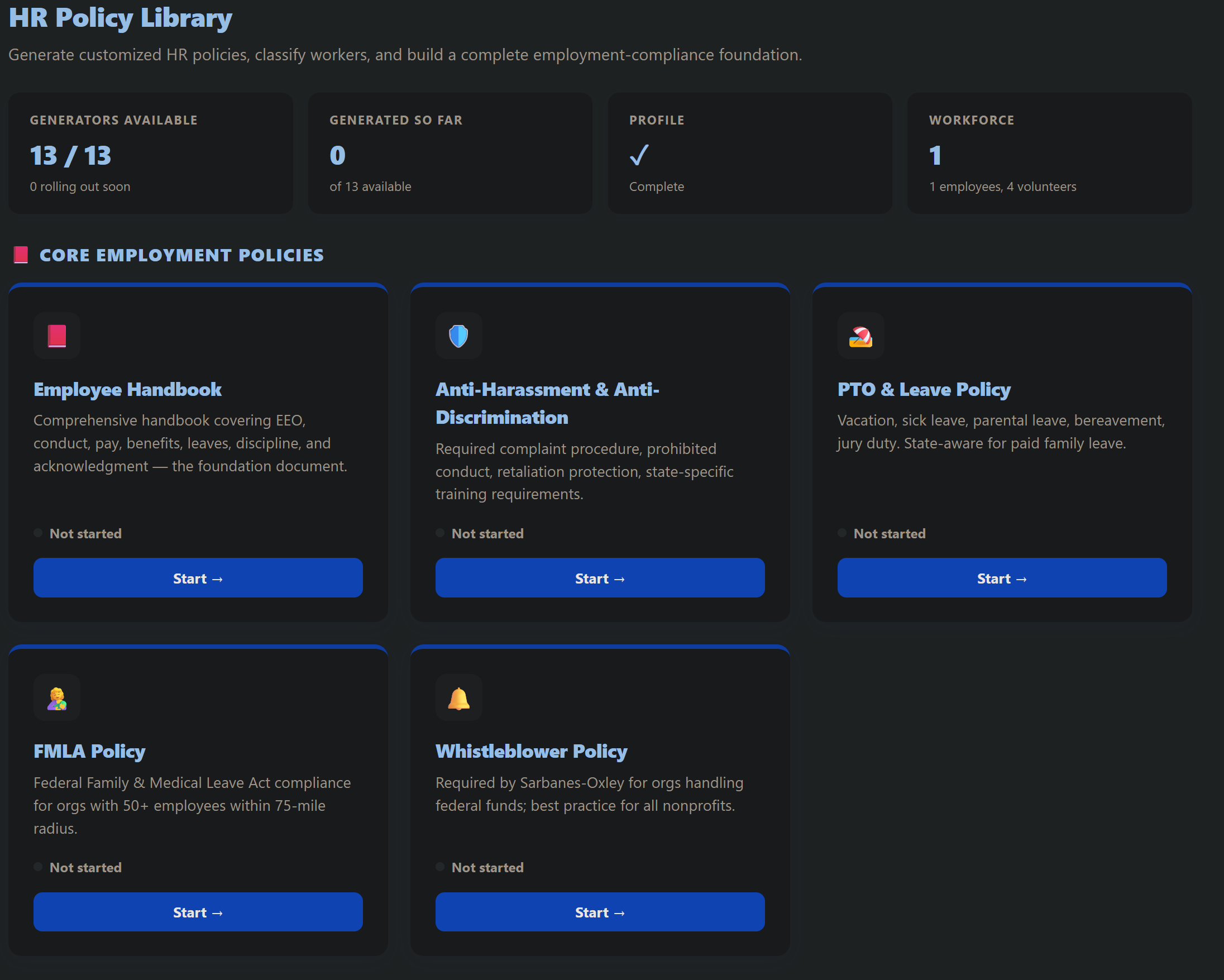
Key features
- Employee handbook generator with the core policies.
- Classification guidance: employee vs. independent contractor.
- Form 1099 box on contractors (added October 3, 2026): a person whose employment type is Contractor gets a Form 1099 box, Gets a Form 1099 (Yes by default, No for an incorporated contractor) and W-9 on file, which Financial Management's Form 1099 payees card reads at year end.
- Offer letters and onboarding documents.
- Employee Reviews and contractor evaluations: request a five-question self-review that the employee completes from the member portal (an email plus a portal alert, with an AI writing coach that turns rough notes into drafts they approve), compile it into your manager worksheet with AI (per-field approval), draft the formal review summary, export to Word on your letterhead, and mark it complete to set the next review date a year out. Contractor evaluations score the work against the contract's requirements (upload or paste the contract and AI proposes the checklist for your approval) and record a renew, renegotiate, rebid, or end recommendation. Shared with the Executive Director app, both work from the same records.
- Payroll & Labor Allocation: import the payroll register CSV from the system you already use (Gusto, ADP, Paychex, QuickBooks, and the rest) or enter a pay period by hand, split each person's cost across your programs, grants, and funds, and produce the labor cost allocation and personnel-cost reports funders and auditors ask for, plus an on-screen labor dashboard, an AI-drafted personnel-costs narrative (only the computed numbers, never invented), and a 12-item payroll compliance checklist. It does not run payroll, file taxes, or move money; it allocates and reports on the payroll you already run.
- ⛪ Clergy Compensation (churches): a church-only section for the rules that make minister pay different. The least-of-three housing allowance worksheet (designated amount, actual costs, fair rental value) with both resulting tax bases shown, since the exclusion applies for income tax but stays in the SECA base; a designation record that refuses retroactive effective dates, because the allowance must be designated in advance by board action; minister payroll flags (dual status, FICA exempt, voluntary withholding, the irrevocable Form 4361 deadline); W-2 guidance for the boxes that differ; and the reminder that churches owe no FUTA on any employee. Structures, calculates, and documents; your CPA confirms the numbers. See Using the Platform as a Church.
- Credentials & CEUs: track the professional development your people earn outside the platform, continuing education units, certifications, professional licenses, and outside courses, per staff member (and board members or volunteers by name), with the issuer, completed date, hours, an optional renewal date, and a link to the certificate. Totals your CEU hours, flags anything expiring within 60 days or already expired, and exports to CSV for grants, audits, and accreditation. Upload the certificate file straight into your Document Library, set an annual CEU-hour goal (a default for everyone plus per-person overrides) and watch each person's progress bar, and use Draft report (AI) to turn the records into a written professional-development and compliance report. People can log their own credentials from the member portal (you confirm each with one-click Verify), renewal dates flow into your calendar feed and weekly digest, and the same records surface in the Volunteer Management and Board Management apps matched to your volunteers and board. For clubs it doubles as volunteer and coach compliance tracking (background checks, SafeSport, first aid and CPR, concussion, coaching certifications).
- Positions: the seats in your organization, kept separate from the people sitting in them. A seat can exist with nobody in it, which is how an open role is tracked, and a seat can be retired while somebody is still in it. Each position carries a title, department, seat status, classification, FTE, the restricted funding source if there is one, the position it reports to (a position, not a person), and the date it opened. Build positions from existing job titles creates one position per distinct title already on your employee list, and is safe to run twice because it skips titles that already have one. Reporting lines point at positions rather than people, so your structure survives a departure instead of being rebuilt around whoever is left.
- Separations without deletion: an employee or contractor can be set Inactive with the separation captured on the record, the date, the type, and whether they are eligible for rehire. Nothing is deleted, so the record is still there for an audit, an unemployment claim, or a reference request years later.
- Screenings: background checks for employees and contractors, alongside the volunteer screenings already tracked here, with the check type, the completion date, the result, and the date it has to be run again, so an expiring check surfaces before it lapses rather than after.
- The generators read your own records: choose a position and its title, department and reporting line fill themselves in, so the same details are not asked for a second time in a second place.
- Improve with AI: on the Job Description, Offer Letter and Volunteer Agreement generators, write a rough version in your own words and a cleaned-up suggestion appears below the field with Accept and Discard. Your own text is never overwritten until you accept it. It will not invent a fact, will not add or strengthen an obligation, will not raise a required qualification you did not give, and will not rename the role, because the position title, department and reporting line travel with the request as settled facts. Owner and admin only, with a daily limit for each organization.
- Word export on your letterhead.
- Sidebar layout: the app's screens sit in three short groups, PEOPLE (Employees, Positions, Time Off, Reviews, Credentials & CEUs), PAY & CLERGY (Payroll, and Clergy Compensation for churches), and POLICIES & COMPLIANCE (Core Policies, Hiring & Onboarding, Separation & Volunteers, Compliance Tools), matching the layout of every other app.
How to use it
- Generate your handbook and core policies.
- Use the classification guidance before you engage someone.
- Export offer letters and onboarding docs as you hire.
For a step-by-step first session, see the HR Management guide.
Open HR Management →Training
Turn a video or a written lesson into a training module with a completion check, assign it to the people who need it, and know who has finished: board orientation, conflict-of-interest basics, volunteer safety, or anything you record yourself.
Key features
- A module is a lesson plus a check. Embed an unlisted YouTube or Vimeo link, upload a file (up to 100 MB, kept privately), or write the lesson yourself and have it read inside the member portal, which suits a short policy or code of conduct that is not worth filming. Then choose the completion check: a one-click acknowledgment, or a quiz with a passing score whose questions AI drafts from the title.
- Assign it to everyone, the board, or volunteers, mark it required or optional, and set it to renew annually; the roster comes from your contacts, committees, and board and volunteer lists, so there is nothing to re-enter.
- Prerequisite for an event: tie a module to an event and nobody can register until they have completed it.
- Members take training from their member page, on a phone if they like, and staff (and a committee named Training, if you have one) are notified when someone completes it.
- Certificates file themselves in the Document Library, and the Governance dashboard flags outstanding required completions.
- A standard library of starter modules to add and adapt, and, for organizations working with a consultant partner, a ready-made client training pack, lessons and an onboarding course together, that the partner can load in one click.
Courses: your modules in order. The Courses tab turns modules into a course: an ordered sequence of lessons, where every lesson is one of the modules you already built, so a module is written once and corrected everywhere it is taught. Set when each lesson opens (right away, with a given cohort session, or on a date) and whether it needs the lesson before it. AI drafts the outline from the course title and the audience, then drafts each lesson's quiz. Attach the course to a cohort and its roster is enrolled for you, including anyone who joins later; a course with no cohort is self-paced and you enroll people by email. An enrollment is itself an identity for the member page, so a learner you enroll who is on no other list can still ask for a sign-in link and reach their courses. A module that is a lesson in a course cannot be deleted until you take it out of that course, so a course is never left pointing at a lesson that no longer opens. You get a progress grid of every learner against every lesson with their session attendance folded in; each learner gets a progress bar and a Continue button that picks up where they stopped. You decide what finishing means: every required lesson, a minimum number of lessons, a minimum number of sessions attended, or any combination. When a learner meets it, their certificate is issued on your organization's own letterhead with the course, the dates and the facilitator's signature block, and files itself into the Document Library.
Assignments, review and the gradebook. A lesson can carry an assignment: say what you are asking for, whether you want a written answer, a file or both, and build a rubric of criteria with a score each and a pass mark. The learner sends it from the same card they take the lesson in. It lands in the course's submissions queue, where you read it, score it, write feedback, and either accept it or send it back for another attempt; both of you are told by email, and the learner gets a notification on their phone. Only an accepted assignment counts toward finishing, which is the fourth thing a completion rule can ask for. A file a learner sends is filed into your Document Library under their name, so your retention and sharing rules apply to it like any other document. The gradebook is one row per learner with lessons, sessions attended, every assignment and the points, and it exports to CSV.
Groups: cohorts and mastermind groups. The Groups tab runs a cohort (instructor-led, a fixed curriculum, everyone finishes together) or a mastermind (peer-led, open agenda, members bring their own challenges and hold each other accountable between meetings). Name the group, pick a facilitator (a member of your organization or an outside person by email), build the roster from the same people lists as training, and set the first date and cadence: every session lands on your calendar as an event with its join link, from your connected Zoom or Google account or a link you paste. Members see the group on their member page with the next session, an RSVP, the roster, their own attendance and a discussion thread; reminders go out a day and an hour before each session, and new posts arrive as a daily digest. Attendance fills in from RSVPs after a session, from the Zoom participant report when you use Zoom, and by the facilitator's hand for anything else. Every group email carries a calendar file, so a member adds the session to their own calendar in one click: the notice that they are in the group carries the whole series, and the reminder the day before carries that one session under the same identifier, so it updates the entry they already have instead of adding a second one. Cohort and mastermind sessions also show on your organization's calendar subscription at their real time, rather than as all-day entries with no time on them. When you tick the box to email the roster, the page tells you how many people were emailed, and says so plainly if any of them failed, instead of only saying Saved.
How to use it
- Add a starter module from the library or create your own, attach the video or write the lesson, and pick the completion check.
- Assign it, mark it required, and set the renewal if it repeats each year.
- Tell members it is waiting on their member page; completions and certificates record themselves.
- Before a board meeting, load the training status to see who is current.
- To teach several modules in order, open the Courses tab, add them as lessons, say when each one opens, and set what finishing the course means.
- To ask learners to hand something in, add an assignment to a lesson with a rubric, then read and mark what arrives on the course's Submissions tab and watch the gradebook fill in.
- To run a cohort or a mastermind, open the Groups tab, create the group with its roster and first date, and let the sessions, reminders and attendance take care of themselves.
Technology & Digital Services
Get your nonprofit's technology in order without an IT department: assess where you stand, set up a proper website and professional email, claim the free nonprofit tech programs, lock down security, and plan your tech budget for the year.
Key features
- Tech Readiness Assessment that grades your current setup and produces a prioritized report.
- Website builder with your own .org: a multi-page site we host, live on a free address the moment you publish, and on AIONP Essentials and AIONP Complete one .org domain registered in your organization's name at no charge, your site live at it within minutes; download your site or move the domain to your own Cloudflare account at any time. Plus professional email setup (Google Workspace or Microsoft 365).
- Up to 10 pages, news, photos and videos (added September 23, 2026): a site holds up to 10 pages you build, every one in the top menu (a Menu button on phones). Section 9 holds press releases, stories about you in the news and blog posts, shown in a News block, at /news and in an RSS feed; a press release written in Marketing publishes there with one click. Section 10 holds photo albums, resized on your device, and YouTube or Vimeo videos in the privacy-enhanced player, shown in a Gallery block and at /gallery with a full-screen viewer.
- Put it on a website you already have (added September 23, 2026): section 8 gives you one line of code for upcoming events, past events, news, the photo gallery, the store or a newsletter signup, for an HTML block on Wix, Squarespace, WordPress or anything else. Newsletter signups from your site or the embed get a confirmation email and count once they click it. Organizations that work with people in distress can turn on a 988 Suicide and Crisis Lifeline banner across every page.
- Free & discounted nonprofit tech programs, what to claim and how.
- Security essentials: passwords, MFA, backups, and account hygiene.
- Annual tech plan and budget sized for small organizations.
How to use it
- Run the Tech Readiness Assessment to see where you stand.
- Work the fixes in priority order, website, email, security.
- Build your annual tech plan and budget from what's left.
Communications
- Connect your own email tool (MailerLite, Mailchimp, or Brevo) to send email from your organization.
- Organization Contacts list for vendors, contractors, partners, and other non-donor contacts, with a contact person (who to ask for), a type pull-down, tags, phone, and address on each record. Email is optional, so phone-only contacts save fine.
- Contact Manager: the same contacts, plus your donors and volunteers, in one searchable list at www.allinonenonprofit.com/contact-manager/ where you can log calls, set follow-ups, and schedule tasks and appointments. This address book keeps working and stays in sync.
- Import contacts from a CSV file: click Import CSV in the Organization Contacts address book (or use the Import contacts screen in the Contact Manager) to bring in a list at once. Column headers are auto-mapped (Name, Contact Person, Email, Phone, Type, City, Zip, Tags, Notes), you see a preview of new versus updated rows first, rows with a matching email update instead of duplicating, and the whole batch can be undone in one click. An Export CSV button downloads your contacts back out to a spreadsheet.
- Branded invitations and updates sent to chosen audiences from your contacts.
For a step-by-step first session, see the Technology & Digital Services guide.
Open Technology & Digital Services →Website & Join Page
A website for your organization that you build from blocks, publish in seconds and keep current without a web designer, with a join form, newsletter signups, news, photos and events that fill themselves in from the rest of the platform.
Key features
- Your web address included: a free address the moment you publish, or, in section 1, "Your web address", type a name, press Check availability and Register a .org in your organization's name, which we pay for and renew while you subscribe. Download my site and Move my domain to my own Cloudflare account keep the site and the domain yours. To take the domain to another registrar instead, email support for the transfer code, available 60 days after registration (added October 25, 2026). A domain you already own connects in section 5, "Point a domain you already own", with a free secure certificate.
- Pages from blocks: up to 10 pages, every one in the top menu with a Menu button on phones, built from blocks such as Heading, Text, Image, Button, Quote, List, Video, Gallery, Donate, Join, Newsletter, News, Events and Shop, with a live preview beside the editor. Section 2 suggests a proven five-page layout (Home, About Us, Programs, Donate, Contact) if you are not sure where to start.
- Events that fill themselves in: an Events block lists your published events with their pictures and a Get tickets button, set to Upcoming events, Past events or, since October 20, 2026, Month calendar, every published public event on a month grid with Previous and Next.
- Giving and joining: a Donate block takes cards through your connected Stripe account (set up online giving in Donor Management), with a PayPal link if you add one in Site settings; join requests arrive in section 6 and email you the moment each one comes in, with Export CSV.
- Newsletter signups: a Newsletter block collects subscribers, who confirm by email and count once they click it; section 7 lists them, and Newsletters can import them.
- News, press and blog (section 9): press releases, stories about you in the news and blog posts, shown in a News block, at /news with a page for each post, and in an RSS feed at /news.xml. A press release written in Marketing publishes there with one click.
- Photos and videos (section 10): albums of photos, resized on your device, and YouTube or Vimeo videos, shown in a Gallery block and at /gallery.
- Put this on your website (section 8): already have a site elsewhere? Paste one line of code and your upcoming or past events, news, photo gallery, store or a newsletter signup appear there, updated within about a minute.
How to use it
- Open it from My Apps and fill in Site settings (section 3): your organization name, logo, theme and accent colors and the contact line for the footer.
- Build your pages in section 2, starting from the five-page layout if you want a head start, and watch the live preview as you go.
- Press Publish my site (section 4). Your site is live on your free address in seconds.
- Register a .org in section 1, or point a domain you already own in section 5.
- Add news and photos as they happen; your events, donations and signups take care of themselves.
AI Workflow Automation
A template-driven content generator for nonprofit communications, 75 ready-to-use templates that turn the writing you dread (thank-yous, appeals, board updates, social posts, press releases) into a few clicks.
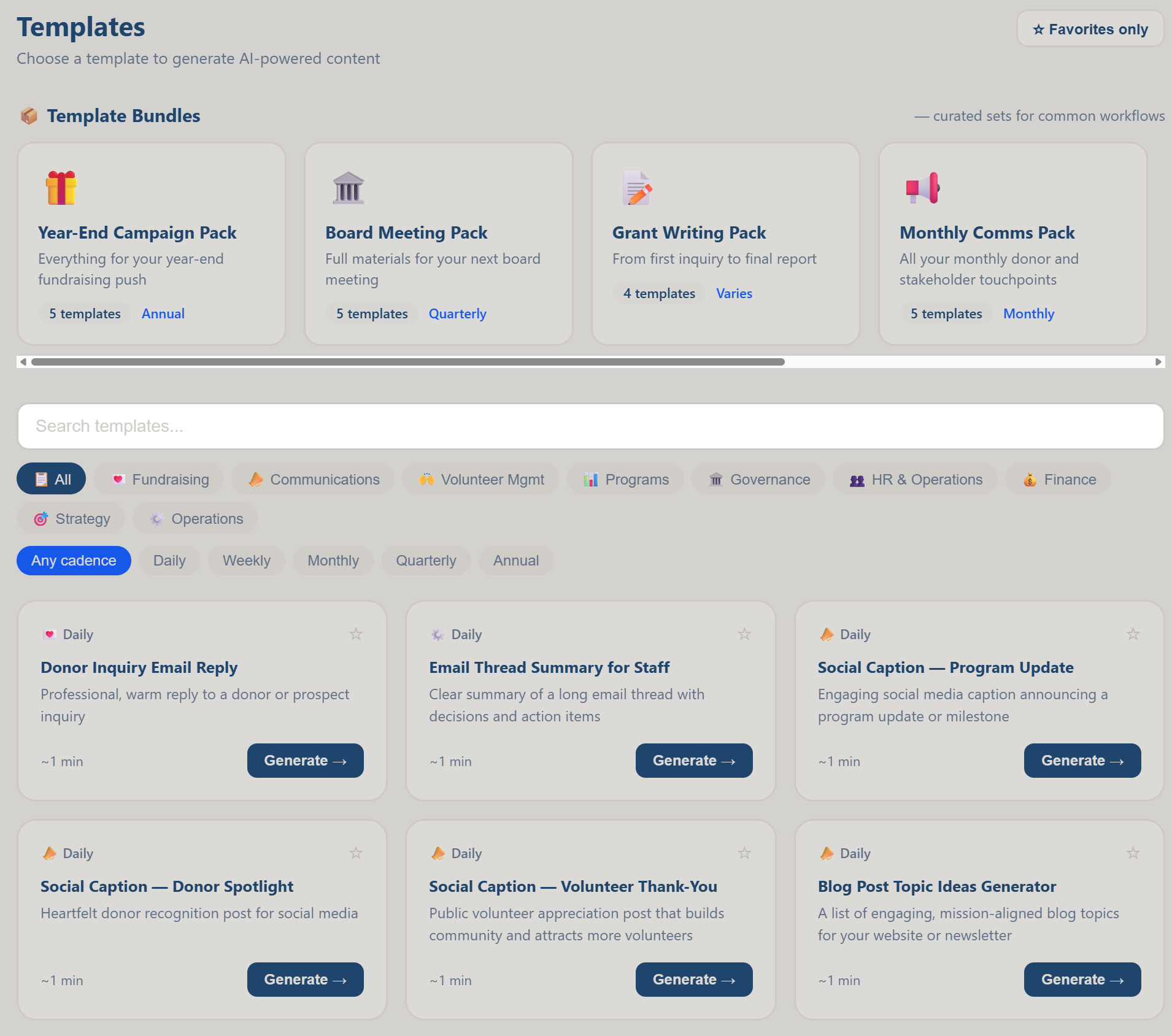
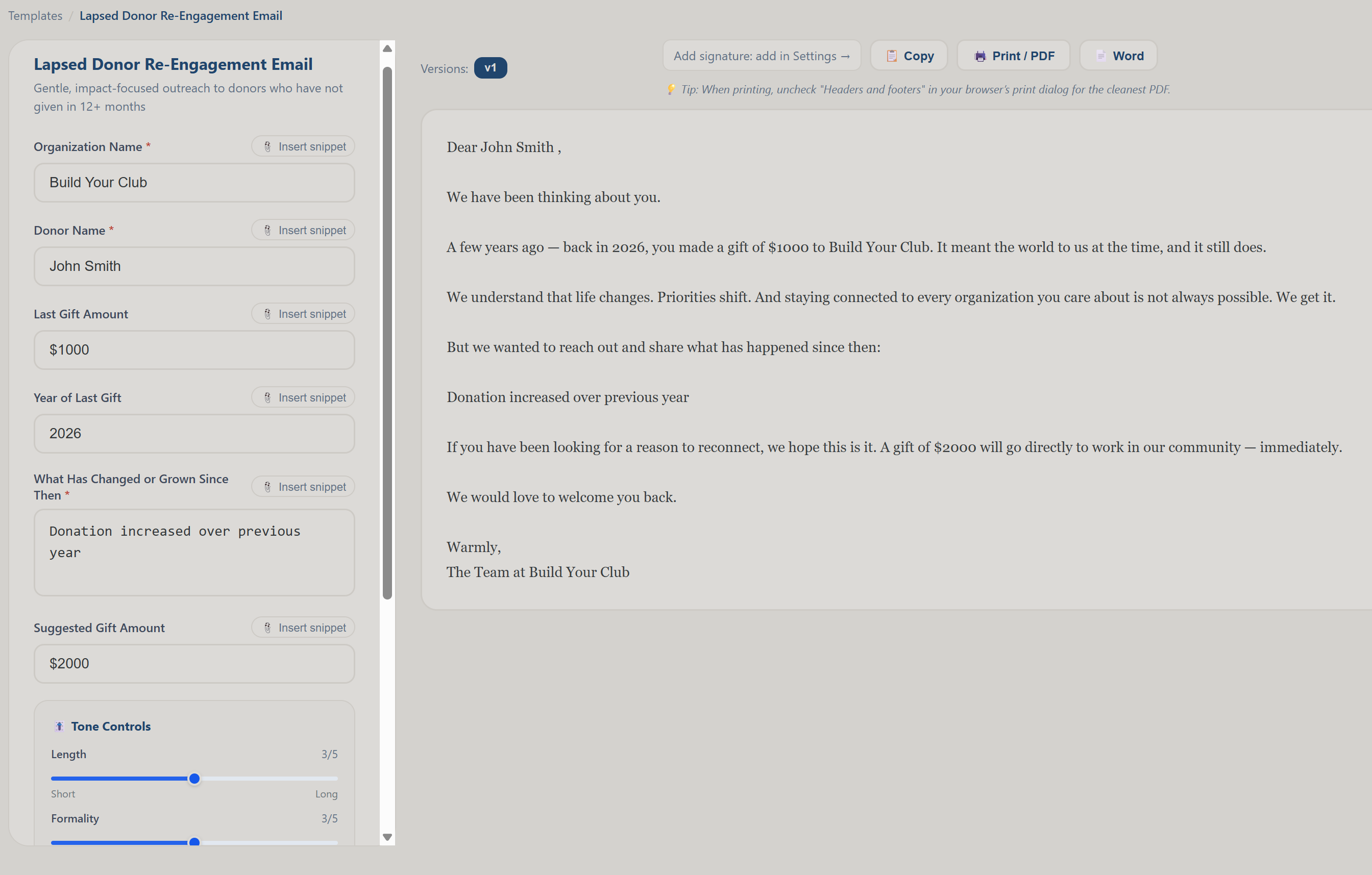
Key features
- 75 templates organized by cadence (Daily, Weekly, Monthly, Quarterly, Annual) and department (fundraising, communications, operations, governance, and more).
- "What do you need?" search on the dashboard: type what you're trying to create in plain language and jump straight to the best-matching templates, or click Draft it with AI instead and the AI writes the document freeform when no template fits.
- Upload your own templates: turn any letter or document your organization writes repeatedly into a private, reusable custom template. The AI detects the fill-in fields for you, and your custom templates show up in the library and every search.
- Tone controls (length, formality, urgency, simplicity, voice) to match each piece to its audience.
- Versions, drafts, and reusable snippets so you can iterate and reuse your best language.
- Document branding built in: each template knows what it is, letters and emails get your signature, documents get your letterhead and footer, and quick social/digital content gets none. You can toggle any of it per export.
- Export to Word, Print/PDF, or copy to clipboard; team view and a content analytics snapshot included.
How to use it
- Browse or search the template library and pick what you need.
- Fill in a few fields, adjust the tone sliders, and generate.
- Refine, then export to Word or print to PDF, already on your letterhead.
For a step-by-step first session, see the AI Workflow Automation guide.
Open AI Workflow Automation →Fundraising & Development Apps
The full fundraising and constituent lifecycle: a strategy course, donors and gifts, contacts, casework, grants, scholarships, marketing, and the annual report.
Fundraising & Development
A practical fundraising course paired with planning tools and AI drafting: build annual plans, donor pipelines, appeals, events, and grants, then let AI draft the plans and documents, for organizations that have to raise the money themselves.
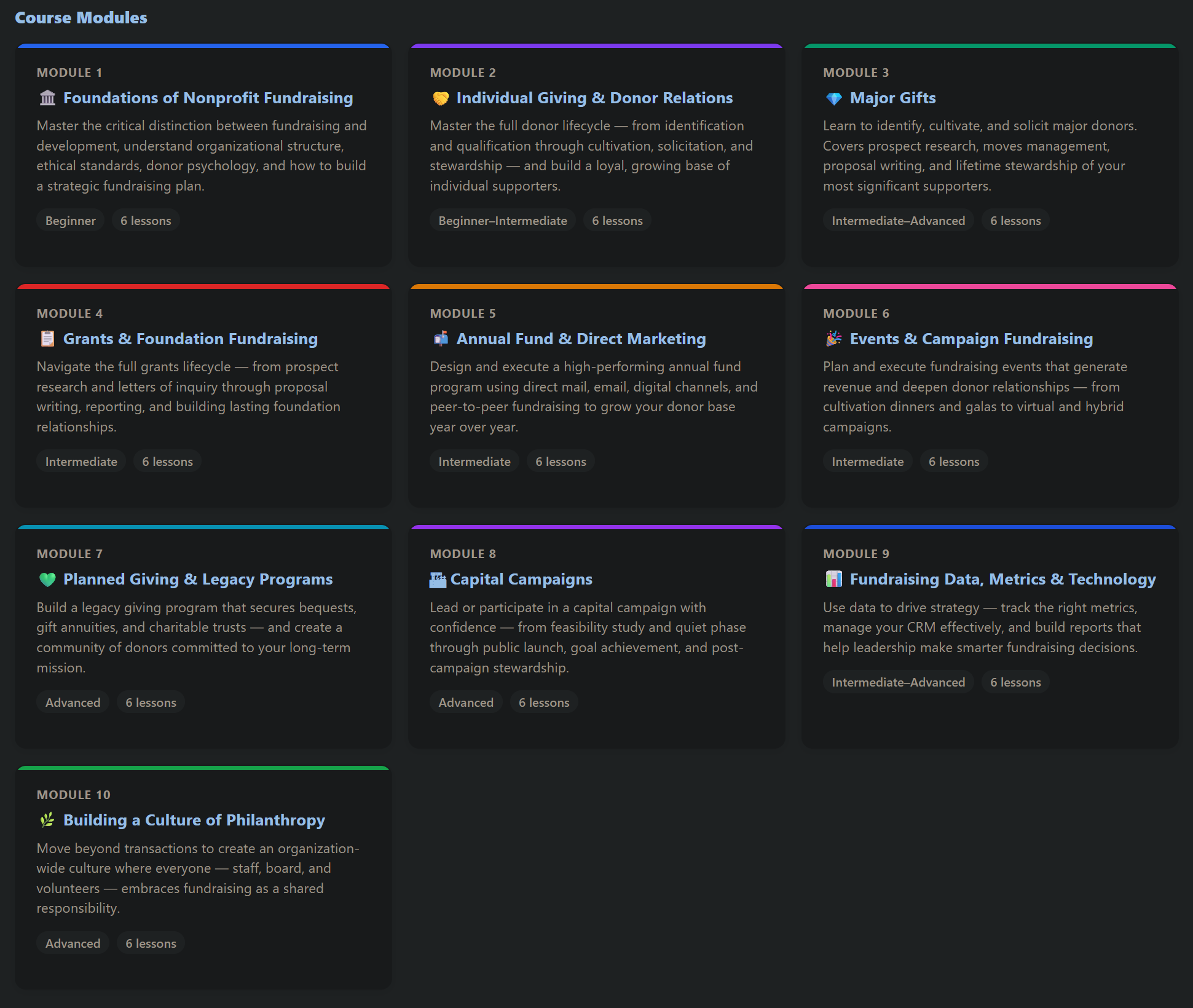
Key features
- Self-paced course on strategy, the donor lifecycle, and asking, with notes and progress you can mark complete.
- Annual fundraising plan framework.
- 9 AI automations: annual development plans, campaign plans, gift range charts, readiness assessments, and fundraising calendars.
- Predictions (free): a grants pipeline forecast and deadline risk. See Predictions.
- Connects to the Donor Management, Grant Management, and Marketing tools.
How to use it
- Work through the lessons and build your annual plan.
- Use the AI automations to draft your development plan, campaign plans, and fundraising calendar.
- Put the plan into action with the connected development tools.
Campaigns & appeals tracker
- Plan and track each campaign or appeal from the Campaigns & Appeals item in the Develop sidebar group: give it a name and type, set a goal, and record the cost, the amount raised, the number of donors, dates, owner, and status, with a live progress bar on each campaign card.
- Link the plan document: a "Plans and appeals in your Library" panel lists documents in your Document Library tagged campaign or appeal, so you can classify a document into a campaign and start a campaign entry pre-filled from a saved plan, and each campaign card can carry a linked-plan URL.
Campaign playbooks (added October 24, 2026)
- Playbooks in the sidebar (also Start from a playbook on Campaigns & Appeals) lays out the Giving Tuesday campaign with every date worked out from this year's Giving Tuesday, and the Year-End campaign after it: the plan by date, the three email series, copy for emails, texts and an eleven-post social calendar, a saved checklist, the measures and a late-start version. Every plan reads the whole playbook and runs it by hand.
- On AIONP Complete, Start this campaign creates the campaign row, writes about thirty-six dated tasks to the owner's list, prepares the posts as a file for the Social Media Planner, sends the nine emails to your MailerLite as drafts (or files them as a Word document) and counts the results from Donor Management. The Giving Tuesday Kit on AI Automations drafts the copy from your goal, match and story.
Events & ticketing
- Create and edit events with the details, date, and capacity for galas, workshops, and fundraisers.
- Ticket types with prices, plus promo codes for discounts and comp codes for free admission. Quick-add ticket-type presets (General Admission, VIP, VIP Table, Complimentary, or your own) let you add common ticket types in one click.
- Public RSVP and registration page you can publish and share so guests can sign up.
- Paid tickets sold through your organization's own connected Stripe account, so funds go straight to you.
- Attendee roster with check-in to manage and admit guests at the door.
- QR tickets and a door scanner: each ticket gets a branded "Admit one" page with a scannable QR code (paid-ticket confirmation emails include a link to each ticket), and a mobile Check-in scanner button on the roster opens your phone camera to scan guests in at the door, showing each guest's name and ticket type and whether they were already checked in.
- Cancel an event and automatically refund all paid attendees through Stripe.
- A gift at checkout and the guests' names (added October 10, 2026): the ticket page offers "Add a gift to [your organization] (optional)" with preset amounts, an "Other $" box and "Cover the card fees so [your organization] receives every dollar"; the gift sits on the same receipt as the tickets and is fully tax-deductible. Tick "Collect each attendee's name" on the event and the page asks "Who is coming?" with a name box for every ticket, so a table of ten arrives as ten named guests.
- A QR code for the event page, and a guest added at the door (added October 10, 2026): the QR code button on a published event card prints a code that points to the public event page, for table tents, posters and the program; on event day, "Add a guest at the door" on the Attendees roster takes a walk-in or a comp with a name, an optional email and a ticket type, and checks them in. Nothing is charged there.
- Sponsorship levels and "Become a sponsor" (added October 13, 2026): in an event's Sponsors view, Sponsorship levels are what you sell, with how many are available; they appear under "Become a sponsor" on the public event page with how many of each are left, and a company that picks one lands on your list as a Prospect marked "Requested on the event page". Pay link on a sponsor copies a payment page with their balance filled in; when they pay, the sponsor is marked Paid, the money books as Corporate Sponsorships and it shows as a gift in Donor Management.
- Tickets only an invitation code opens (added October 13, 2026): tick Only with an invitation code on a ticket type and it shows on the event page but cannot be chosen without a code; a code set to Invitation only (no discount) under Promo & comp codes opens those seats and changes no prices. Replies to ticket, receipt and registration emails go to your organization.
- Bring in tickets and sponsors you already sold (added October 10, 2026): "Bring in tickets already sold" on the Attendees roster loads a CSV from a spreadsheet, Eventbrite, Zeffy or Givebutter (a template is provided; Zeffy and Givebutter exports load as they are), with a preview, duplicates skipped, an option to also record the money in Financial Management, and "Undo this import". "Import sponsors (CSV)" on the Sponsors view does the same for a sponsor list, matching names already on your list to update them.
- Per-ticket fair-market-value so receipts reflect the quid-pro-quo, tax-deductible portion of each purchase.
- Send invitations with a composer that emails a chosen audience through your connected email tool (MailerLite, Mailchimp, or Brevo).
- Event picture, outside registration and partner walks (added September 23, 2026): an event can carry a picture that shows on its page, on your website and in the events embed; registration can point to another organization's website when somebody else runs sign-ups; a partner walk carries a team goal and a progress bar; and every event page has Map and Add to calendar links, turning into a short recap after the date passes. Sponsors marked Committed or Paid appear on the public event page by level, with a per-sponsor box to keep one off it.
Store (added September 23, 2026)
- Sell shirts, bracelets and other items online and at your events from one stock count: products with up to two options (size, color) and a stock count per combination, one sales tax rate, flat shipping with a free-shipping threshold, local pickup, an optional donation line at checkout, and a return policy.
- Card payments go to your own Stripe account, the same as tickets and donations; the confirmation email says merchandise is a purchase, not a tax-deductible gift. Orders can be printed as a packing list and marked packed, shipped with tracking, or picked up; a refund made in Stripe is recorded here and puts the items back in stock.
- Sell in person from a phone at your event table, paid by cash, check or a card reader you use elsewhere, out of the same stock. Every sale books itself in Financial Management, with sales tax held apart for the state and a monthly Sales tax report.
- Put it on any website: a Shop block on your hosted site, or one line of embed code on a site you already have.
Raffles (added September 23, 2026)
- A record of a raffle you run in person, on each event: ticket price and bundles, prizes with their value and donor, the numbered tickets each volunteer sold and to whom (overlapping numbers are refused), the drawing with witnesses and a fair pick among sold numbers, the winners and pickup. Every sale is booked in Financial Management as Raffle Proceeds.
- There are no online raffle ticket sales, on purpose, because raffle law differs by state and many states restrict selling tickets online. A prize is flagged for review when the IRS may expect a Form W-2G; your accountant decides.
Event sponsorship tracking
- Sponsors on every event: open Events, then the Sponsors button on an event to manage that event's sponsors in one place.
- Per-sponsor detail: track each sponsor with name, level or tier (Presenting, Gold, Silver, Bronze, In-kind, or a custom tier), committed and paid amounts, status (Prospect, Committed, Paid, or Declined), contact, a benefits and recognition checklist (one item per line, ticked off as you fulfill each), notes, and a logo.
- Per-event totals and what is owed: see committed and paid totals for the event, plus a What is still owed view that lists every unfulfilled benefit across all sponsors.
- Across-events roll-up: the Corporate and Sponsors sidebar item shows totals, a by-event breakdown, and your top sponsors across all events.
- Recognition PDF: a Recognition PDF button builds a designed sponsor wall grouped by tier (with logos) that downloads and files itself into your Document Library.
- AI sponsorship-ask drafter: a per-sponsor AI button writes a tailored sponsorship request letter.
Team fundraising (peer-to-peer)
- Create a campaign with a name, goal, story, and dates, then add individual fundraisers (board members, volunteers, and supporters) from the Team Fundraising item in the Develop sidebar group.
- Shareable personal pages: each fundraiser gets their own page at app.allinonenonprofit.com/fundraise/<slug> with a personal goal and a live progress bar.
- Gifts roll up automatically: donations made through a fundraiser's page are credited to that person and add to the campaign total, working automatically with your built-in Stripe online giving, with a manual amount-entry fallback for PayPal or offline gifts.
- Use it for runs, walks, challenge events, and giving days, where you want to activate supporters as fundraisers.
Silent auction, with online and hybrid bidding
- Auction items per event: open Events, then the Auction button on an event to build a catalog of items with a name, description, donor, fair-market value, and starting bid.
- Winners and payment status: record each item's winner (name, email, and winning bid); the item moves through Open, Won, and Paid, with header totals for items, items won, amount raised, amount collected, and amount still outstanding.
- Collect the winning bid: when online payments are connected, copy a winner pay link that runs the charge through your organization's own Stripe account and marks the item paid (it records as a gift, the same path as sponsor payments). Coordinators can run the bidding manually with bid sheets; the catalog tracks the results either way.
- Export results: a CSV of every item and winner, including an "Amount over fair-market value (deductible)" column for receipting, and auction revenue also flows into the event accounting export.
- Online and hybrid bidding (added October 27, 2026), on every plan with no fee on bids: on the auction’s Online bidding tab choose Record keeping only (the default: paper or an auctioneer, and you type in each winner), Online (people bid from their phones on the auction page) or Online and in the room (the same online auction plus printed bid sheets with a QR code per item, and paper bids typed in by volunteers). Set when bidding closes, the minimum raise and a soft close (a bid in the last minutes adds that many minutes, so nobody wins by bidding in the final second); closing groups close items in waves, for example by table at a gala. The published event page shows Go to the auction, and the auction gives you Open the auction, Copy the bidding link, Print bid sheets, Room display (leading bids and a countdown for a screen in the room) and Close bidding now.
- Bidders: they register with their name and email, confirm it with a six-digit code we email them, and get a bidder number; public pages show numbers, never names. A bidder may set a maximum bid, and we bid for them one raise at a time only as far as needed. Every bid is binding, and the page says so before the first bid. When someone is outbid they get an email (at most one a minute). When bidding closes, the leader on each item wins and gets one email listing everything they won with one link to pay for all of it by card on your Stripe account; an item with no bids is marked Unsold.
- Checkout: the Bidders and checkout tab lists every bidder by number with what they won and what they owe: Record payment for cash, a check or a card taken at the desk, Email pay link, Copy pay link or Charge saved card. A payment through the pay link or a saved card marks the items Paid, records the gift in Donor Management and the income in Financial Management under Special Events, and emails the winner a receipt stating the value of what they received and the amount over fair market value. Items valued over $5,000 carry a note about IRS Form 8282; sales tax on charity auctions differs by state, so check with your accountant.
- Item offers become in-kind gifts (added October 27, 2026): with the item donation form on, the auction page links to Donate an auction item; offers appear on the Items tab as Offered. Pressing Accept adds the item (the donor gets a thank-you email) and records the donor’s in-kind gift in Donor Management the next time it opens: the donor is matched by email, then by name, or created; the gift has the method In-Kind Goods and no amount, so it is never counted as money raised, and its thank-you letter describes the item without stating a value.
Donor fee-cover and mobile giving QR codes
- Donors can cover the processing fee: your donation page and each team fundraiser page offer an optional checkbox so a donor can add the card processing fee on top of their gift, so your organization receives the full intended amount. The donor's intended gift is what is recorded and receipted; the small covered fee is shown separately in the thank-you email and the owner notification.
- Branded "Scan to give" QR codes: generate a printable QR code that points to your donation page or a specific team fundraiser page, with a label, a download as PNG, and a print view, so supporters can give from a phone at an event, on a flyer, or on screen. A QR code link sits next to each team fundraiser and on your Donor Management donation settings.
For a step-by-step first session, see the Fundraising & Development guide.
Open Fundraising & Development →Donor Management
A lightweight donor and gift tracker: keep your donor records, log gifts, segment your supporters, and generate thank-you and acknowledgment letters on your letterhead.
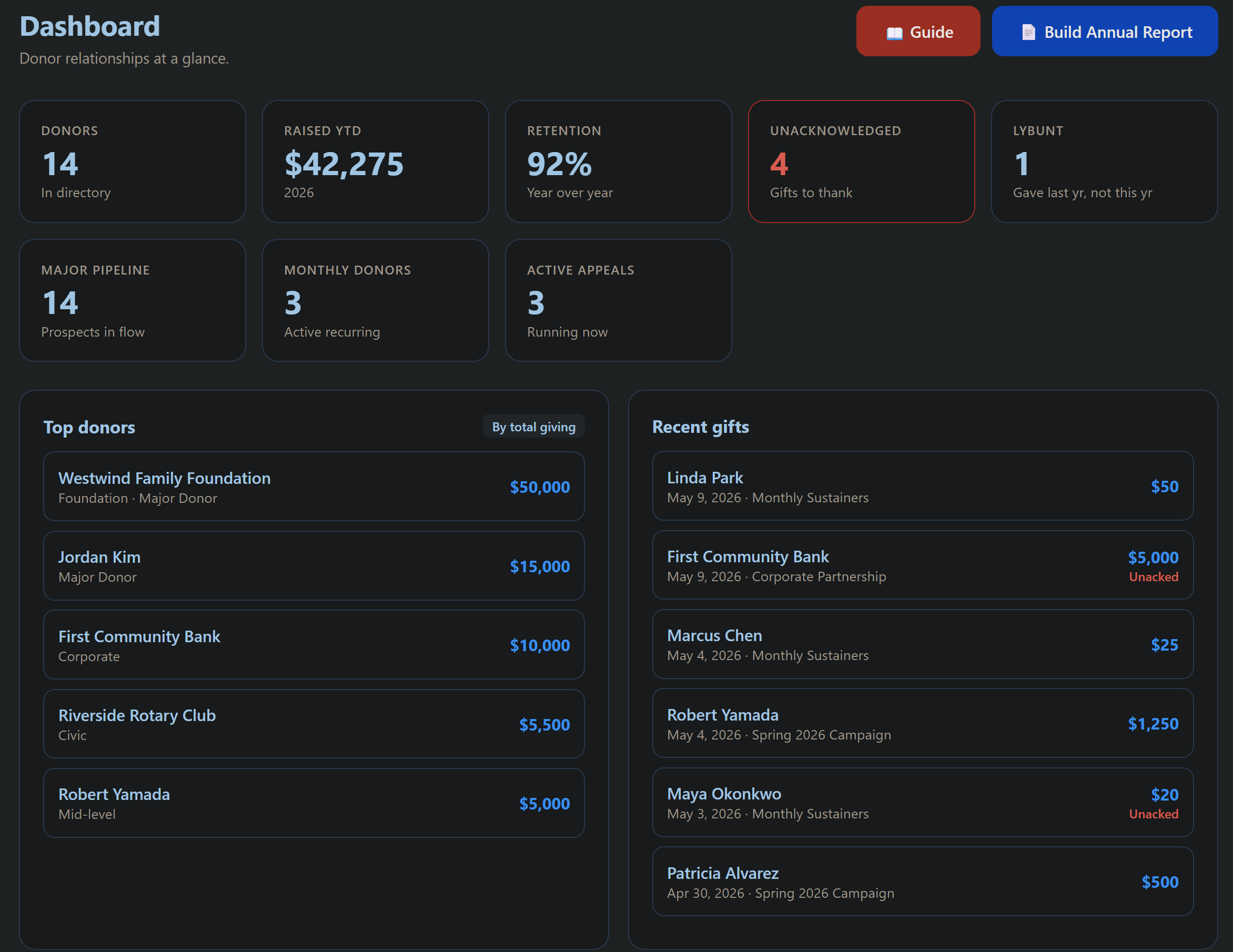
Key features
- Donor records with contact info and giving history.
- Gift logging and running totals. A gift you log by hand, a check or cash in an envelope, also writes an entry in Financial Management, so the money in the CRM and the money in the books are the same money.
- Giving funds a donor can choose from: name the funds you want offered, each with a short donor-facing explanation and a tick for whether gifts to it are genuinely restricted. The picker stays hidden entirely while your list is empty, donors choose from the list rather than typing, and the fund travels with the gift onto the acknowledgment and into the ledger.
- Segments to group and target supporters.
- Event History (in the Engagement group): a CRM archive of past events and who attended. Each event shows its date, type, attendee count, and total raised, each attendee links to the constituent, and each donor's record gains an Events attended section that is also included in the Word donor profile-sheet export. To run a live event with online ticketing and check-in, use the Fundraising and Development app.
- Acknowledgment and thank-you letters on your letterhead, with reporting and export.
- Accounting export with net-asset restriction: the gift CSV export (and the matching Membership dues and event-ticket exports) carries a Restriction column with the FASB ASC 958 net-asset class (Without donor restrictions, With donor restrictions, or With donor restrictions, permanent), so restricted and unrestricted revenue import into QuickBooks, Xero, or Aplos without re-keying.
- Predictions (free): donor lapse-risk plus giving-capacity and who is ready to be asked to upgrade, each score showing the factors behind it. See Predictions.
- Import from another CRM: a guided wizard brings your donor records and full giving history over from Bloomerang, DonorPerfect, Neon CRM, Little Green Light, or Kindful (see below).
- Keep collecting on Givebutter or Zeffy (added September 25, 2026): connect the account once on My Organization (an API key, then a webhook address pasted into the processor's settings) and every completed gift is recorded here, booked in Financial Management and emailed to your organization, the same as a gift through your own Stripe account. Nothing from before you connect is imported unless you ask for it from a date, so a giving history you brought in by spreadsheet is never counted twice. Refunds are emailed to you rather than reversed, and a Zeffy gift's notes say Zeffy already sent the receipt.
- Givebutter monthly donors stay current (added October 1, 2026): a Givebutter monthly, quarterly or annual plan creates or updates the donor's Recurring Giving schedule with its amount, frequency and status (Active, Paused or Cancelled; a failed charge reads as Paused), keeps the donor's Recurring tag current for Sustainer Care and the monthly-donor counts, and puts the Givebutter campaign name in the gift notes. The Givebutter webhook sends every plan event as well as transaction.succeeded and refund.created; the Givebutter card on My Organization lists them.
- Gifts in memory or in honor (added September 23, 2026): the donation page asks whether a gift is in memory of or in honor of someone, and can email a person the donor names, never with the amount. The gift arrives here with the tribute and the person told, already marked as handed off. A giving fund can have its own page with a story, a goal and a running total, for example a fund in someone's memory.
- ⛪ Church & faith-based giving: when your organization type is Church or faith based, the app adds offering envelope numbers on each giver’s record (with duplicate checking), an Offering count batch-entry screen on the Gifts page for the Sunday plate (envelope number and amount per row, the giver’s name resolving as you type, loose offerings handled, every line saved as a normal gift), and a point-of-entry caution when a gift looks directed to a person rather than the ministry, since a love offering or wedding fee is taxable compensation to that person under IRS Publication 517. See Using the Platform as a Church.
- Import history and events: a companion wizard that finishes a migration by bringing over recurring gifts, open pledges, and event attendance history from CSV files. Each row is matched to the right constituent automatically by donor ID, then email, then name, with a column-mapping step, a dry-run preview, and one-click undo.
- Your data lives in your account: donor and gift records are stored securely on the server, so they are the same on every device your team signs in from and are backed up, not stuck in one browser.
- Install it on your phone: works offline once installed, with optional push notifications for gifts to thank and pledges coming due.
- Identity opens read-only (added October 14, 2026): a donor's details show as text with Edit details, Save and Cancel, so a stray keystroke changes nothing.
- Donor Pipeline with your own stages (added October 14, 2026): the Major Donor Pipeline is now the Donor Pipeline, because any donor can be on it, and its stages are editable under Settings (rename, recolor, reorder, add, remove, or back to the standard set).
- One stewardship template (added October 14, 2026): Stewardship Plans keeps one template for the organization; every new plan starts from it, and Create the missing plans builds this year's plans for a whole group at once (everyone on the pipeline, donors who gave $1,000 or more, either, or every donor). Semi-annual is a recurring gift frequency.
How to use it
- Add your donors and log their gifts.
- Segment supporters for appeals and stewardship.
- Generate acknowledgment letters and export your reports.
Import from another CRM
Moving from an association system rather than a donor CRM? MemberClicks is now one of the systems in the wizard, and because those systems are member-first, the roster goes into the Membership app first and giving history follows here. There is a step-by-step guide at allinonenonprofit.com/switch/memberclicks. Zoho CRM is in the wizard too, and the guide at allinonenonprofit.com/switch/zoho covers Zoho CRM, Zoho Books, Zoho Campaigns and Zoho People. MonkeyPod is in the wizard as well, with a guide at allinonenonprofit.com/switch/monkeypod for relationships, gifts, transactions and the email list. Whatever system you are leaving, every importer shows a mapping screen listing your own column headers with a sample of the data in each one, and offers a downloadable sample CSV, so your export never has to match our column names.
Switching to All In One Nonprofit from another donor CRM does not mean starting over. The Import from another CRM sidebar item runs a guided migration wizard with built-in export guides for Bloomerang, DonorPerfect, Neon CRM, Little Green Light, and Kindful (plus a generic Other CSV option). Pick your current CRM and follow its export guide, upload your donors CSV (and, optionally, a separate gifts CSV), let the columns auto-map to the right fields (adjusting any you want), review a preview showing how many donors are new versus already in your account and how many gifts will import, then import with one click. A one-click Undo removes the whole batch if you need it, and the wizard de-duplicates by the source CRM's donor ID and then email, so importing the same file twice never creates duplicate donors. This wizard brings over donors and past gifts; a companion Import history and events wizard then brings over recurring gifts, open pledges, and event attendance history (matching each row to the right constituent by donor ID, then email, then name, with a mapping step, a preview, and one-click undo). Household relationships and custom fields are not rebuilt yet. Importing is included in your subscription.
For a step-by-step first session, see the Donor Management guide.
Open Donor Management →Contact Manager
Every person your organization touches, in one searchable list: your own contacts, plus your donors and volunteers, who show up automatically. Log the call, set the follow-up, schedule the pickup, and see giving and volunteer history right on the record.
Key features
- One list for everyone: contacts (partner agencies, funders, businesses, vendors, board contacts, and more), donors, and volunteers, each labeled by what they are. Donors and volunteers are read live from their own apps, so nothing is retyped and nothing moves.
- Interaction logging: log a call, email, text, meeting, or note on any person in seconds, with an optional follow-up date. The Follow-ups screen keeps everything you promised to come back to, oldest first, until you mark it done.
- Tasks and appointments: a dedicated screen for everything open, plus a quick-add on every person record, so "drop off at the pantry Tuesday 10 AM" lives on the pantry's record. Appointment invites carry the time zone, so someone in another state sees the correct local hour rather than the same numbers on a different clock.
- History on the record: open a donor and see their gift count, lifetime total, and recent gifts from Donor Management; open a volunteer and see their logged hours the same way.
- Partners (added October 10, 2026): a Partners page and a Partnership panel on every organization-type contact: the type of partner (Community, Business, Referral, Resource), what they give us and what we give them, the relationship owner, the agreement and its renewal, a logged last touch, and the year together rolled up from event sponsorships, gifts and in-kind gifts, corporate volunteer days, referral counts and hosted talks, each matched once. A worst-first Partnership review flags renewals, dormant partners and lapsed sponsors, and the same items reach Waiting for you.
- Rich contact records: a contact person line (who to ask for at an organization), a type pull-down, comma-separated tags, phone, email, address, and notes. Email is optional, so phone-only contacts work.
- Form 1099 mark on vendors (added October 3, 2026): Add a contact has a Form 1099 section, Gets a Form 1099 (paid for services, not incorporated) and W-9 on file, so a vendor you pay shows up correctly on Financial Management's Form 1099 payees card.
- Funders straight from Find Grants (added September 22, 2026): a foundation found in Grant Management can be added here in one click, arriving as a Funder with its EIN, its giving figures and the year they come from, and links to its filings. From here it also feeds Donor Management and Fundraising and Development.
- CSV import with undo: upload a spreadsheet, headers are auto-mapped, you see new-versus-updated counts before anything is written, and the whole batch can be undone in one click.
- Follow-up and catch-up drafting with AI: on any person's record, Draft a message with AI writes the next message from what is already logged. Choose the channel (email, a phone call plan, or a text) and the purpose (follow up, catch up, thank, ask, or confirm), and it drafts from that person's calls, emails, open follow-ups and tasks, and any giving or volunteer history. It is held to the record: it will not invent a conversation, a promise, a gift, or an amount, and it leaves a bracketed placeholder where a detail is missing rather than guessing. Drafts copy, download as Word or plain text, print, or send by email from the panel.
- A guided tour built into the app: Take the tour, in the Learn and help group, walks the screen in twelve short steps and remembers where you stopped.
- Included for every organization, with a tile on your organization's dashboard. The contacts address book in the Technology app edits the same list and keeps working.
- Members in the same list (added October 14, 2026): anyone on the Membership roster appears once, matched by email with their contact, donor and volunteer records, with a Member pill naming their level and a link to open them in Membership.
- One person record (added October 14, 2026): Edit this person everywhere changes a name, email, phone or city in their contact, donor, volunteer and member records at once; Possible duplicates pairs records that share a phone number or a name and merges them under one email; the person page shows their membership beside their giving and volunteer hours; and Donor Management, Volunteer Management and Membership each carry an Everything about this person link back to it.
- Scan business cards (added October 21, 2026): Scan business cards in the sidebar opens your phone's camera; photograph one card or several laid out together, and the name, title, organization, email, phone, website and address are filled in for you to check before anything is saved. Cards printed on both sides are read as one, a person already on file is updated instead of added twice, and no picture is kept. Each person can connect their own YouSpot and send the cards there too. Every contact also has a Website field. Help: https://www.allinoneforprofit.com/help/scanning-business-cards/.
- Email that comes back to you (October 21, 2026): an email sent from Draft a message with AI starts with the person's address on the Send to line, Send me a copy is ticked, a reply goes to you rather than a platform address, and the send is logged on the person as Emailed. Open in Gmail sends it from your own mailbox instead, and Log it as sent records it.
- Log an email (added October 24, 2026; receiving live since October 25, 2026): Log an email in the sidebar shows your organization's private forward-to-log address. Forward an email you received, or add the address in BCC on one you send, and it is filed on the other person's record as an activity marked Sent or Received, with the subject and the first lines; a person not yet in Contact Manager gets a record. Only messages from the email address of someone with a seat in the organization are accepted. The owner or an Admin can replace the address. A nonprofit's address ends in @allinonenonprofit.net and a business's in @allinoneforprofit.net; neither domain carries any other mail.
- Contacts on your phone (added October 22, 2026): Contacts on your phone in the sidebar copies the organization's contacts, donors, volunteers and members into the contacts on your own phone, read only and kept current by the phone. Each person makes their own contacts password (the owner, Admins and members with Contact Manager; never Viewers, interns or consultants), cards carry contact details only, and Keep off phones on a person leaves them out of every phone. Guide: https://www.allinoneforprofit.com/contact-manager/guide.html#phone.
How to use it
- Open it from My Apps (Fundraising & Development group) and search anyone by name, email, phone, city, type, or tag.
- Log interactions as they happen; add a follow-up date whenever you promise to call back.
- Start the week on the Follow-ups and Tasks & appointments screens.
- Bring in the rest of your contacts with the CSV importer.
- When you are not sure how to open the next conversation, use Draft a message with AI on the person's record and edit what it gives you.
Case Management
For organizations that serve people directly: a food pantry, a shelter, a family services agency, a scholarship or after school program. It holds the people you serve, the cases you have open for them, the notes your staff write, and a log of what you actually delivered. That last piece is what most small organizations are missing when a funder asks what their money bought.
Key features
- Held tighter than any other app, on purpose: being a member of your organization is not enough to open it. Only the owner, a member you have marked Admin, or a member whose custom access list names Case Management gets in. A member with full access to everything else is refused until you add it deliberately, and the read-only Viewer role is refused even the read, because a viewer reading somebody's housing or family notes is exactly the harm this guards against.
- Your own word for the people you serve: Clients, Participants, Members, Students or Families, chosen per organization. The sidebar, the headings and the labels all follow it. Your saved records, the column names and the CSV export keep their standard names, so last year's report still lines up with this year's.
- Cases with a beginning and an end: a short title, a program, a status of open, waiting on something, or closed, a priority, who is responsible, and what the person came for in their own words. Somebody who comes back next year for something different gets a second case, which counts correctly and reads more truthfully than one case that ran for three years.
- Case notes that behave like a record: dated, typed by kind (phone call, home visit, office visit, referral, assessment, case plan, closing summary), and signed with whoever wrote them. Whoever wrote a note can take it back within a day, which covers a genuine mistake; after that the correction is a new note, which is what an auditor or a funder would expect to see.
- A service log, which is the reason this app exists: what was delivered, when, how much, in which unit, under which program, and against which funder. Nothing else in the platform captures it, and it is what a grant report is built from.
- Grant reporting without rebuilding it: filter the Service Log by funder and date range and you get the number of service records, the unduplicated count of people served, totals by service and totals by program, plus a CSV export ready to attach to the report as your evidence file.
- Cases that go quiet get surfaced: the dashboard counts open cases with no note in thirty days and the list badges them, because that is usually the case nobody picked back up rather than the case that is going well.
- A quiet link with Contact Manager: Contact Manager shows that a person has an open case and links across, never the note, the title or the program, and only to somebody who already has access to this app.
- You decide who reads which case: an organization starts with everyone admitted seeing every case, which is right for a two-person team. Switch it to assigned and a caseworker sees the cases assigned to them plus any they have been added to, while the owner and your admins still see everything. The people and the services attached to a case follow the case, so there is nothing to set twice.
- A note can be marked confidential: readable by whoever wrote it and by the owner and admins, and by nobody else, including the caseworker the case is assigned to. The date of a confidential note is hidden too, so the fact that one exists is not advertised by a timestamp.
- A public link people can ask for help through, off unless you turn it on: a short form on your own web address that anyone can fill in without an account. A submission is not a person on file and not a case. It waits in Intake Requests until somebody here accepts it, and only then does it become a record. Accepting creates the person, the case and a first note in their own words; declining keeps the request and your reason, which is the part an organization has to be able to answer for later.
- A plain statement about health information, on the screens where you type rather than only in a policy: All In One Nonprofit is not a HIPAA business associate and does not sign business associate agreements, so protected health information must not be entered.
- Assistance: paying a bill on somebody's behalf (added September 23, 2026): every case has an Assistance section for a veterinary bill, rent, a utility or a clinic: the total, what was requested, what you approved, what others contributed, who was paid, whether the invoice arrived and whether the money went straight to the provider. It works out what is still uncovered.
- Case files (added September 23, 2026): invoices, estimates, receipts, eligibility papers and photos attach to the case itself, private to the people who can open that case and never shown in the Document Library. Deleting a case deletes its files.
- Funded services: teens in therapy and other paid-over-time help (added September 23, 2026): turn on Use funded services and choose who you pay (a therapist, a tutor, a landlord). Someone under 18 is kept as a first name and last initial with age or grade, with the parent or guardian carrying the contact details and the consents. A session plan splits the fee between the family and your organization and commits a total; each payment to the provider is recorded once as an expense in Financial Management; a Providers page tracks what you paid each one and flags anyone who may need a Form 1099; and owners and admins get a Funded Services Report. There is no field anywhere for a diagnosis or what was said in a session, on purpose.
- Download all case records (added September 23, 2026): an owner or an admin downloads one zip of everybody you serve, every case, note and service, the intake requests and the case files.
- The business each person runs, a report, and imports (added October 1, 2026): turn on Business details in Case Management Settings and every record carries a business name, a stage and an industry, and the Clients Report (named with your own word for the people you serve) counts them by stage and by industry and downloads as CSV. An owner or an admin can import people from Engage, Salesforce, HubSpot or any spreadsheet, with a dry check first; anyone already on file is updated rather than duplicated, and an import can be undone. With a HubSpot private-app access token, the owner or an admin can also bring new people in on their own every hour, one way from HubSpot, from everyone in one HubSpot list or everyone with one property set to one value. Each run brings at most 200 people and can be undone under Import.
- Monthly Program Report and dated totals (October 18, 2026): a Monthly Program Report for the executive director, and Service Log totals that name their period, with quick choices for this month, last month, the quarter, the year and the last 12 months. The guide also covers survivor addresses and Florida's Address Confidentiality Program (October 19, 2026): https://www.allinoneforprofit.com/case-management/guide.html#address-confidentiality.
- Attendance: groups, rosters and a check-in screen (October 26, 2026): for programs where the same people come back on a schedule (an afterschool program, tutoring, a class, a support group). A group is a roster for one program with its days, times and leads; anyone in your people list can be enrolled, and nobody needs a case first. Take attendance with one tap per person (Present, Late, Absent or Excused), or open the check-in screen on a tablet at the door, where people tap their own name; adults tap again to check out, and a staff member checks minors out. Each present or late mark writes a Program attendance record to the Service Log in hours, under the group’s program and funder, so grant reports and the Monthly Program Report include attendance with nothing more to do. The Attendance report gives sessions held, the attendance rate, hours in program and how many people reached a number of days you choose, with a CSV export. On AIONP Complete. Guide: https://www.allinoneforprofit.com/case-management/guide.html.
How to use it
- Open Case Management Settings first. Pick your word for the people you serve, then type your programs, your funders, the services you deliver and the units you count them in.
- Add three people you are working with right now, from memory, and open a real case for each.
- Write one note per case covering the last thing that happened, the same day it happens from then on.
- Log one service per case with a funder attached. Do this every time, including for the things that feel too obvious to record.
- At the end of a grant period, filter the Service Log to that funder and those dates, read the totals, and export the CSV.
What is not in this version
Said plainly so nobody plans around it: there is no AI drafting. Drafting somebody's case note from their other case notes is not something we are willing to ship without a great deal more thought. (Case files attach to the case since September 23, 2026; the earlier line saying they belonged in the Document Library no longer applies.)
Open Case Management →Grant Management
Find funding, manage your grants pipeline, and write stronger proposals: search foundations by what they actually gave and Grants.gov from inside the app, keep every deadline and report date on one calendar, and build proposals and letters of inquiry section by section.
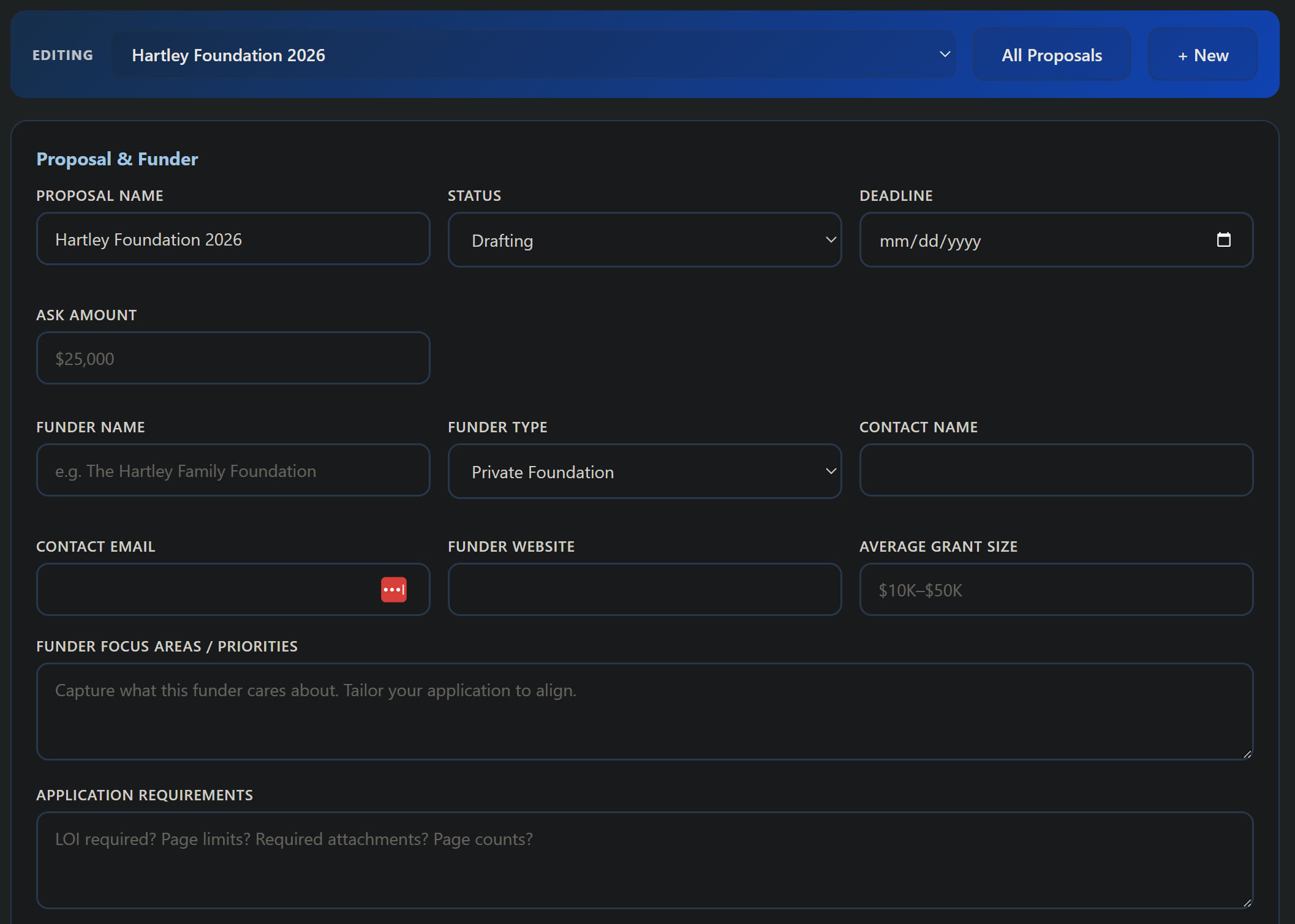
Key features
- Grant Sources directory: a curated, searchable list of where to look for funding (federal, state, foundation, corporate, plus free and paid search platforms), with guidance on how to qualify opportunities for fit.
- Add a funder to your contacts (added September 22, 2026): every foundation in Find Grants has an Add to contacts button that writes it into Contact Manager with its EIN, what it paid out in grants and the year that figure comes from, its assets, and links to its filings, with the date it was copied. It works on every plan.
- Find Grants: search the platform's own 990-PF funder index, Grants.gov, any IRS filer by name or EIN, and a Who funds work like mine tab that searches recipient-level Part XV grants by keyword and city, each scored for fit.
- Grants pipeline with prospects, stages, and deadlines.
- Payments recorded as they arrive, and booked: record each payment on the grant as it lands and it writes an entry in Financial Management dated the day the money came in. Marking a grant Awarded books nothing on its own, deliberately, because an award is a promise and the books are kept on a cash basis. One grant can pay in installments, each recorded separately against a running total, and removing a payment reverses the entry rather than deleting it.
- Post-award management: an Awarded Grants page that tracks each grant's period, spending, conditions, and full report schedule, with overdue and due-soon alerts plus automatic email reminders before each report is due, so you never miss a funder report.
- Proposal and letter-of-inquiry builders with guided sections.
- Narrative help to turn your work into fundable language.
- Word export on your letterhead.
- Predictions (free): a grants pipeline forecast, a funder-fit indicator, and deadline risk. See Predictions.
- Grant Readiness Assessment: find out whether you are ready to apply before you write another proposal. A twelve-item eligibility screen runs first, because a handful of prerequisites stop an application outright no matter how good the writing is, then a deep dive filtered to your budget size and the kinds of grants you pursue. You get a weighted score, a breakdown across eight areas from legal standing to post-award reporting, and a prioritized list of what to fix first, each with a specific fix rather than a restatement of the problem. Enter your EIN and it checks public IRS records to confirm your legal name, your 501(c)(3) subsection and ruling date, whether your tax exemption is still current, and your Form 990 filing history, so those answers are verified rather than self-reported. Results save to your organization's record so a later assessment can show a gap actually closed. If you would like it run as an interview with evidence requested and sighted, ask us and a staff member can facilitate it with you.
What each plan includes (September 22, 2026)
This app is split across the two plans, because finding funders and managing grants are different jobs. AIONP Essentials and the Launch Plan hold the finding half: the foundation index for your own state, the top twenty five by what they actually give, each funder's detail and fit score, the link to its filings, the Add to contacts button, Grant Sources and the course modules. AIONP Complete holds the rest: funder search in every state with no cap, looking a funder up by name or EIN, who already funds work like yours, federal opportunities through Grants.gov, the saved Funder Library, and everything from the proposal builder through awards, deadlines, reports and closeout. An organization on the Launch Plan that reaches the end of its six months can still search and read; it cannot save anything new until it subscribes.
How to use it
- Add prospects to your pipeline with their deadlines.
- Build the LOI or proposal section by section.
- Export to Word, finalize, and submit.
For a step-by-step first session, see the Grant Management guide.
Open Grant Management →Scholarship Management
Run a clear, fair, and compliant scholarship program: generate the policy, application, rubric, committee charter, and award and decline letters, track applicants and their scores, record awards, and let AI draft the writing, all on your letterhead.

Key features
- Document templates: program policy, application, scoring rubric, committee charter, award and decline letters, and disbursement policy.
- Applicant pipeline and scoring: track applications, score them against your rubric, and flag conflicts of interest.
- Award ledger: record awards and disbursements with proof and status.
- Grantmaking mode (added September 22, 2026): if your organization gives grants rather than scholarships, an applicant can be an organization instead of a person, with a legal name, an EIN, an exempt status, a fiscal sponsor where there is one, a contact person, an amount requested and the project the money is for. The words on the screen follow. Review, scoring, declared conflicts and ranking are unchanged. Your organization profile sets which way the app starts and Settings lets you change it; the setting never relabels a record already saved.
- Payment schedules and conditions on a grant (added September 22, 2026): each installment with its due date and whether it has gone out, and the conditions you attached to the award, each with the date it was met. If the schedule and the award do not add up, the screen says so and changes neither figure. The money itself is recorded in Financial Management, which holds your books; this is the schedule, not a second ledger.
- Grantee Reports (added September 22, 2026): every report your grantees owe you, across every grant, worst first, with how many days late. It does not chase anybody and it does not decide that a late report is a problem, because two organizations with the same overdue report are rarely in the same situation.
- A short course and AI automations to design and run a program built on objective, nondiscriminatory criteria. When the app is set up for grantmaking, every automation drafts for a foundation granting to organizations (a Grant Program Plan, a Request for Proposals, a Grant Award Letter and the rest), not for a scholarship (added September 23, 2026).
- Applications that arrive through a form (added September 23, 2026): Bring in from a form on the Applications page builds a ready-made application form in the Forms app if you have none, and turns each response into a New application with its answers in the right fields. Each response comes in once, and an answer that matches no field is kept in the application's Notes.
- Predictions (free): rubric-based applicant ranking and a shortlist as a decision aid for your committee, objective and nondiscriminatory and never an automated award, with the factors behind each score. See Predictions.
How to use it
- Design your program and generate the documents.
- Track applications and score them against your rubric.
- Record awards, then send the award and decline letters.
For a step-by-step first session, see the Scholarship Management guide.
Open Scholarship Management →Marketing Management
Plan and produce your nonprofit's marketing: a content calendar, channel plans, and campaign templates that keep your message consistent.
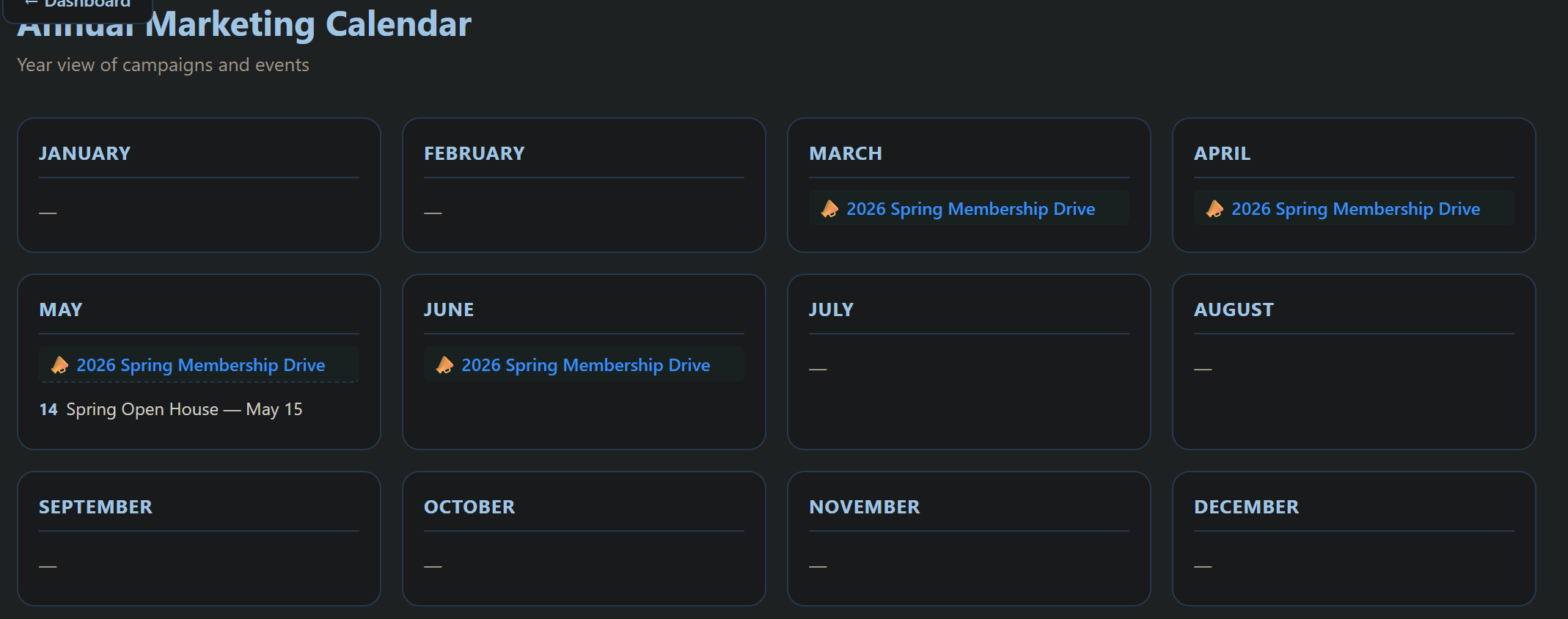
Key features
- Marketing plan builder tied to your goals.
- Content calendar to schedule and stay consistent.
- Channel strategy across email, social, and web.
- Campaign templates you can export and reuse.
- Email Campaign: compose and send a real broadcast email to your prospects, contacts, or donors through your connected email tool (MailerLite, Mailchimp, or Brevo) (see the write-up below).
- Publish a press release to your website (added September 23, 2026): open a release on the Press Releases page and click Publish to your website; it becomes a post in the News section of the Website app, and clicking again after an edit updates the same post.
- Social Media Planner: plan posts on a calendar and, on AIONP Complete, publish or schedule them straight to the LinkedIn, Facebook, Instagram, X, Threads, Pinterest, TikTok and YouTube accounts you connect under Settings, Social publishing. Only the owner or an admin connects an account (changed October 23, 2026), and every connection is also listed on My Organization, Connections.
- Import posts from a .csv file (added October 23, 2026): plan a month of posts in a spreadsheet with a date, time, platform, text, link and image address (Download the template gives the columns), and every row is checked and shown before it is added as a draft or scheduled on your connected accounts; up to 200 rows per file. Steps: https://www.allinoneforprofit.com/marketing/guide.html#csv-import.
How to use it
- Build your marketing plan and goals.
- Lay out your content calendar.
- Produce campaigns from the templates and track them.
Email Campaign
The Email Campaign page is a one-off email broadcast composer, the same engine as the Membership Newsletter, aimed at your marketing audiences (prospects, contacts, or donors). It sends through your connected email tool (MailerLite, Mailchimp, or Brevo), so your email tool owns the sending, the list, unsubscribe handling, deliverability, and CAN-SPAM compliance. Connect your email tool once on the My Organization page, then it is ready here too.
- Compose multi-section emails: subject, preview text, an optional header banner image (uploaded and auto-shrunk to about 1200px wide), and repeatable sections with a heading, body, and an optional per-section image you can upload and remove, with a live Preview.
- Bring your own HTML: paste your HTML or upload an .html file to send as is.
- Draft with AI (included): turn a few topics into a drafted subject and sections.
- Saved templates, Clear and start over, and Download or Copy HTML for reuse or hand-pasting into your email tool.
- Choose your audience: pick a list under "Send to," or "Build a group from your records" to sync your Contacts or Donors into a list in your email tool in one click.
- Create a draft, Send now, or Schedule through your connected email tool (drafts and scheduling are available with MailerLite; Mailchimp and Brevo support instant send). Drafts and sent campaigns live in your email tool's campaigns area.
A note on MailerLite plans: With MailerLite, API send of content All In One Nonprofit built for you requires the MailerLite Advanced plan. On the Free or Growing Business plans, use Download HTML or Copy HTML and paste it into MailerLite to send. Verified 501(c)(3) organizations get 30% off MailerLite paid plans. Mailchimp and Brevo each have their own API key settings and plan requirements.
For a step-by-step first session, see the Marketing guide.
Open Marketing →Speaking Engagements
Every talk, panel, workshop and podcast your people give, and every guest speaker you host, from the first request to the thank-you note (added October 10, 2026). You see who is speaking where, what the fee is, and what each talk brought back in gifts and leads.
Key features
- The pipeline: a board with five columns, Inquiry, Proposed, Confirmed, Delivered and Followed up, each card showing the date, title, host, speaker and fee; or a List view to scan, filter by speaker or kind, and print.
- Topics & Speakers, your speaker kit: each topic written once with its abstract, usual length and audience; each speaker with a title, email and a short bio a host can read aloud. Speaker names are offered as you type on a new engagement.
- The Request a speaker page: turn it on in Settings and your organization gets a public page at https://app.allinoneforprofit.com/speakers/ followed by your page name, showing your introduction and active topics with a short form. A request arrives on your board as a new Inquiry, with an email to the address in Send new requests to.
- Fees and invoicing: Invoice the fee or Invoice and send creates the invoice in Invoicing with the fee and travel as lines; when the host pays, the payment books into Financial Management under Speaking Fees (or the category you set). Fee status reads None yet, Invoiced, Paid, Waived or Donated back.
- Leads and results: after each talk, record how many leads it brought, the gifts that came from it (for a business, the revenue), and a sentence on how it went. The dashboard adds up the year: talks given, people reached, leads and gifts.
- Follow-ups: marking a talk delivered sets a follow-up date three days out; it then appears under Waiting on you until you click Mark followed up.
- A calendar and a private feed of confirmed talks for your own calendar app.
How to use it
- Add your speakers and two or three topics under Topics & Speakers.
- Enter the talks already on the calendar, at their real stage, with the fee if there is one.
- Turn on the Request a speaker page in Settings and put the link on your website and in your newsletter footer.
For a step-by-step first week, see the Speaking Engagements guide.
Open Speaking Engagements →Annual Report
Build a polished annual report that tells your year's story: impact stats, financials, and donor recognition, exported to Word or PDF on your letterhead.
Key features
- Guided report sections: letter, impact, programs, financials, and thanks.
- Impact stats and financial summary blocks.
- Donor recognition lists.
- Word and PDF export on your letterhead.
- Reports (monthly, quarterly, annual): a board report built only from your records (filings due, filed and overdue, income and giving against the prior period, board attendance and ending terms, open HR items, expired screenings), on any organization your account belongs to, plus budget against actual, donor retention and the grants pipeline, a Prepared by (person) line with your name, an AI narrative you approve section by section, and a Word export carrying the author letterhead and the subject organization.
How to use it
- Fill in each section, add your numbers and donor list, export to Word or PDF.
- For a board report, open Reports, pick the cadence, period and organization, build, approve the narrative, export.
For a step-by-step first session, see the Annual Report guide.
Open the Annual Report builder →Books
Short, practical ebooks by Steve Kennedy, founder of All In One Nonprofit, for the people who start, run and advise an organization. Both product lines have their own shelf.
- The nonprofit books, at https://www.allinoneforprofit.com/books/. The First 90 Days series, six field guides: The First 90 Days of a Nonprofit Founder, of a Nonprofit Board, of a Nonprofit Executive Director, of a Nonprofit Treasurer, of a Nonprofit Development Director and of a Nonprofit Consultant. Each is $9.99; Books 1 to 3 together are $24.99 and all six are $44.99. All In One Nonprofit: Tips for the Day, three tips a day for a year (one to start, one to run and one to grow a nonprofit), is $9.99. Google for Nonprofits, Set Up Right (added October 26, 2026), at https://www.allinoneforprofit.com/books/google-for-nonprofits/, is $9.99: qualify, set up Google Workspace so the organization owns it, and keep it working when people leave, with an account ownership policy, an AI use policy and a handover checklist. Google Workspace for Nonprofits, Run It (added October 30, 2026), at https://www.allinoneforprofit.com/books/google-workspace-run-it/, is $14.99: using Gmail, Calendar, Drive, Docs, Sheets and Forms every day, automation, an AI toolkit by role and security you will keep up. The two-book set of Set Up Right and Run It, with a bonus guide on moving information between Google and the platform, is $19.99 at https://www.allinoneforprofit.com/books/google-nonprofits-two-book-set/. An organization on a paid annual plan gets both books and the bonus guide free.
- The For Profit books, at https://www.allinoneforprofit.com/books/. The First 90 Days series for businesses: The First 90 Days of a Small Business Owner, of a Private Practice, of a Trades Business, of Marketing a Service Business, of Running the Books and of Your First Hire. Each is $9.99; Books 1 to 3 together are $24.99 and all six are $44.99. All In One For Profit: Tips for the Day is $9.99.
- How you get them. Checkout is through Stripe, and BookFunnel emails the ebook within minutes. Every book reads on Kindle, Apple Books, Kobo, Nook or the free BookFunnel app, and can also be downloaded as a PDF. Each First 90 Days book comes with bonus checklists and templates.
- Free with a paid annual plan. Every book on a line is included free when the organization's owner holds a paid annual plan on that line: an annual AIONP Essentials or AIONP Complete plan includes all the nonprofit books, and an annual AIOFP Essentials or AIOFP Complete plan includes all the For Profit books, including All In One For Profit: Tips for the Day. Monthly plans and the Launch Plan do not include them. The free copies appear on your organization's dashboard after you sign in, with a "Get my free copy" button for Tips for the Day and a link for each First 90 Days book.
- Rating a book. Readers rate a book on the review form: nonprofit books at https://www.allinoneforprofit.com/books/review/, For Profit books at https://www.allinoneforprofit.com/books/review/. Give one to five stars and, if you like, one sentence on what the book helped you do. You enter the email you bought the book with (or the email on your organization's annual plan) so the rating can be matched to a real reader; it is never shown publicly. You can change your rating any time by sending the form again with the same email.
- Are the ratings real? Yes. Every rating counts toward a book's average, high or low, and we never write or seed reviews ourselves. A book shows its stars only after it has five ratings, so one or two early votes do not stand for the whole book. A written sentence is published only if you check the box allowing it; it appears with your name only if you choose that, otherwise as "A reader" with your role if you gave one, and a free annual-plan copy is labeled as such.
Free Resources
Get real value before you buy anything.
The Nonprofit Starter Kit is a free, nine-part diagnostic library that helps brand-new founders figure out what they actually need: What is a 501(c)(3)? · Form your own or use a sponsor? · Name & mission · Your founding board · What it really costs · Which IRS form? · The formation timeline · Can you accept donations yet? · Common pitfalls. Each kit is a short, three-minute self-check that points you to your next step.
The Learn blog goes deeper with articles on the biggest board mistake, your first 30 days after IRS determination, SEO for nonprofits, state incorporation essentials, and more.
Giving a Consultant Access
How to let an accountant, bookkeeper, grant writer or attorney work in your organization, and exactly what they can and cannot do once you have.
A consultant is somebody from outside your organization who serves you. They are not staff and not on your board, and the platform treats them differently from both. You stay in control of everything: nothing is shared until you choose it, and you can change your mind at any moment.
The three steps
- Invite them. On My Organization, use Invite members, type their email address and choose Send invite. They sign in with the link they receive, and their name then appears on your member list. Until they do that there is nothing to give access to, so this comes first.
- Say that they are a consultant. In the Member access card, find their email and choose Consultant (outside your organization) in the pull-down beside it. That single choice makes them read-only everywhere. They can look and they can pull reports, and they cannot change a thing. If reading is all they need, you are finished.
- Choose what they may edit, if anything. A panel opens saying Let this consultant edit, on your behalf. Tick only what they need, or use Select all if they genuinely need everything, then choose Save consultant permissions. Anything left unticked stays read-only.
If you are not sure what to tick, tick nothing to start. Read access plus reports covers most first sessions, and you can hand over a tool the moment they ask for it. A grant writer usually needs Grant Management, a bookkeeper Financial Management, somebody handling your filings the Compliance Tracker and the IRS Forms Assistant.
What a consultant can never do, whatever you tick
These are not settings. They are limits built into the platform, and there is no box that turns any of them on.
- They can never see your Case Management records. Case notes are the most sensitive thing the platform holds, and a consultant is refused even the ability to read them. If you use Case Management, that work stays between you and your own staff.
- They can never delete anything. Not a donor, not a gift, not a filing, not a document.
- They can never destroy or decide on a document. They may add documents to your Document Library and work on them, and they can never delete one, dispose of one, archive one, place a legal hold, change how long it is kept, or approve one.
- They can never touch your billing, your members, or your organization profile. Your subscription, who else is in your organization, and your name and branding stay with you.
Seeing what they did, and changing your mind
Every change a consultant saves is recorded in your activity log with their name, what they changed and when. Their visits are recorded too, so you can see somebody was in your account on a given day even when they only read. You never have to ask them for a summary of their work, because it is already written down on your side.
To change what they can edit, go back to Member access, adjust the ticks and save again. To take editing away entirely, untick everything. To end the arrangement, change their role or remove them from your organization; their access stops immediately. Nothing they did disappears when you remove them, because the work was always yours.
Interns
An intern reads the tools you choose and changes nothing directly. Set Access to Intern (read-only, chosen tools, ends on a date), tick the tools they need to see, pick the date the seat ends (120 days unless you choose another), confirm they are 18 or older, and press Save intern seat.
In Donor Management (donor records), Contact Manager (contacts, the contact log and follow-up tasks), Volunteer Management, Marketing, Grant Management and Forms, an intern's Save button reads Submit for approval. The change waits on Waiting for you at https://app.allinoneforprofit.com/waiting, where the owner, an Admin, or anyone who can already make changes in that tool sees what would change beside what is there now, and approves it or returns it with a note. Approving applies exactly what is shown, as the person approving, and the activity log records both names. A new form an intern drafts is saved closed, so you open it when you are ready. A draft with no decision expires after 30 days, and the intern is told.
Gifts and pledges, Financial Management, payroll, dues and Membership, Case Management and HR records are never available to an intern, whatever you tick, and an intern never sends email, texts or social posts. Intern seats are unlimited on AIONP Essentials, AIONP Complete, AIOFP Essentials and AIOFP Complete and do not count against your admin, consultant or specialist seats; the Launch Plan does not include them. The seat closes itself the day after its end date, and you get an email a week before.
Bringing in a specialist
A consultant who holds edit access can bring in a specialist: a bookkeeper, a grant writer, an HR consultant, somebody who does one job rather than the whole engagement. As the owner you can add one directly too. A specialist receives only the tools chosen for them from the specialist-eligible list, and a consultant with read-only access can still seat a specialist who writes, because a consultant is often engaged precisely to bring in the person who does the hands-on work. Every seat and every change lands in your activity log under its author's name, and you can revoke any seat, the consultant's included, at any time.
Set Access to Specialist (chosen tools, can edit) and a panel opens headed Choose the tools this specialist works in. The list is alphabetical, and above it sit role presets: Bookkeeper, Tax preparer or 990 filer, Grant writer, Fundraising consultant, Governance or board support, HR consultant, Compliance and risk, Communications, Volunteer coordinator, and Scholarship administrator. Clicking a preset replaces the current selection rather than adding to it, so you can try two and see exactly what each one hands over without quietly accumulating tools you did not mean to give.
A preset is a starting point rather than a ceiling. Add or remove anything after clicking one. There is deliberately no Select all on this list, unlike the consultant list above it: where the safe answer is fewer tools, a Select all invites granting everything just to be certain nothing was missed.
Everything a consultant can never do applies to a specialist too. Those limits are built into the platform rather than into the role, so there is no combination of ticks that reaches Case Management, deletes a record, or touches your billing.
What a Certified Consultant brings with them. A partner works from the Consultant Hub, and what it holds reaches into your organization once you have added them as your consultant. Their Client Intake Form and Client Onboarding Checklist arrive as links that carry both their name and yours; the answers go to both of you. Load client training copies ten short lessons into your own Training app (the first week for the person running the account, board member basics, treasurer and bookkeeper, members and volunteers and sign-ups, donations and thank-yous, day 30, then four deeper companions on governance and compliance, grants and fundraising, finance and tax, and membership and communications); your people take them in the member portal, each about five minutes of reading and a five-question check, and every completion is recorded under their own name, so at day 30 you both know who has done what.
Specialist seats are open. If you are a consultant or a specialist yourself, the partner tour at allinonenonprofit.com/partner-tour has the whole program in one place: both roles, what each can and cannot do, a tour you run yourself, and what we ask of a Certified Consultant.
Site-Wide Features
Capabilities that work across the whole platform, not just one app.
- Switch organizations from inside any app (added October 14, 2026): the organization name at the top of every app is a menu listing every organization your sign-in belongs to; pick one and the app reloads as that organization. On the Workspace, every warning badge is a link into the page that fixes it, and apps marked Confidential are dimmed until the owner gives you that app by name.
- Every app tells you what to do first: open one you have not used and a short Start here panel offers the four to six moves that actually matter in that app, in the order somebody should do them, each with a button that opens the exact page. It appears only while the app is genuinely empty and does not come back once you have started.
- Long screens fold away: every content box that leads with a heading now carries an arrow on that heading, so you can close the parts you are not using and keep what you are working on in front of you. Boxes start closed, so a screen opens short instead of long, and each one remembers what you left open on that device.
- Money you collect reaches your books on its own: when a payment goes through your connected Stripe, the platform writes the accounting entry at the same moment, so nobody keys the same money in twice and your books are never short by whatever the platform took in. Online donations, recurring gifts, event tickets, sponsorship and auction payments, form payments, membership dues including new memberships, store sales, raffle ticket sales and gifts collected on a connected Givebutter or Zeffy account all do this.
- Keep collecting on Givebutter or Zeffy (September 25, 2026): if your organization already collects on Givebutter or Zeffy, connect the account on My Organization and every completed gift is recorded in Donor Management, booked in Financial Management and emailed to you, the same as a gift through your own Stripe account. Nothing from before you connect is imported unless you ask for it from a date. A Givebutter monthly, quarterly or annual plan also keeps the donor's Recurring Giving schedule current (added October 1, 2026).
- API keys, so another system can work with your records (September 25, 2026): on AIONP Essentials and AIONP Complete, an owner or an admin creates an API key on My Organization for a CRM or an automation tool. Each key belongs to your organization only, does only what you tick (read the organization profile, read or add donors, read or record gifts, read contacts, read events, and the Case Management records too: read or add the people you serve, read or open cases and record services, read or add case notes, never a confidential one, and read who can sign in), is shown once, and can be revoked at any time; every write it makes is in your Activity log under the key's name. A key sees every case whatever the case visibility setting says, so grant that permission deliberately; a minor is kept as first name and last initial with the guardian, notes are added and never edited, and nothing is deleted through the API. Webhooks go the other way: add an https address under the same card and the platform sends it a signed message the moment a donor is added or updated, a gift is recorded, an online gift arrives through Stripe, Givebutter or Zeffy, a contact is added, or a person you serve, a case, a case note or a service is added or updated in Case Management, with a Send a test event button and the last twenty deliveries shown; a message that cannot be delivered is tried again for a day. The technical reference for whoever sets it up is at https://app.allinoneforprofit.com/api/v1/openapi.json. Connecting other software is not part of the Launch Plan.
- Donors can choose which fund they are giving to: you name the funds a donor may pick from, each with a short line explaining it in the donor's language and a tick for whether gifts to it are genuinely restricted. The list starts empty and while it is empty your giving page asks nothing at all, because most organizations have no restricted funds and nobody should be shown a question they cannot answer.
- A solicitation disclosure on your giving page and receipts (October 9, 2026): on My Organization the donation settings hold an optional Solicitation disclosure, with Use the Florida statement (the wording Fla. Stat. s. 496.411(3) requires) and Use a multistate template as starting points. Whatever you save is shown under your giving page form and added to the end of every one-time, recurring and event ticket receipt email. Replace every bracketed part and check each state's rules; this is guidance, not legal advice. Marketing email campaigns and Fundraising events show a short note that an appeal reaching supporters in other states can count as soliciting there.
- Everyone gets a first-week checklist, not just the account owner: a treasurer, secretary, committee chair or director signing in for the first time sees a checklist written for the position they hold, rather than the blank screen non-owners used to get. It opens with the apps you have been given, because that is what somebody who has just been invited actually came for. Officers get the fuller lists because their roles carry real duties. If no position has been set for you, the list says who your organization owner is by name and offers to write them the email asking for one, rather than leaving you to work out who to ask. And the reminder to check the name and signature on your organization’s documents appears only for the positions that actually sign, because that signature belongs to the organization rather than to you.
- One page that tells you what needs doing: the Hub (app.allinonenonprofit.com/hub, and the Hub link in the header of your apps page) answers the question you actually open the platform with. It says in one line how many things are overdue and, if you are in more than one organization, across how many of them, plus how many fall due inside the next two weeks. Underneath, Needs you now is a single worklist sorted by what will hurt first rather than by which app it came from: compliance filings, grant reports and proposal deadlines, expired volunteer screenings, and restricted money spent with nothing attached to evidence it. Then the next thirty days. If you belong to one organization it shows that organization; if you belong to several it lists them all with their overdue and due-soon counts, and Open switches you into whichever you choose without a second sign-in.
- Run more than one organization from one sign-in: an account can belong to several organizations (a membership society plus its foundation, or a fiscal sponsor with several projects). A dropdown on your apps portal switches between them and every app follows the organization you pick; each keeps its own separate data. Accounts switched on for the Workspace (app.allinonenonprofit.com/workspace) also get one screen with a block per organization, closed by default so a long list stays short: the next filing and overdue filings, revenue, giving, expenses with net and restricted money, the organization health score with its top item, which of the four key records are on file (bylaws, IRS determination letter, most recent Form 990, conflict of interest policy), open HR items and expired volunteer screenings, and grants open, awarded and reports due. Click a name to expand it; the organization shaded green is the one you are working in; Open My apps switches to an organization and Create report builds a report on it without switching. Click a row to switch, or use the row's Reports link to prepare a report on that organization without switching. Ask support to turn it on; it is on automatically for any account that one or more organizations have marked as their Consultant.
- Your whole team works on the same records: app data belongs to the organization, not the person who typed it in. Everyone you invite works on the same member roster, board roster, and registers.
- Your work follows you from device to device (added October 1, 2026): the apps that used to keep your work in your browser, from Board Management, Donor Management and Financial Management to HR Management, Grant Writing and Membership, and the IRS form tools, now save it to your organization's account, so it follows you to another device and to the rest of your team. If two people, or two of your devices, change the same thing, the later save made from an older copy is refused instead of overwriting the newer one, and a bar says: "This was changed on another device or by someone else since this page opened. Your latest change was not saved. Reload to see the newest version, then make the change again." Its Reload button brings in the newest version. A device's unsaved copy is kept aside on that device, and sample data from a demonstration can never be saved into a real organization. Fundraising and Development and Operations Audit now keep one copy for the whole organization instead of one per person; course progress stays your own.
- Member Directory in the member portal: members can opt in to a directory and choose exactly what to share (name only, or email and phone too), so people in your organization can find each other. Everyone starts hidden; sharing is always the member's choice.
- Improve an existing document with AI: besides drafting from scratch, every app's AI Automations page lets you upload a document you already have (a letter, appeal, policy, plan, or governance document) and AI reviews it and returns a cleaner version plus a prioritized summary of what changed, with your original always kept. It opens the Document Library's Improve with AI tool preset to the right document type.
- One place to search everything: Help searches every guide, playbook and setup article at once. Ask in plain words rather than guessing which page to open, and it returns the section that answers you instead of a list of documents to read.
- One way back, from every screen (September 2026): every signed-in screen has one anchor back to the organization you are working in. On the platform pages (Organization Health, My Organization, My Account, Contact support, the Calendar, this guide, the Platform Workflows, Notifications) it is your organization's name in the header, shown as a pill that reads, for example, Harborlight Community Church, Dashboard, with the wordmark beside it going to the same place; the sales links (Home, Learn, Pricing) leave the header while you are signed in. Inside any app it is the four-square mark at the top of the sidebar, and a breadcrumb above the content reads organization, app, screen. Either one is a single click to your organization's dashboard, the page titled with your organization's name that lists your apps, what needs attention, your documents, calendar and support. Two words are used on purpose: Dashboard always means the organization, and Overview always means an app's own first screen. Every app's sidebar is split into In this app, that app's own tools, and Everywhere, the six links that are identical in every app (Document Library, My Organization, My Account, Organization Calendar, Notifications, Contact support), and an app's help links (guide, walkthrough, tour) sit under one Help entry. The My Apps control in every app is also a menu for jumping straight to another app. The separate Org Settings page is retired; its old address forwards to My Organization, which owns everything about the organization.
- The platform points you at the right apps first: the first step when you set up your organization is six short questions: what kind of organization you are, where you are today, what you would most like to fix first, how many people are on your board, how many paid staff you have, and whether you collect money online. Your answers put a Recommended for you group at the top of your organization's dashboard, with the whole catalog one click away behind a Show all apps link, so a brand new organization gets a short starting list instead of every app on day one.
- An empty app tells you what to do first: when you open an app for the first time and there is nothing in it yet, you no longer get a bare line saying nothing is there. You get four suggested first moves, each with a button that opens the exact control that does it.
- The numbers on your dashboard are links: every count on an app's dashboard opens the page that number came from. In Donor Management, clicking Donors opens the donor directory and clicking Unacknowledged opens the gifts still waiting on a thank-you; in the Compliance Tracker, clicking Overdue opens your filings.
- Every app explains its own words, in place: the fields that use language a volunteer would not be expected to know now carry a small blue question mark beside the label. Click it and a short plain explanation opens under the field, saying not just what the field is but why it matters and what goes wrong if you guess.
- Additional emails and shared contact records: in Membership, Donor Management, and Volunteer Management you can store several email addresses for one person in an Additional emails field, saved and searchable. When the same person is in more than one of those apps, you can link their records into one shared contact record, so you maintain the person's name, emails, and phone once instead of in three places, and editing a linked record updates it everywhere.
- Links open where you are, not in a new tab: moving around the platform now replaces the page you are on instead of piling up browser tabs. Only links that genuinely leave us (a state filing office, the IRS, Candid) open a new tab, and those are marked with a small arrow so you know before you click.
- You always know where you are: every guide, AI guide and walkthrough carries a trail across the top reading My Apps, then the app, then the page you are reading, and each step is a link back.
- Record who does what, so notices reach the right person: My Organization now has a Who does what section where you record who holds each position: President, Vice President, Executive Director, Treasurer, Secretary, Director, and the chairs for Fundraising and Development, Membership, Volunteer, Communications, Finance, Technology, Grant Management, Marketing and Scholarship. This is a different question from Member access above it.
- A flagged background screening is escalated on its own: in Volunteer Management, the moment you set a volunteer's screening to flagged, the platform emails whoever holds the Executive Director position. It names the volunteer and says a screening needs your review, and it deliberately does not repeat the finding, because a background-check result about a named person should not travel by email where it gets forwarded and outlives your access controls.
- Where this connects: apps that create or consume money now carry a short Where this connects strip that links to Financial Management on the page the number lives on. Gifts recorded in Donor Management become income in your books, dues collected in Membership do the same, and the Annual Report's financials section is built from those figures.
- Team, board, staff and committee explained: My Organization has a short explainer for the four groups people are sorted into, because the difference matters and is easy to guess wrong. Team is everyone who can sign in and open apps; Board is the directors on your board roster; Staff is the employees in your HR directory; Committee is the people on one specific committee.
- Tours wait until you want them: an app no longer offers you its tour the moment you open it. Every app keeps a Take the tour button, so you start it when you are ready rather than being interrupted while you set something else up.
- Always know where you are: your apps portal carries a clear All In One Nonprofit label at the top, and every app screen carries a small matching badge, so you can tell at a glance which organization you are signed into and which app you are working in, even when you operate more than one organization.
- Emails carry your organization's name: the emails the platform sends to your people on your behalf (membership renewal reminders, invitations, event and payment confirmations, portal sign-in links) arrive with your organization's own name as the sender, and platform notices to you carry the platform's name, so nothing your members receive reads like it came from a stranger.
- Document branding: set your letterhead, footer (address, phone, email, website, EIN, optional page numbers), and personal signature once; they apply automatically to the Word and PDF documents your tools generate. Letters and emails get your signature at the closing; formal documents get the letterhead and footer.
- Calendar invites carry the time zone: when you send a meeting invite from Board Management or an appointment from Contact Manager, the invitation records the actual moment, not just the numbers on your clock. A board member in Houston opening an invite you set for noon Eastern sees 11:00 AM Central on their own calendar, which is the same instant.
- One passwordless sign-in: across every app and the main site: enter your email for a one-click sign-in link (or use Google), no separate password per tool. Added October 14, 2026: a passkey is a third way in. Add one under My Account (Keep your account secure, name the device, Add a passkey) and the sign-in page offers Sign in with a passkey: your face, fingerprint or device PIN, no email to wait for. A passkey only works on this site, so it cannot be phished, and the email link always remains if you lose the device.
- Step-up verification on sensitive actions: before you permanently delete your account, dissolve your organization, manage billing, or add or remove an organization Admin, we email you a one-time code to confirm it is really you, an extra check that only appears for those high-stakes actions. Because sign-in stays passwordless (Google or a one-time email link), a short security note also encourages you to turn on two-factor authentication with your Google or email account, so the account you sign in with is protected too.
- Organizations: a shared organization profile your board and staff all work from. Sign in with an email on your organization's domain and you join automatically; teammates on a personal email join through an invitation.
- My Organization is your single hub (at allinonenonprofit.com/team): the My Organization page is now the one place for everything about your organization: your identity and profile (name, EIN, address, mission, default signer), your branding (letterhead, footer, and signature), your organization language (see below), and your organization-wide connections (online donations through Stripe, gifts collected on Givebutter or Zeffy, email through your connected email tool: MailerLite, Mailchimp, or Brevo, and API keys for another system). Set it once and it carries across the whole platform. Since October 23, 2026 the Connections page at https://www.allinoneforprofit.com/team/connections/ lists every service your account can connect (Stripe, PayPal, Givebutter and Zeffy, your email tool, social accounts, QuickBooks Online, the bank feed, your web address, Zoom and Google Meet, the calendar subscription, contacts on your phone, API keys and webhooks, Zapier, HubSpot, Checkr and YouSpot), each with whether it is connected, who can set it up, the steps for the outside account, and a link to the screen that connects it. Payments, video meetings and social accounts are connected by the owner or an admin only. Open it.
- Slack notifications (added October 24, 2026; live October 25, 2026): the owner or an Admin connects one channel of your Slack at https://www.allinoneforprofit.com/team/slack/ (My Organization, then Slack, then Add to Slack). You choose which moments post there: a payment or gift received, an invoice paid in full or in part, a store order, a ticket order, a form response, and a morning note when prepared drafts are waiting on Today. Names and amounts can be left out, and messages never include email addresses, phone numbers or notes.
- Organization language customization: rename the platform's terms to match your own world, chosen once on the My Organization page and delivered to the apps automatically. For example, a church or faith-based organization can show "tithe" or "offering" instead of "donation" and "giver" instead of "donor", and a sports league can show "player" instead of "member" and "registration fee" instead of "dues". Open it.
- Role-based permissions: control what each member of your organization can reach. On the Team page (My Organization), an owner sets each member's access: a preset role (Treasurer, Secretary, Programs, Fundraising, or Operations) that opens the tools that role needs, an Admin level (full access to every tool plus permission to edit the organization profile and settings; managing members and billing stays with the owner), a Custom option to pick specific tools, a read-only Viewer (can open and view everything but cannot make changes), a Consultant (for an outside consultant who serves your organization: they start read-only like a Viewer, and you can grant them permission to edit the specific tools you tick, with a Select all when they should have every one; they can never delete records or manage members or billing, every change they save is recorded in your activity log, and their Workspace lists your organization automatically), or Full access. A restricted member only sees the tools they are allowed and cannot reach the others. The default is full access, so nothing changes until an owner restricts someone, and owners and admins always keep full access, with one exception: employee records in HR Management are open only to the owner and to Admins the owner has allowed, by ticking Can see employee records on that Admin's row, which asks for the same emailed code as making someone an Admin (added October 1, 2026). Volunteer and board credentials, and volunteer background checks, stay open to every Admin.
- Activity log and sign-in history (owner oversight, on the Team page): as the owner you can see what is happening in your organization. A Member sign-in activity card shows when your team and board members last signed in, and an Activity log records the important changes, who changed a member's access, sent an invitation, removed a member, connected payments or email, and shared, deleted, or disposed of a document, each with the date, the person, and what changed. Open it.
- Clean up duplicates and import from CSV: Donor Management, Membership, Volunteer Management, and the Technology Organization Contacts list each include a Find duplicates tool that detects records sharing an email or name and merges them (the donor, member, and volunteer merges carry all linked history and offer an undo), plus a guided CSV import wizard that maps your spreadsheet columns, previews new versus existing records, and imports with de-duplication by email. Donor Management can also import a gift-history CSV.
- My Account (at allinonenonprofit.com/account): one signed-in page for your own account. It shows your plan and the apps you can reach, and a Billing & renewal card with the amount, next renewal date and a Manage billing button (secure Stripe portal, or a PayPal link) to update payment details or cancel; after a cancellation you are not billed again and access runs to the end of the paid period. Download everything in one click: a zip of your records as CSV plus the files in your Document Library, just the spreadsheets, or a full JSON backup, with per-list CSV exports for donors, gifts, members and contacts. Owners and Admins also keep the Organization profile here (name, EIN, address, mission, default signer, letterhead, signature, footer lines) and every app pre-fills its own settings from it, filling blanks only. Delete your account is a 14-day soft delete that signing back in cancels; an owner must dissolve or transfer an organization that still has members or data first. This page is your data-access and right-to-erasure control, and it is linked from every app sidebar, My apps and My Organization.
- Committees & contacts on your Team page: (app.allinonenonprofit.com/team): keep committee rosters shared across the apps. Each committee has an Import members (CSV) button so you can add a roster from a file in one step (columns Name, Email, Role; Email is required). Open it.
- Glossaries: plain-language definitions of the jargon inside the compliance and formation tools.
- Search: find what you need fast, like the 126-item Committees template library or the AI Workflow templates.
- In-app user guides: every app has its own built-in guide.
- Collapsible lists with filter and sort: across the record-keeping tools, any list that grows over time (board rosters, donors, gifts, pledges, events, volunteers, committees, grant proposals, scholarship applications, and more) shows each record as a collapsible card with a one-line summary, so a long list stays scannable; click a card to open its full editor. Each list also has a controls bar to filter by status or category, sort the list, and expand or collapse everything at once.
- Document Library (live at docs.allinonenonprofit.com): a per-organization vault for any file (bylaws, 990s, minutes, scans, spreadsheets), with version history, search across every collection, filters by app, type and tag, grouping, archive and restore, and a storage allowance that grows with your plan (up to 50 GB). A Document Library link sits in every app sidebar, and Save to Library in an app's export menu files a draft straight into the vault; signed e-signature PDFs, training certificates and board strategic-progress reports file themselves. Three collections keep it tidy: Working Documents, Organization Records (anything with a retention category lands here automatically) and Templates, which includes a starter gallery of ready-made blanks (thank-you letter, board agenda, resolution, conflict-of-interest disclosure, gift acknowledgment, volunteer waiver, policy acknowledgment, MOU, donation receipt, press release). Share with members puts a file in the member portal. Document approval routes any file to one or more approvers (a private email link for anyone without an account) and records who approved which version. Create a document starts from a template, an upload or an AI improvement of your own file. Board Packet merges the PDFs you pick into one packet with a cover and contents page, files it, and can share it with members. Import from Dropbox and Import from Google Drive sit beside Upload: pick up to 25 files at a time, from any Google account, and they are copied in like uploads, up to 50 MB each. The Document, Updated and Size headings sort the list; click a heading again to reverse it, and the choice is remembered in that browser (added October 1, 2026).
- Upload and improve a document with AI (in the Document Library): bring your own document and let AI make it better. Upload an existing file (a Word .docx, a text-based PDF, or a text file), or click Improve on a document already in the library. Open it.
- Member portal (board and volunteer self-service, live at allinonenonprofit.com/member): a separate self-service space for the people on your board and volunteer roster. A member signs in with a passwordless magic link, no account to set up, and sees for each organization they belong to: documents To Sign, My Assignments (committees and roles), Events to register for, Documents you chose to share, Training assigned to them, a read-only Strategic progress view, and any committee update their chair has requested. Volunteers log their own hours and sign up for shifts; when logging hours they pick the shift they worked, which fills in its date and length for them. Logged hours arrive in Volunteer Management as pending until staff approve them, and if staff reject an entry the volunteer sees the reason rather than watching it disappear. Each member keeps their own profile, contact preferences and sign-in security on the same page without changing your records. An Ask a question box and a Need help hub give members one place to go, the portal installs on a phone with optional push notifications, and Dashboard opens your organization's dashboard.
- Forms and surveys (live at allinonenonprofit.com/forms, signed in): build a form or survey, collect payments, and feed signups straight into the right app. Add questions from a full set of field types (short text, long text, email, phone, dropdown, multiple choice, checkboxes, date, file upload, and a consent checkbox), reorder them, mark them required, and add conditional logic so a question only shows when an earlier answer matches. Open it.
- Training modules (live at allinonenonprofit.com/training): build and assign training for your board and volunteers, who take it from the member portal. A module is a lesson: embed a YouTube or Vimeo link, upload a file, or write the lesson in the app and have it read in the member portal, plus a completion check that is either a one-click acknowledgment or a multiple-choice quiz with a passing score (an AI button can draft the quiz questions for you from the module title). Open it.
- Strategic Progress tracker (live at allinonenonprofit.com/strategy): turn your strategic plan into something the board can actually monitor. It joins the strategic plan you write in the Executive Director app with the metrics you track in the Impact and Outcomes app: list your priorities and goals, then attach the impact indicators that measure each one so the live status (on track, at risk, behind) is pulled straight from your numbers, suggested automatically and yours to override. Open it.
- AI assistant that answers from your own organization data (live at allinonenonprofit.com/assistant, signed in): ask a plain-language question about your organization and get an answer drawn from your live data, with deep links that open in a new tab. The flagship question is "When is our next filing due?", and it also covers filings and compliance deadlines, governance (board terms expiring, conflict-of-interest status, training outstanding, off-track strategic goals), which key governance documents are on file (with links straight to them in the Document Library), outstanding signatures, upcoming events, and strategic progress. Open it.
- Ask All In One Nonprofit (guide-grounded support agent): the "Ask All In One Nonprofit" box now answers your detailed how-to questions directly, drawing its answers from the Complete Guide and every per-app guide and giving you citation links to the sources it used, instead of only pointing you to which app to open. When it does not have a good answer it still routes you to the right app. Open it.
- Scenario Playbook (step-by-step answers by task): a built-in playbook answers the common how-do-I questions for every app, each with the situation, the exact steps to take in the platform, and what to prepare. Browse it from a Playbooks link in every app's sidebar (right after Document Library) or at allinonenonprofit.com/playbooks. Open it.
- Notification center (Needs your attention, live at allinonenonprofit.com/notifications): one signed-in feed that gathers the things actually waiting on you across all your apps: documents awaiting your approval, items waiting for you to sign, open board votes you have not cast, overdue obligations from your calendar, Compliance Copilot risk flags, and new replies on your support requests. Each item links straight to where you handle it. Open it.
- Install as an app, with push notifications: Donor Management, Volunteer Management, the member portal, and your organization's dashboard itself (app.allinonenonprofit.com) can each be added to your phone or computer's home screen so they open full screen like a regular app and keep working offline for data you have already loaded. On iPhone and iPad this must be done from Safari (Share, then Add to Home Screen), and installing is required before notifications can be turned on, Apple's own requirement for any website-based app. Open it.
- Notification permissions (who receives what): on the My Organization page, a Notification Permissions card lets the owner and admins control notifications per person and per category. The owner and admins always receive donation, ticket-sale, and digest notifications; any other member receives a category only when it is granted to them. Time-off notifications are the exception: a time-off request is an employee record, so they go only to the owner and to Admins the owner has allowed to see employee records. Open it.
- Organization Health Copilot (live at allinonenonprofit.com/copilot): one signed-in dashboard that gives your organization a single Health Score from 0 to 100, blended across four domains (Compliance, Governance, Documents, and Operations, weighted with compliance and governance heaviest). It lists the specific issues that need attention most urgently first, each with a button that opens the app that fixes it, and it builds itself automatically from the data you already keep in your Compliance Tracker, Board Management, Operations Audit, and Document Library apps (a domain with no data yet shows "not enough data" rather than a zero). Open it.
- Monthly usage and savings report: subscribing organizations receive a monthly email (to the owner and org Admins) showing how many AI automations they ran, the estimated hours and dollars saved (the same per-automation estimates as the live savings dashboard), their most-used automations, a personalized tip, and one fact drawn from their own records. A fuller quarterly deep-dive replaces the monthly report in January, April, July, and October.
- Your deadlines in your own calendar: the shared Calendar page gathers your organization's dated items (events, board votes and meetings, signature and document deadlines, and now your compliance filing deadlines, plus a reminder to finish your organization profile) into one place. Copy the private subscribe link and add it in Google Calendar, Apple Calendar, or Outlook (Add calendar, then From URL) to see these deadlines alongside your own, and optionally turn on a weekly email summary of what is overdue and due this week. Open it.
- Electronic signatures (collect signatures, not just stamp your own): the platform can now gather real signatures from people, not only apply your organization's own signature to a document. When you send a document for signature you can upload a PDF or type the text yourself (Word upload is not supported yet). Open it.
- Committee chat: each committee on your Team page has a built-in real-time chat with a live presence panel and full message history, so members can talk in the same place they manage the roster, no separate tool needed. Committee chat admits only that committee's members (manage the roster in the Committees app or on the Team page); the owner and admins always retain access. Open it.
- Team chat in every app: a "Team chat" button sits in the corner of each app and opens a real-time, organization-wide chat (with live presence, typing indicators, and full message history), so you and your team can talk from wherever you are working, not only on the Team page. Team chat is open to everyone in your organization with app access.
- Staff chat (employees only): a real-time chat for your staff, available in the HR Management app and the member portal, limited to the employees on your HR directory (contractors are excluded unless you specifically include them); the owner and admins always retain access. Board members and volunteers never see it.
- Built-in customer support (at allinonenonprofit.com/support): get help without leaving the platform. A Contact support link sits in every app's sidebar and on your My apps portal, and it opens the support page already tagged with the app you came from. Open it. Your organization's support record (added October 29, 2026): every request shows what kind it was (choose from six when you send it, from "Something is not working" to "A security or privacy concern"), when we first replied and whether that was within one business day, when it was resolved, and how. The person who sent it sees it under My requests; the organization's owner and admins also see Our organization's requests at https://www.allinoneforprofit.com/support/?view=org: every request anyone in the organization has sent, with totals, a date range, a CSV download and a printable report for a technology committee or board. Tick Keep this private on a sensitive request: it counts in the totals, but only you and our support team see what it says.
- Board decisions and async voting: a board can decide between meetings. From Board Management (or the member portal) open a motion as a consent action or an advisory poll; board members vote for, against, or abstain from a one-click link emailed to them, from the member portal, or in the app.
- Board channel (private board-only chat): a real-time chat room limited to people on your board roster, in Board Management and the member portal, with live presence and full attributed history. Sensitive board conversation stays off personal email and group texts, and you can lift a single message or the whole transcript straight into a retained Document Library record, so the discussion that led to a decision is captured with the decision.
- Interactive guided tours and walkthroughs: nearly every app includes an interactive guided tour that highlights each part of the screen step by step, with a first-run "Take the tour" prompt, a launcher to reopen it anytime, and saved progress so you can resume where you left off. Every app also has a written walkthrough page, and there are standalone walkthroughs for the cross-app surfaces (Document Library, member portal, training, Strategic Progress, the Health Copilot, the AI assistant, and support), so a new user gets oriented without reading a manual.
- In-app courses, now full lessons: the skill apps include a Course Modules course (short modules, each ending in a quiz), and every reading lesson is a complete walk-through: a clear point, why it matters, a worked example using a running real-feeling nonprofit, and a do-this-next step, so the courses teach actual nonprofit practice rather than just clicking buttons.
- Accessible public pages: the pages your supporters and the public actually use, your donation page, event registration, public forms and membership signup, and the e-signature and board-vote links, are built to common web accessibility practices: every field has a proper label, choices are grouped for screen readers, the keyboard works throughout (including the signature method controls), required fields and status or error messages are announced, focus is clearly visible, and text contrast is kept readable. This helps everyone, including supporters who use a screen reader or keyboard, take part, and it reflects the accessibility expectations many grantmakers now ask about.
- Helpful Resources (at allinonenonprofit.com/helpful-resources): a curated list of vetted external resources for things that live outside the platform, government and legal/tax filing sites, funder research databases, governance and board training, insurance guidance, nonprofit technology discount programs, fundraising education and certification, and sector news and policy. Every app's guide links here from its Contact & Support section. Open it.
- Earn a Candid Seal of Transparency (at allinonenonprofit.com/candid-seal): a step-by-step guide to claiming your Candid profile (formerly GuideStar) and working up the Seal of Transparency from Bronze to Platinum. We encourage every organization to earn one, and much of what the Gold and Platinum seals ask for (financials, leadership data, and impact metrics) is exactly what your Financial Management, Board Management, Annual Report, and Impact and Outcomes apps already help you assemble. Open it.
- Read your dashboard over a period, not only since the beginning: Donor Management, Membership, Volunteer Management, Impact & Outcomes and Marketing each carry a range picker above their dashboard tiles, with all time, this week, this month, this quarter and this year. It changes only the tiles that measure activity over a period: money raised, dues marked paid, volunteer hours logged, data entries recorded, campaigns launched and posts published.
- Every app fits a phone: each one lays out inside a 375 pixel screen with no sideways scrolling, and the controls you reach for most, the My Apps mark, the Need help pill and the dashboard range picker, are sized for a fingertip rather than a mouse pointer.
- Skip straight to the content with a keyboard: press Tab on any app and the first thing you land on is a Skip to main content link, so a keyboard or screen reader user does not have to walk the whole sidebar to reach the page. Every app also marks its main content region properly, which is what lets a screen reader jump there directly.
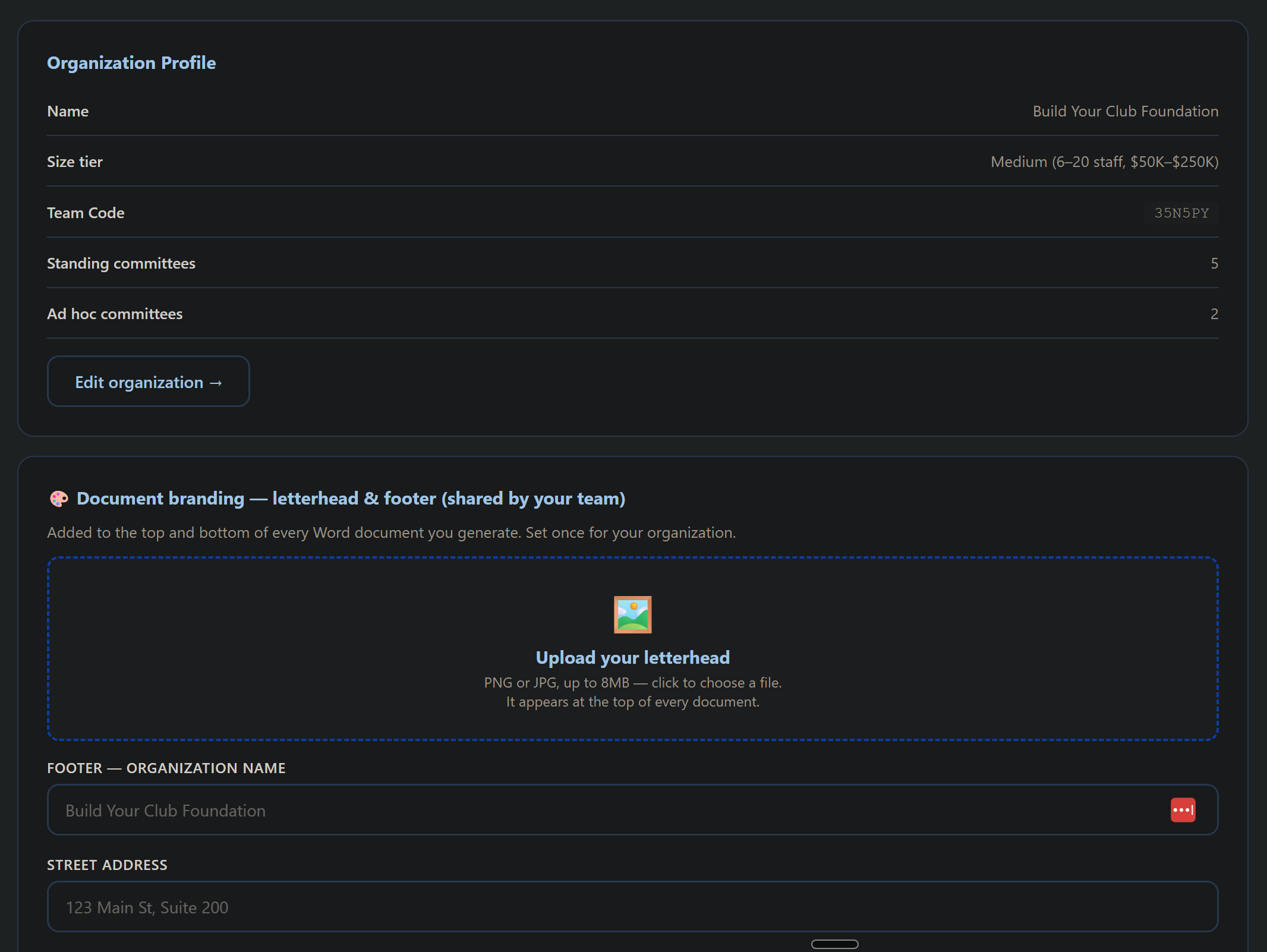
All In One For Profit (for businesses)
The same platform runs a second product line for businesses, All In One For Profit, at https://www.allinoneforprofit.com/. It is built for the business that bills by the appointment, the session or the engagement: counselors, tutors, consultants, trainers, trades. Same security, same support, same apps, with a business's words on the screen.
- The words change, the apps do not. A business sees Customers where a nonprofit sees Donor Management, Client Services where a nonprofit sees Case Management, payments instead of donations and gifts, clients instead of members, subscriptions and subscription fees instead of membership and dues, leadership instead of board, services instead of programs, and promotions instead of campaigns. The accounting export and the API keep the standard names, so a bookkeeper's import or a Zap built for the nonprofit line works unchanged.
- Two plans at the same prices as the nonprofit line. AIOFP Essentials is $49 a month or $499 a year: Customers, Subscriptions, Financial Management, Payroll and Labor Allocation, Contact Manager, Forms, Newsletters, Website and store, Document Library, Project Management, Teams, Training, Calendar and Technology, with up to 3 admin seats, one consultant seat, two specialist seats and up to 500 contacts. AIOFP Complete is $199 a month or $1,999 a year: everything in Essentials plus Client Services, HR Management, Marketing, Operations Audit, Risk Management, Document Retention, AI Workflow Automation and the Owner's Desk, with no cap on seats or contacts. There is no free plan and no Launch Plan on the For Profit line. Subscribe at https://www.allinoneforprofit.com/pricing/; the setup assessment at https://www.allinoneforprofit.com/assessment/ recommends a plan with the reasons shown and carries the answers into the account when it is created.
- Invoicing is on both lines and every plan; see Invoicing above.
- Events for businesses (added October 10, 2026), at https://www.allinoneforprofit.com/business-events/: member mixers, workshops, paid classes, launch parties and open houses. Create the event, add ticket types and discount codes (percent off, dollars off or a free comp code), publish it and share one link; paid tickets go through your own Stripe account, and on the day you check everyone in from a list or a phone at the door, with Add a walk-in for people who turn up. No gift box, no fair-market-value receipts: those belong to the nonprofit Events in Fundraising & Development.
- Spaces & Rentals and Speaking Engagements (added October 10, 2026) are on both lines; see Spaces & Rentals and Speaking Engagements above. For a business the speaking results read as revenue, not gifts.
- Business Plan (added October 23, 2026) writes the plan a bank, SBA lender, investor or landlord expects, filled from the account; see Business Plan above.
- Consultant Partners serve businesses too (added October 23, 2026). The Consultant Partner Program covers All In One For Profit on the same terms as the nonprofit line; the page for businesses is https://www.allinoneforprofit.com/partners/.
- Try it first. https://www.allinoneforprofit.com/demo/ opens every app with no sign-in, loaded with a sample counseling practice, Riverside Counseling Group. A brand-new business starts from the from-scratch checklist at https://www.allinoneforprofit.com/checklist/.
- Retirement Plan Tracking, on AIOFP Complete only, at https://www.allinoneforprofit.com/retirement-plans/: for an advisor who helps clients plan for retirement, one page per client with the accounts they hold, the beneficiaries on each, the contributions they agreed to make, the milestones their birth dates set, and when the plan was last reviewed. It never holds a balance, a rate of return or a full account number, on purpose; the custodian's statement is the record of what an account holds. The guide is at https://www.allinoneforprofit.com/retirement-plans/guide.html.
- The Owner's Desk, on AIOFP Complete: one page that says what needs doing this week, across everything, before you open anything else. Waiting for you at https://app.allinoneforprofit.com/waiting works for a business too; on the For Profit line it leaves out the nonprofit health checks and drafts.
- No health records. Client Services is built for counselors and other practices that keep case notes, and it holds no protected health information and signs no business associate agreement. Clinical records stay in a clinical system; scheduling, notes you would share, sessions and payments live here.
- A business and a nonprofit that belong together, such as a cafe and the charity it supports, are two organizations under one sign-in. Switch between them at https://www.allinoneforprofit.com/team/.
- Who is behind it. A Step Ahead Media, LLC, of West Palm Beach, Florida, runs both lines. Questions about the business line go to [email protected] or 561-203-6142.
Pricing & How to Buy
Two plans, and a free first six months for organizations in their first year. AIONP Essentials covers the everyday work; AIONP Complete adds grants, casework, HR and the deeper compliance tools. Both bring their AI automations and every free resource guide, plus a free Nonprofit Starter Kit and Learn blog to explore before you subscribe.
- Free, the Nonprofit Starter Kit and the Learn blog, real value before you buy anything.
- Free resource guides: downloadable PDF toolkits in the Resources section, included free with your subscription, covering bylaws, board setup, compliance, volunteer management, and more.
- Your plan: AIONP Essentials or AIONP Complete. Each covers the apps that come with it, their AI automations, and all free resource guides. See https://www.allinoneforprofit.com/pricing/ for what is in each.
- The Launch Plan: for an organization formed in the last twelve months, or still waiting on its IRS determination. Everything in AIONP Essentials for six months, for a one-time $199 that is refundable in full within 30 days and credited toward the first subscription, so the first year of AIONP Essentials costs $300 more; from month seven the price is $49 a month or $499 a year, stated on day one. During the six months the organization is the owner plus one admin, with no consultant seat and up to 250 contacts. At month seven it becomes read-only until it subscribes: everyone can still sign in, read, report and export, and nothing is ever deleted. One Launch Plan per EIN, and data migration is not included until the organization subscribes. If a consultant partner introduced the organization it is still eligible: the partner is recorded, is told the organization enrolled, stays its consultant, and nothing about the Launch Plan changes. Integration of other software is not included: connecting another system to your data through an API is not part of the Launch Plan either; on AIONP Essentials and AIONP Complete you create API keys yourself on My Organization, and a custom integration built for one organization is a separate engagement, scoped and quoted. You may enroll before you have an EIN; until you enter it, the only page open is a guide to getting one from the IRS. Enroll at https://www.allinoneforprofit.com/launch/. Setting it up is meant to be done by the organization itself, with the free step by step walkthrough at https://www.allinoneforprofit.com/launch-guide/; for anyone who would rather have somebody on the call, Launch Support is an optional $99 for two forty five minute screen share sessions plus questions by message through the six months, then $59 an hour after that, at https://www.allinoneforprofit.com/launch-support/. It is help with the software, not nonprofit advice, and it is never required.
- AI automations included: every subscription includes the AI that drafts, analyzes, and compiles from the data already in your apps, with no separate add-on. From $49/mo on AIONP Essentials.
Subscribe at the pricing page. Checkout is handled securely through Stripe (card) or PayPal (a PayPal balance or a card through PayPal), and your access is tied to your sign-in so every tool is available on every device immediately after subscribing. On an annual plan we email you 30 days before each renewal with the date and the amount, so a renewal is never a surprise to your board.
Have a discount or promo code? Use Stripe at checkout to apply it. PayPal cannot accept promo codes.
The 30-day guarantee (added October 3, 2026). A first annual payment can be refunded if you ask within 30 days, less one month at the monthly rate ($450 back on Essentials, $1,800 back on Complete). Once per organization; renewals and monthly plans are not refundable, and a monthly plan can be cancelled any time with access through the month you paid for. The terms are at https://www.allinoneforprofit.com/refunds.html.
More than one legal organization? A related entity under common control, a chapter or affiliate with its own EIN, or a fiscally sponsored project that needs a workspace of its own each counts as its own organization. Each additional one joins the same subscription at half the plan price: $25 a month or $250 a year on AIONP Essentials, $100 a month or $1,000 a year on AIONP Complete, per additional organization. Organizations that must meet HIPAA or another compliance standard carry additional cost, quoted for the structure. Email [email protected] with the list of organizations and we set it up.
Support & Contact
Questions, feedback, or help getting set up?
Email [email protected] and we'll get back to you.